Utilities
Global Search
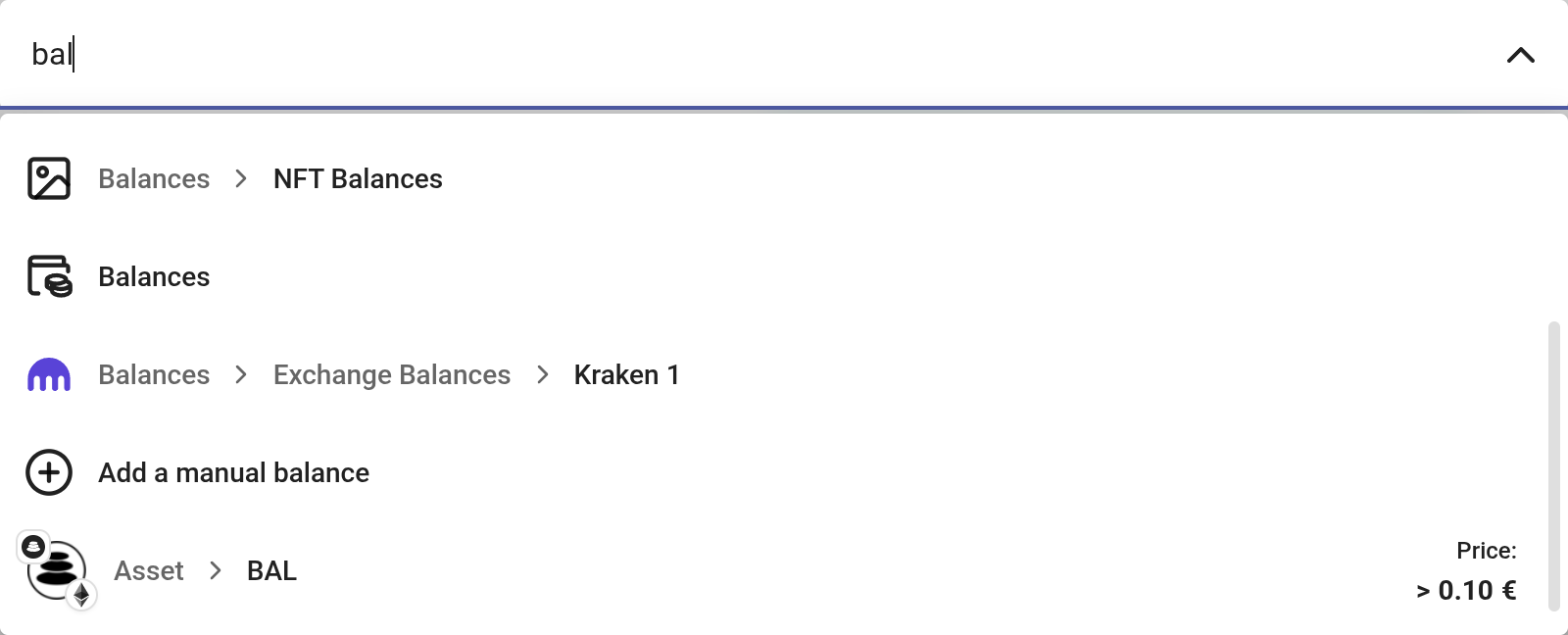
You can use global search provided to speed up your actions by clicking the icon on the top bar, or using the shortcut Control-/ (Command-/ if you are using Mac).

Some actions provided by this global search:
- Navigate to any page in rotki.
- Quick-add actions, such as
Add a manual balance,Add blockchain account,Add an exchangeorCreate Tag. These take you to the relevant page with the add dialog already open. - Go to a certain owned asset overview page.
- Go to a certain location overview page. Your connected exchanges and the chains you track both appear here.
One query returns all of them together, ranked in a single list.
Taking Notes In-App
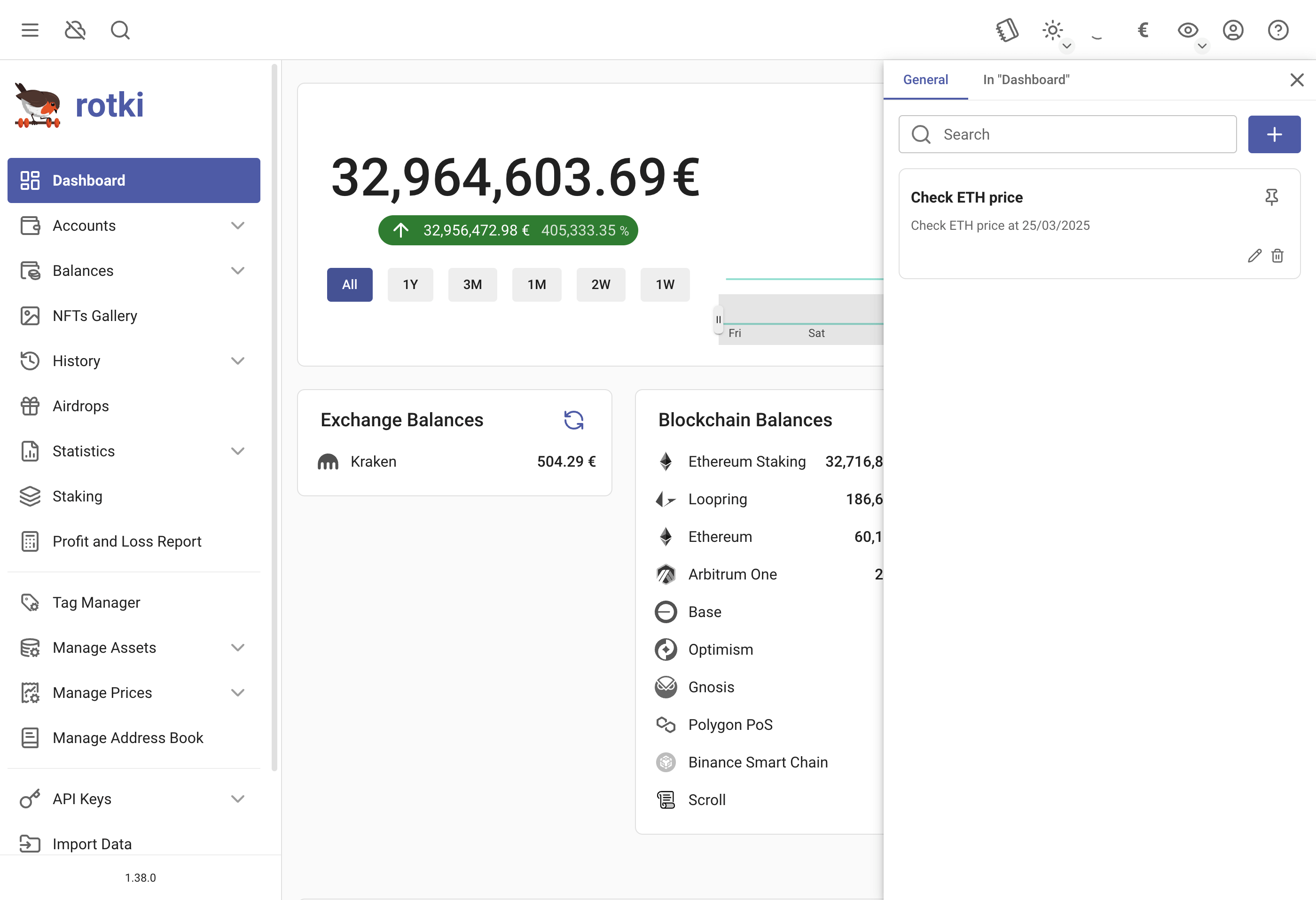
You can now take notes in various sections of the application. Note taking is categorized into two types:
General Notes: These are notes available & visible across the application.
Location-specific Notes: These are notes restricted to the location in which they were created in the application.
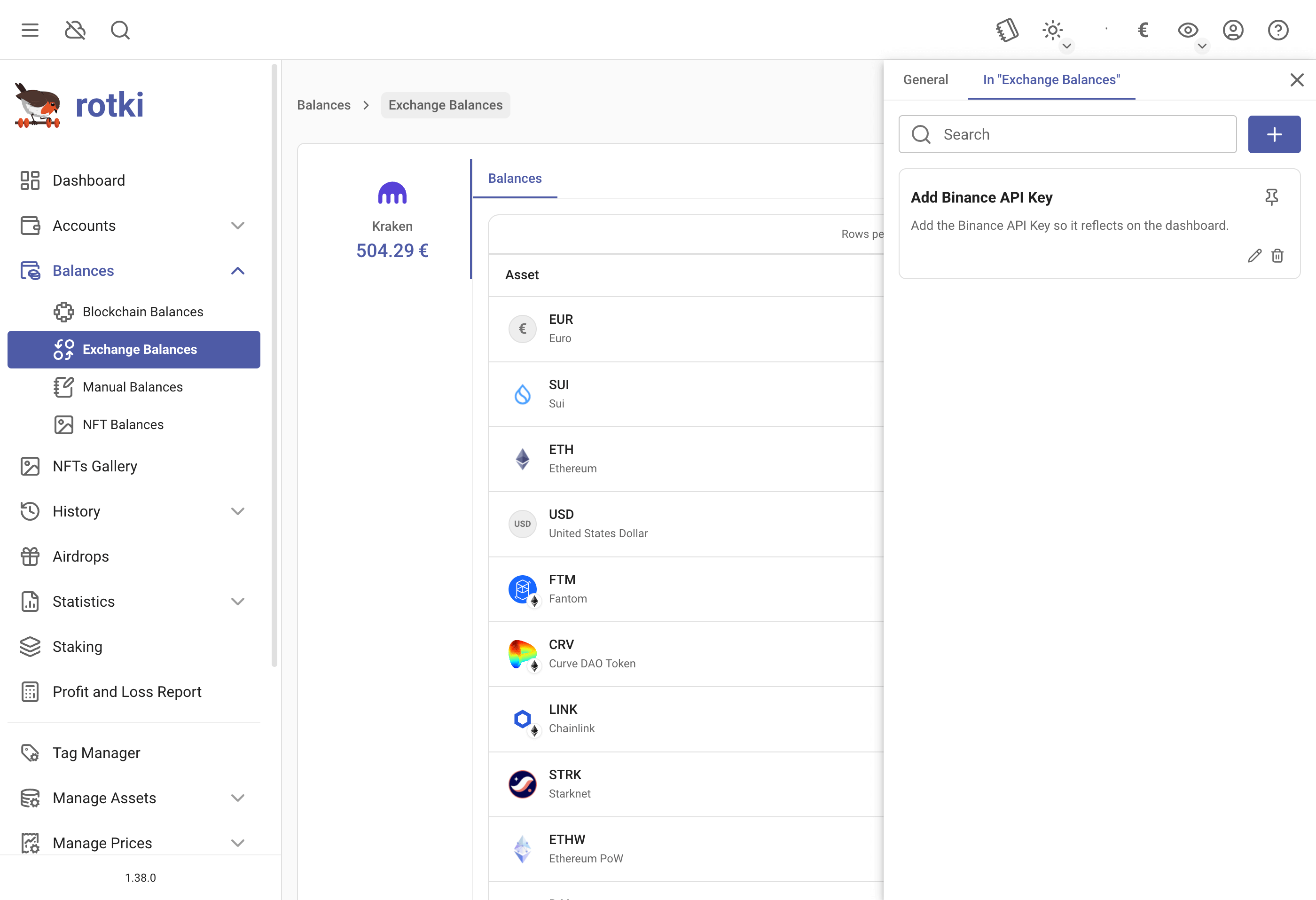
You can also pin notes; the pinned notes will appear at the top.
Notifications
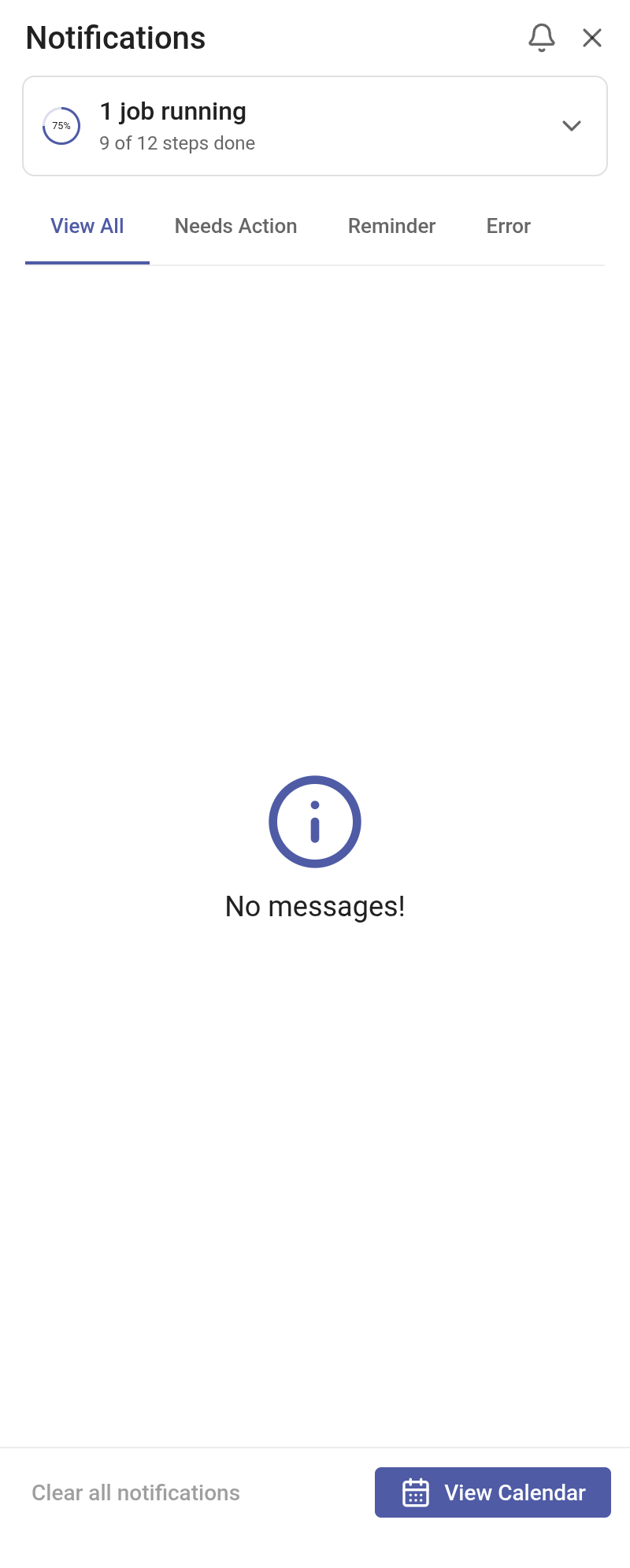
rotki reports what it is doing, and anything that needs your attention, through the notification area in the toolbar. Opening it shows every notification received this session, grouped into four tabs: View All, Needs Action, Reminder and Error. Many notifications carry an action, such as adding a missing API key or opening the dialog that resolves what they are about. Any task still running is shown above the tabs, with its progress.
Notifications also appear briefly as a popup in the corner of the window as they arrive.
Silencing popups
If the popups interrupt you, click Silence notification popups in the notification area. The button then reads Popups silenced. Click to allow them again, and you can turn them back on the same way.

Nothing is lost while popups are silenced. Every notification still arrives in the notification area with its actions intact; only the transient popup is suppressed. The setting is stored with your account, so it stays as you left it the next time you log in.
How often a notification repeats
Notifications about a condition that persists — a missing API key, or a chain with no indexer available — would otherwise greet you at every login. Instead each one backs off: you see it immediately, then again a day later, then two days after that, then a week after that, and after that it stops interrupting you.
It still appears in the notification area with its action, so you can deal with it whenever you like, and the schedule starts over if you change that chain's indexer order or that service's key. Chains and services are tracked separately, so silencing one never affects another.
To stop the "No indexers available" notification for a chain you have no intention of configuring, see Suppressing indexer notifications.
Clearing notifications
Use the clear button to dismiss all active notifications at once; rotki asks for confirmation first. The area holds a maximum of 200 notifications, after which the oldest are dropped.
Background Tasks
A list of processing tasks is available on the notifications tray, headed by a count of how many jobs are currently running. A task that reports its progress also shows how many of its steps are done.
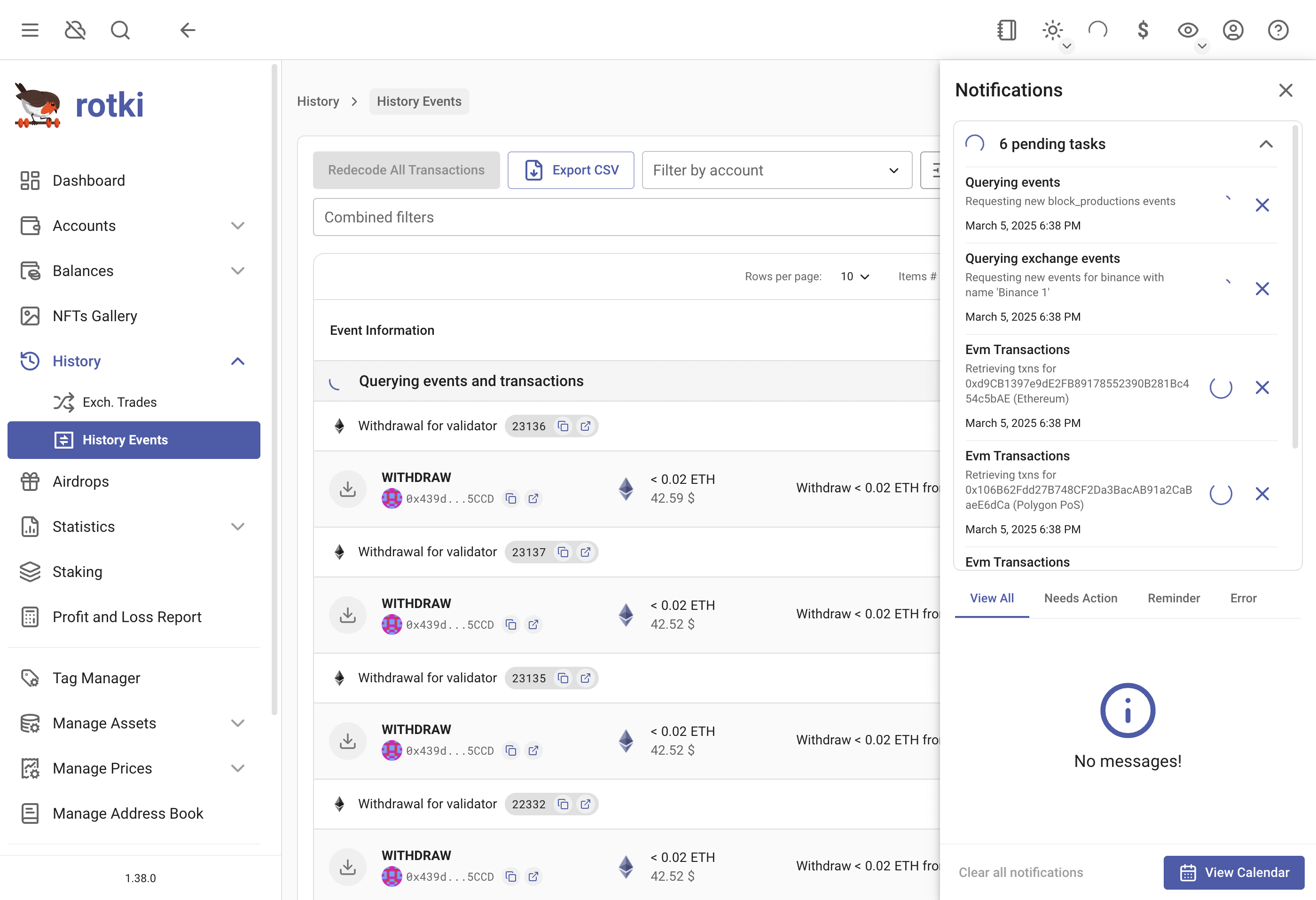
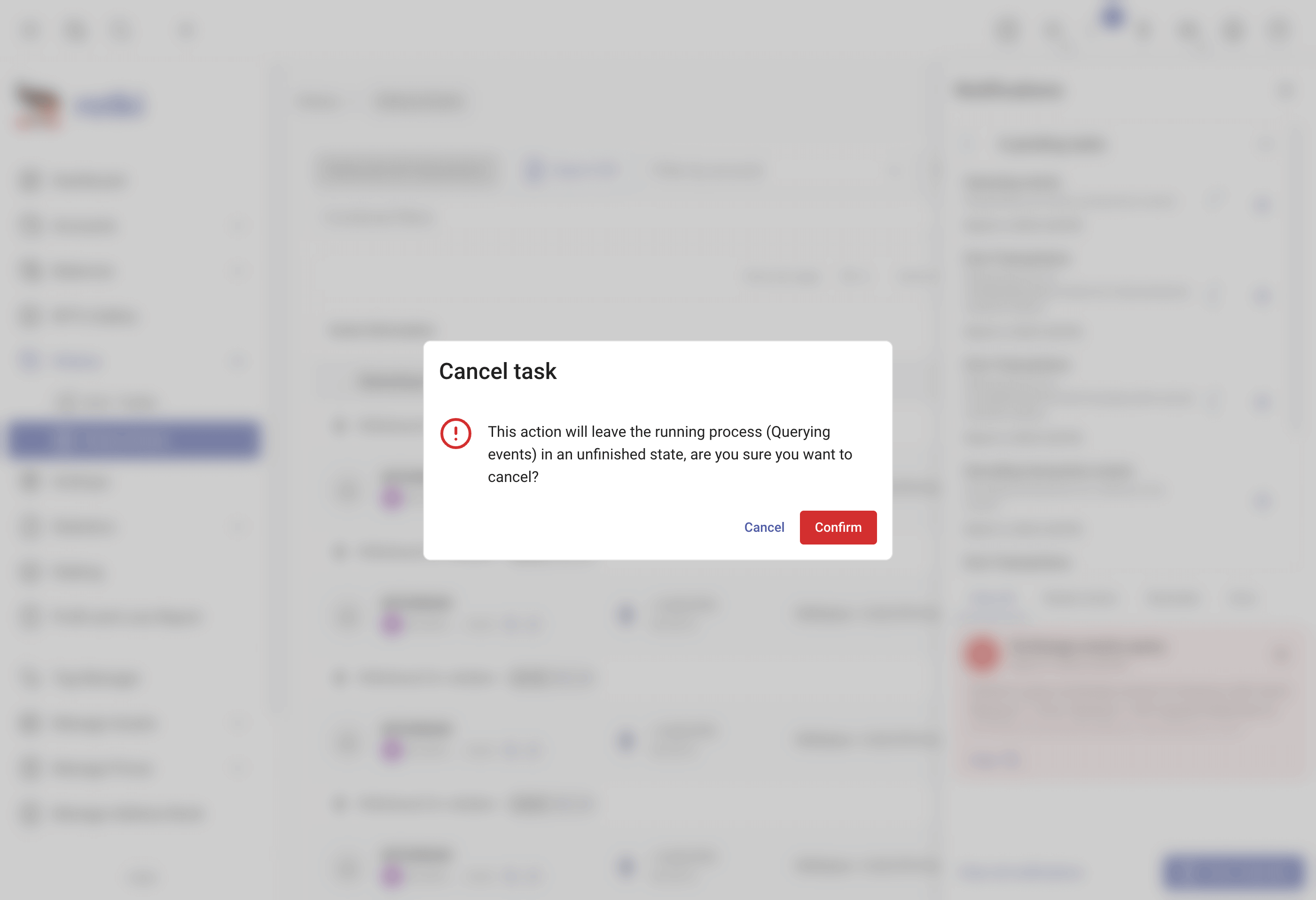
It is possible to cancel a long running task, but use this feature sparingly. rotki asks you to confirm first, and warns that cancelling leaves the underlying process in an unfinished state.