
History events
TIP
Trying to understand event types? See the Event Types & Subtypes Reference for a complete guide to what each event category means, with examples and default tax treatments.
rotki is capable of pulling and decoding a bunch of different events, ranging from EVM chain transactions to exchanges events and more. When you visit the History Events section the process to obtain all the information will start. You will be able to check the status in an informative breakdown per blockchain address. Free users are limited to a number of latest events.
Supported events
Currently, these events are detected automatically by rotki:
- Transactions from registered EVM accounts (except Avalanche).
- Transactions from registered Bitcoin and Bitcoin Cash accounts.
- Transactions from registered Solana accounts.
- Events from registered exchanges.
- ETH withdrawal events
- ETH block events
- ETH deposit events
- Asset movement events (deposits and withdrawals).
- Swap events (trades).
Additionally, you can add your custom events.
Events filtering
Events are narrowed with a filter bar that holds one pill per active filter, with pills for the date, asset, amount, protocol, location, entry type, event type and subtype, transaction hash, address, validator, account and event state.
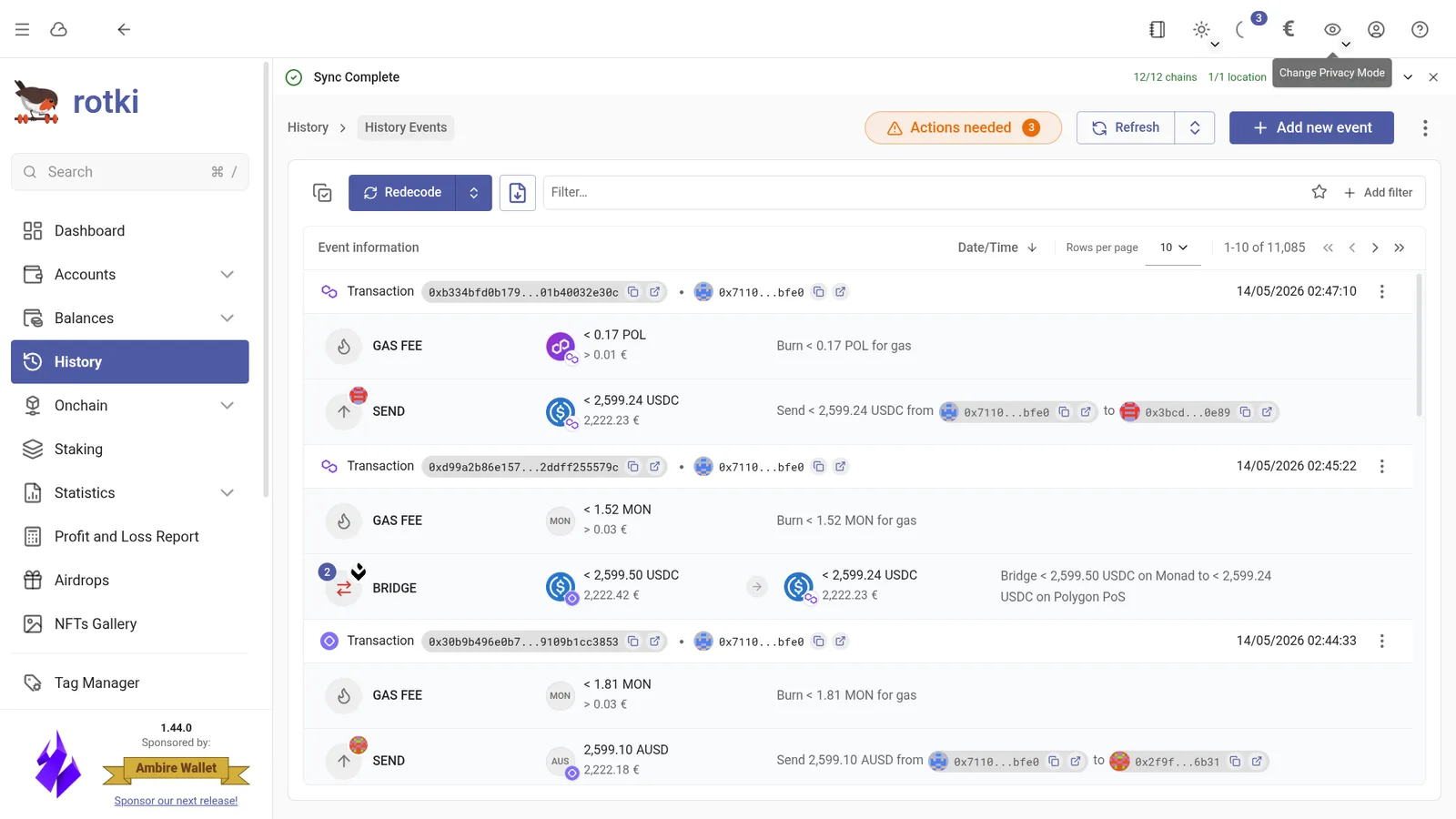
See Filtering history events for the full reference: every available filter, the typed date and amount syntax, excluding entry types, the state markers and saved views.
Refreshing Events
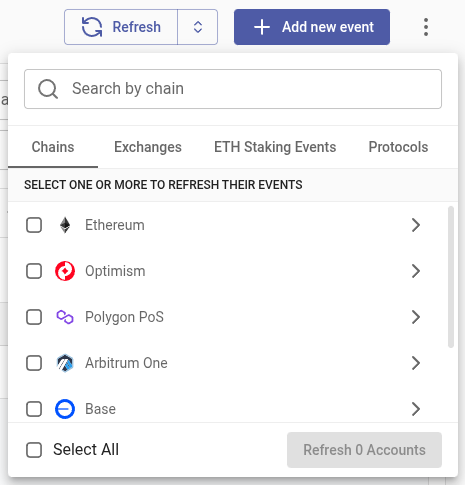
You can choose to refresh all events by clicking the main Refresh button, or you can open the menu and choose to refresh only certain types of events or accounts.
By Chain
Refreshes specific chains, optionally limited to only specific accounts on those chains.
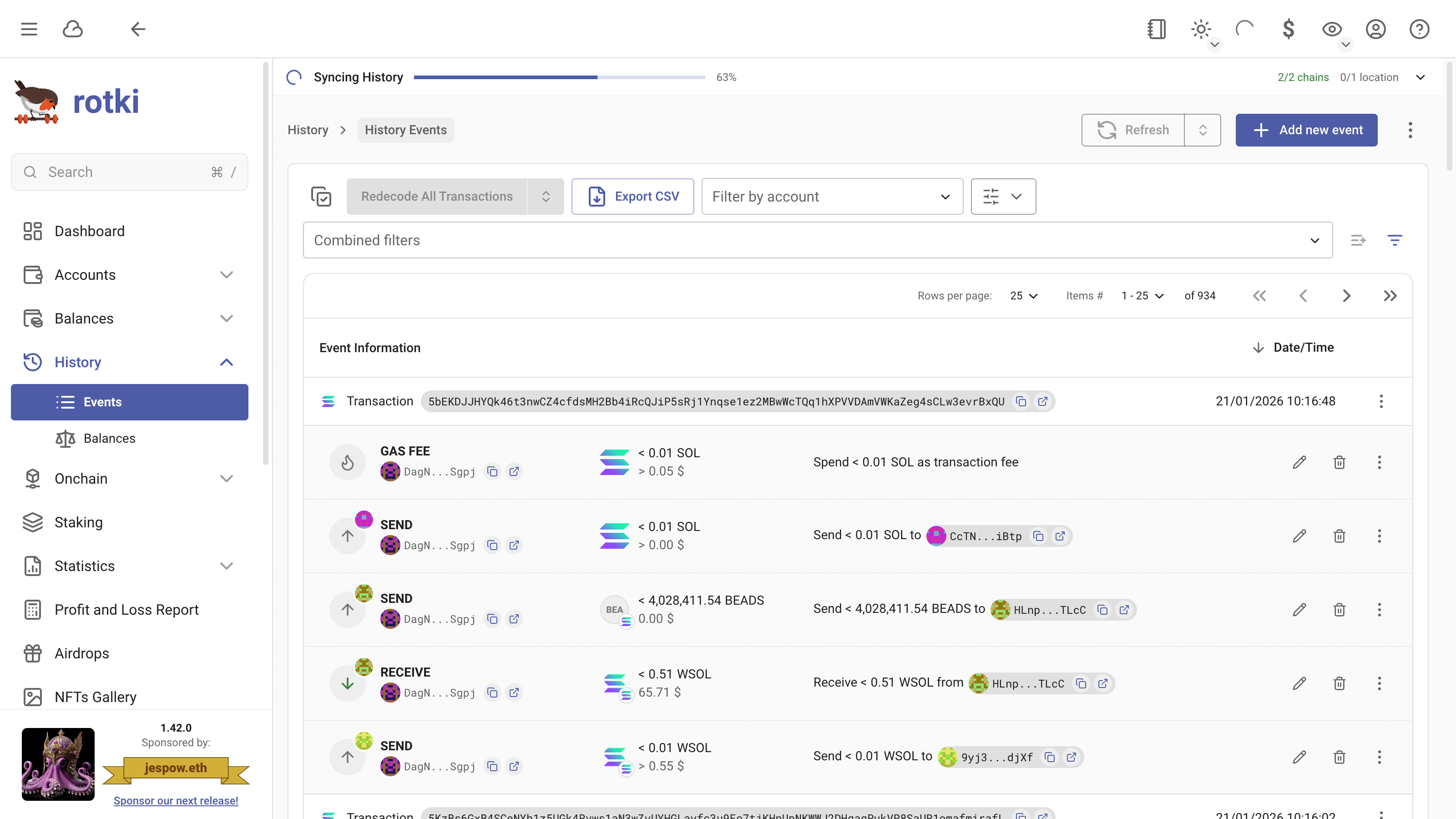
To see the status, you can click the button here:
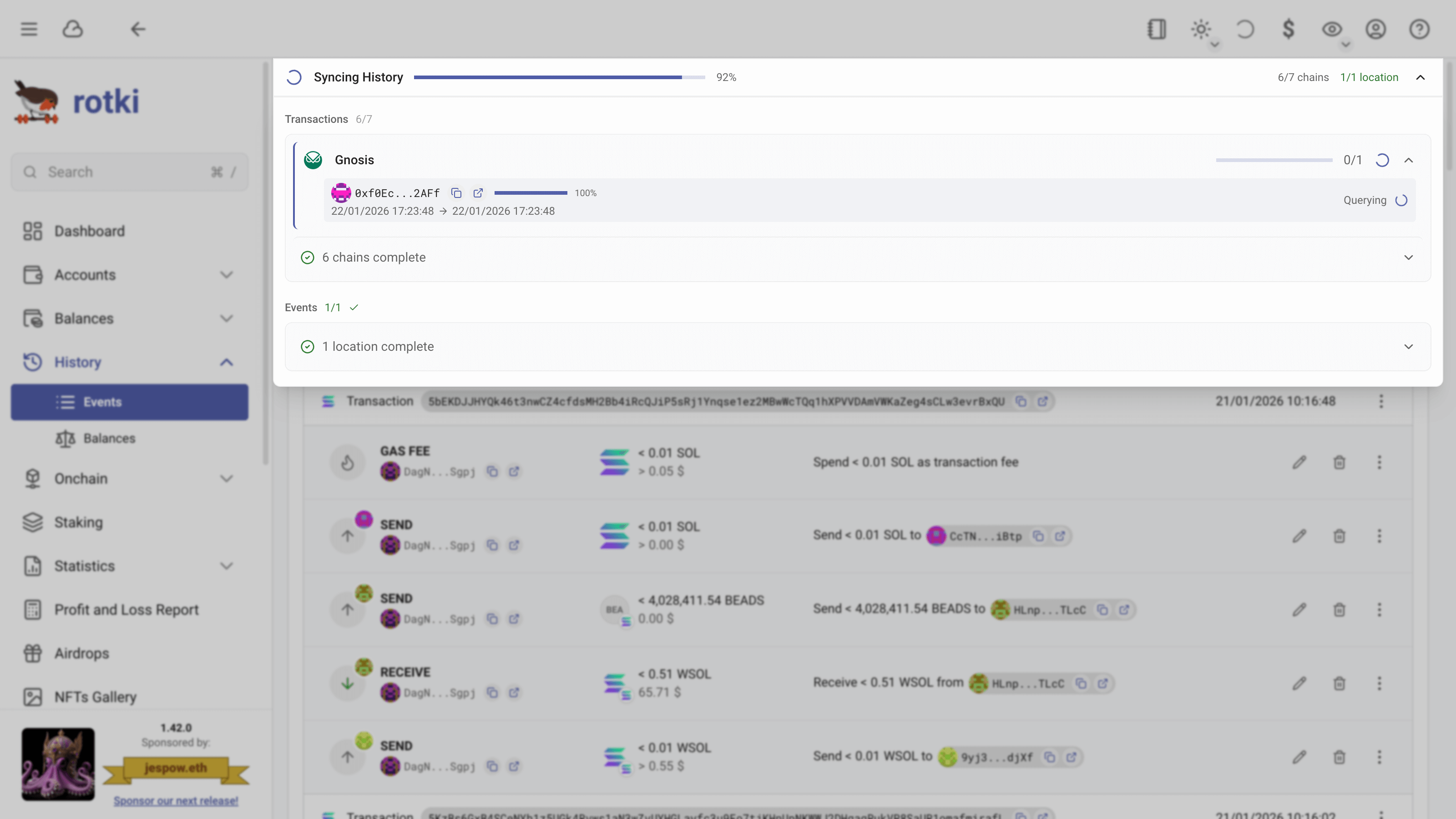
Basically, what happens when you refresh the transactions/events is:
- It will query the transactions from the "last queried time" to the current time.
- For EVM events, after rotki queries these new transactions, it will try to decode them.
- The events will be displayed correctly in the UI only after they are properly decoded.
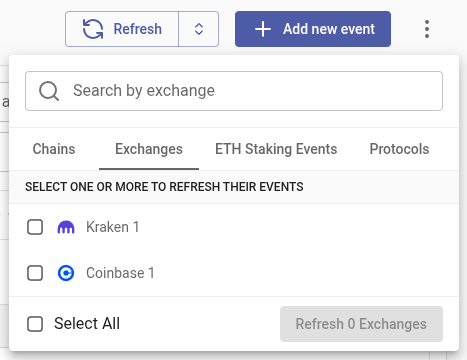
Exchange Events
Refreshes the events from specific exchanges.
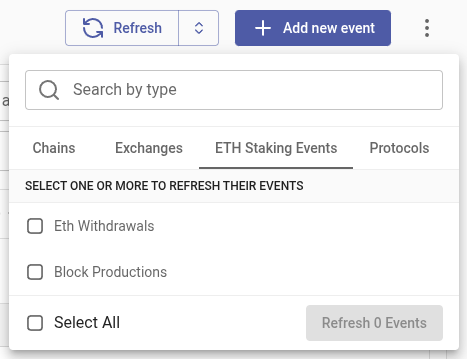
ETH Staking Events
Refreshes ETH withdrawals and block production events.
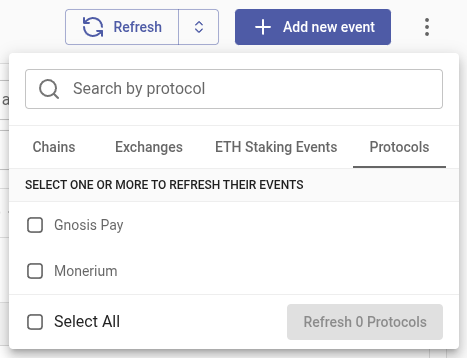
Protocol Events
Refreshes events from specific protocols such as Monerium and Gnosis Pay, pulling data from the protocol's API to enrich the existing onchain events.
Redecoding blockchain transactions
Sometimes you may need to redecode events for blockchain transactions (EVM and Solana).
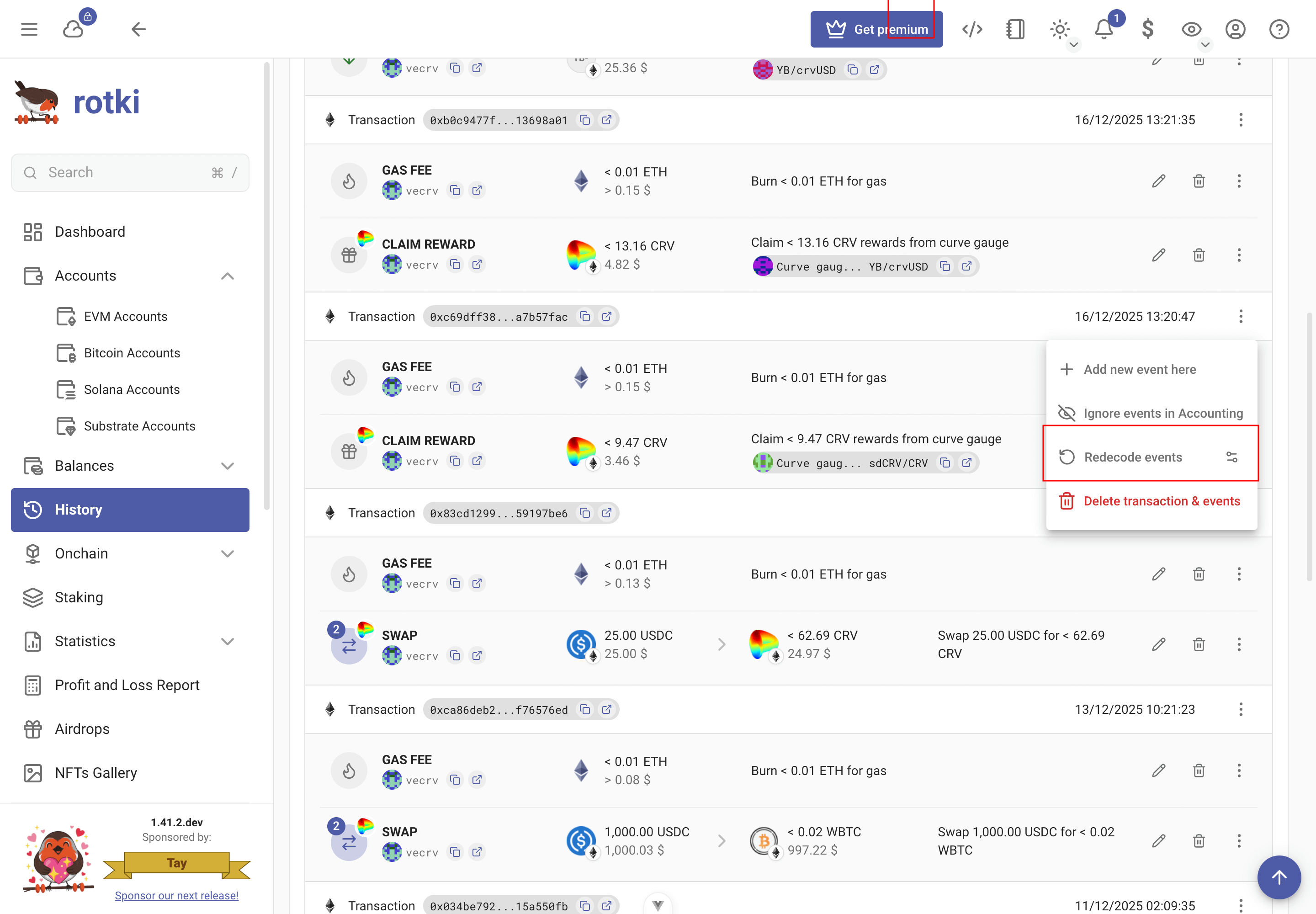
Redecode a single transaction
- Click the three-dots
⋮menu on the transaction row - Click
Redecode events
This will re-read and re-decode the transaction's events and try to understand what happened. If the transaction contains custom events, you will get an extra confirmation asking whether to also reset these custom events.
Advanced: Redecode with options
If you need more control, use Redecode with options (button at the right of Redecode events) to:
- Select how custom events should be handled by the redecoding logic
- Choose the priority for indexers that we want to use when re-querying remote information about the transaction :::
Redecode all queried transactions
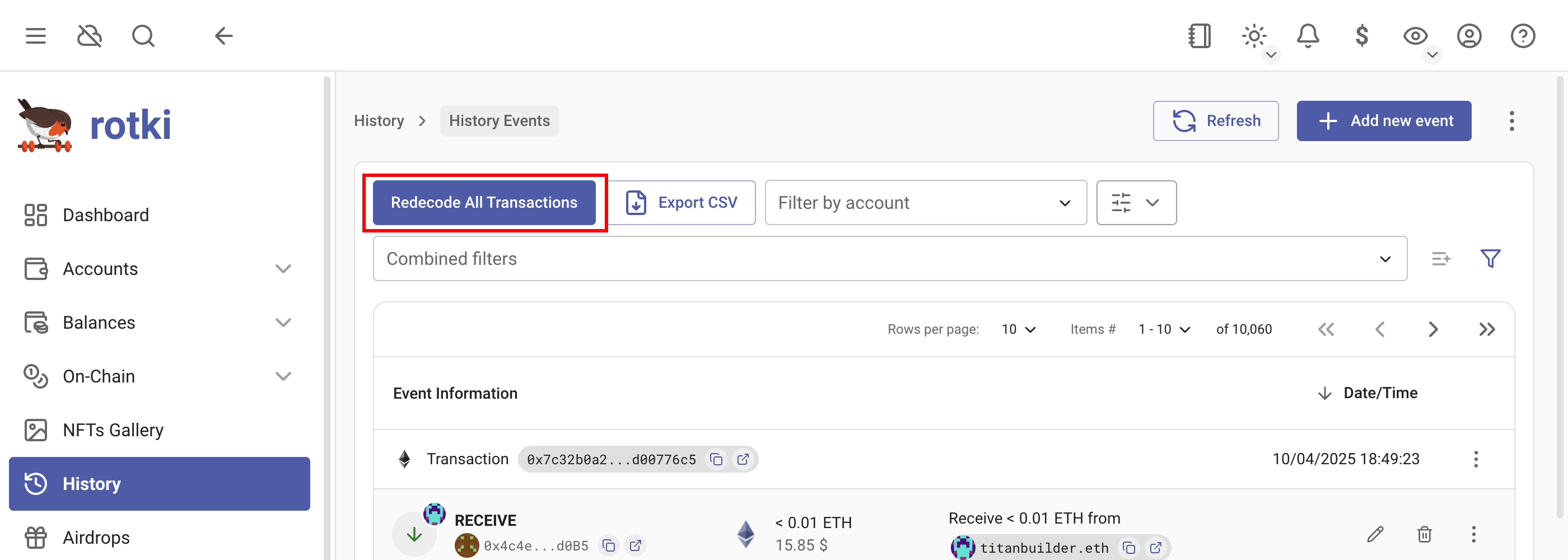
To redecode all transactions that have been queried, click Redecode All Transactions at the top of the page.
Transaction decoding status
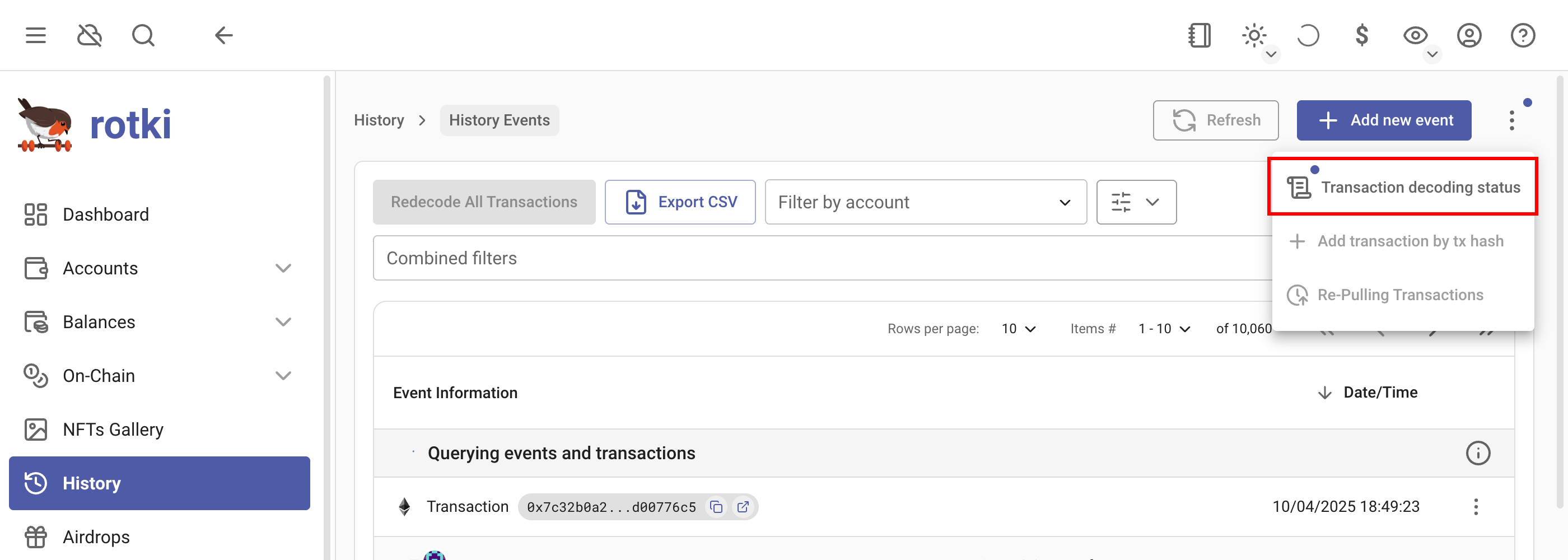
To see the status of event decoding, click the menu button and go to Transaction Decoding Status.
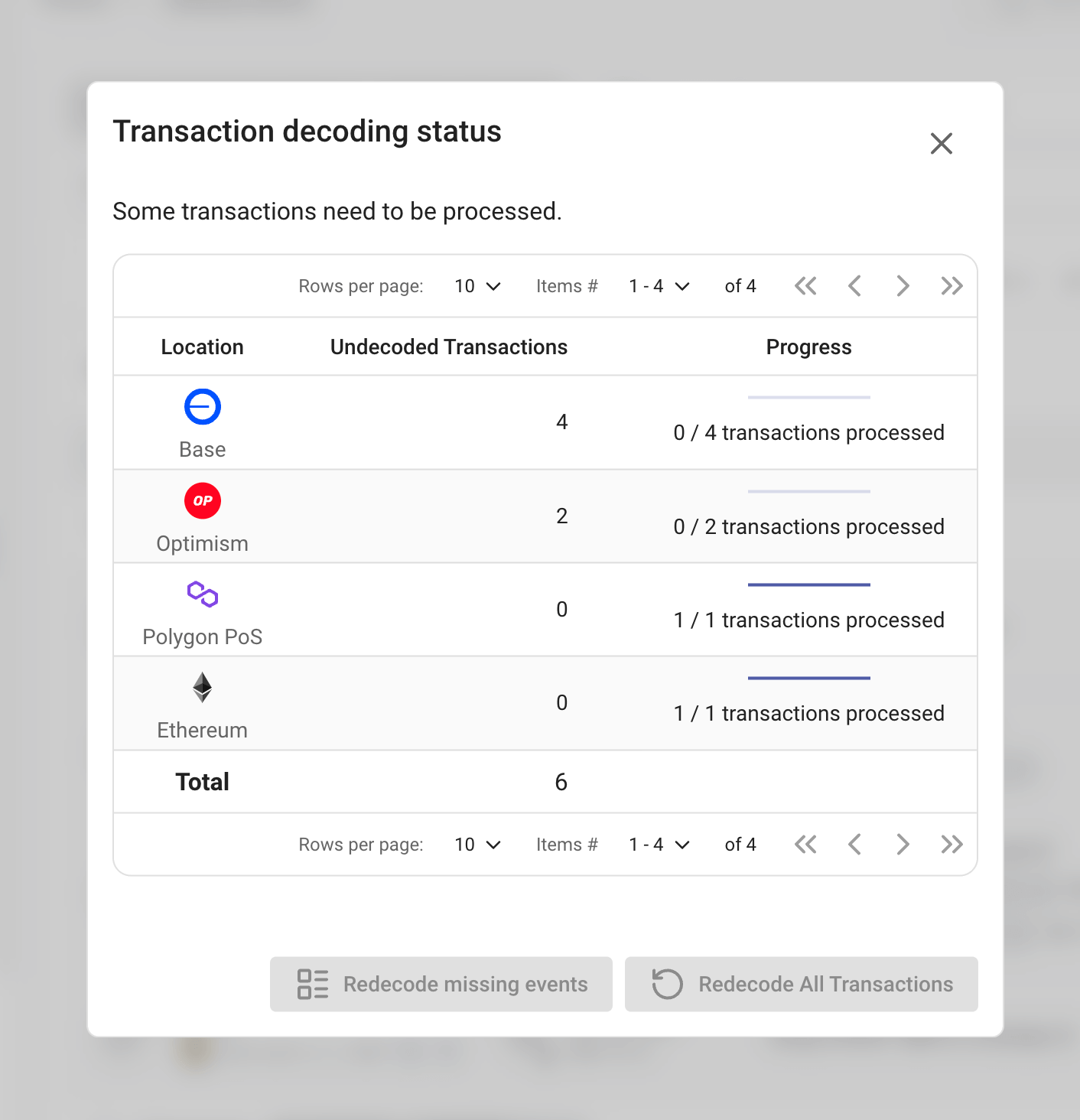
You will see the status of the EVM events redecoding.
Notes
EVM transactions and events can be deleted, but to restore them you will have to either purge all transactions or add by the transaction hash.
Export history events as CSV
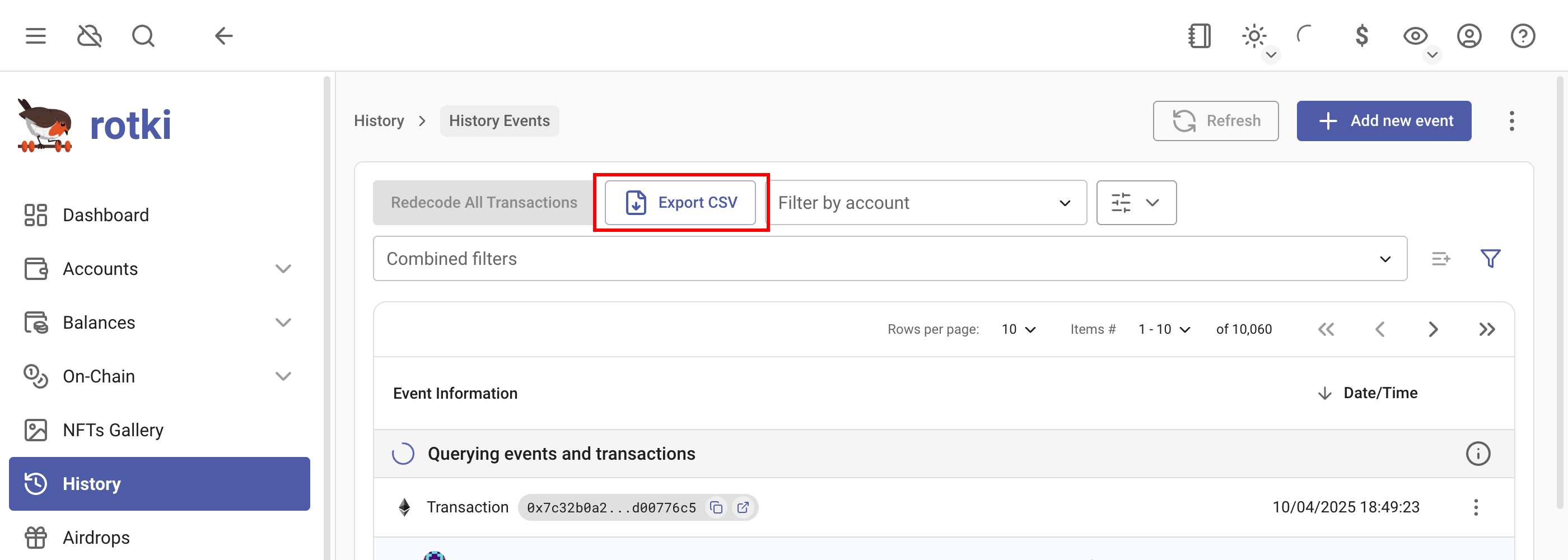
Events can be exported as CSV, click on Export CSV button and accept prompt to download exported events.
Delete transactions & events
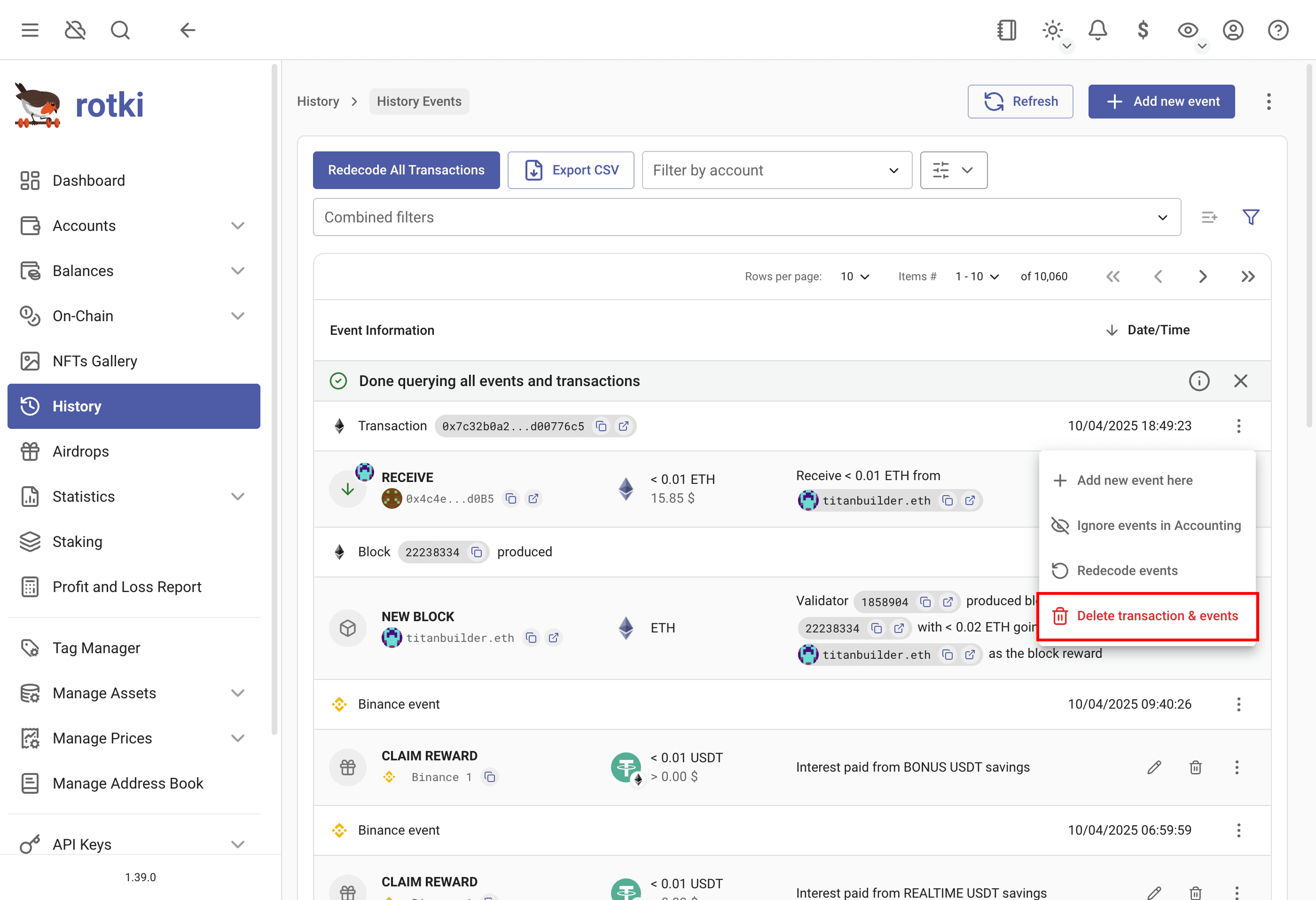
Add transaction by hash
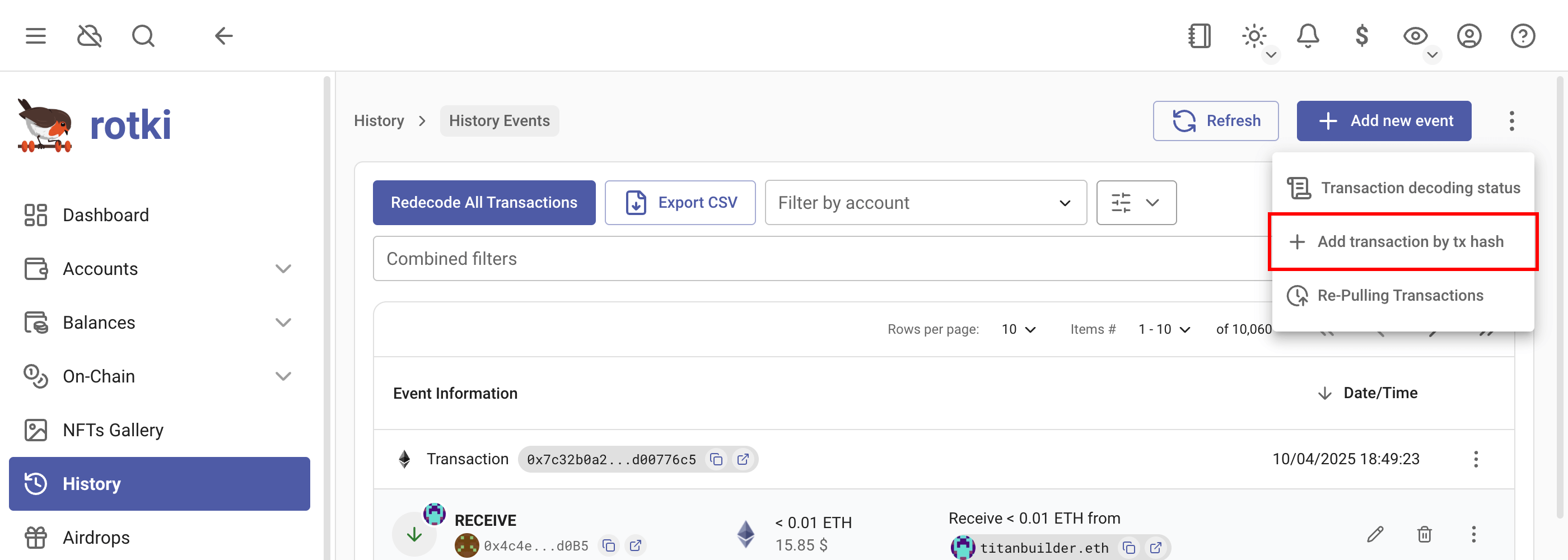
If you want to add a transaction that was either deleted or for some reason missed, or was not found by rotki, you can add it by transaction hash by clicking the menu as seen in the picture.
Re-Pulling events missed in the past
It is possible that due to network issues, RPC errors, or other problems, some events may have been missed during the initial sync. This can happen when:
- An RPC node provided broken information.
- Etherscan or other indexers had wrong data.
- Sources used were not fully synced.
- Other kind of bugs.
You can find the menu by clicking the three-dots ⋮ menu in the top right and selecting Re-pulling Events. You can pull blockchain transaction events and events that come from exchanges.
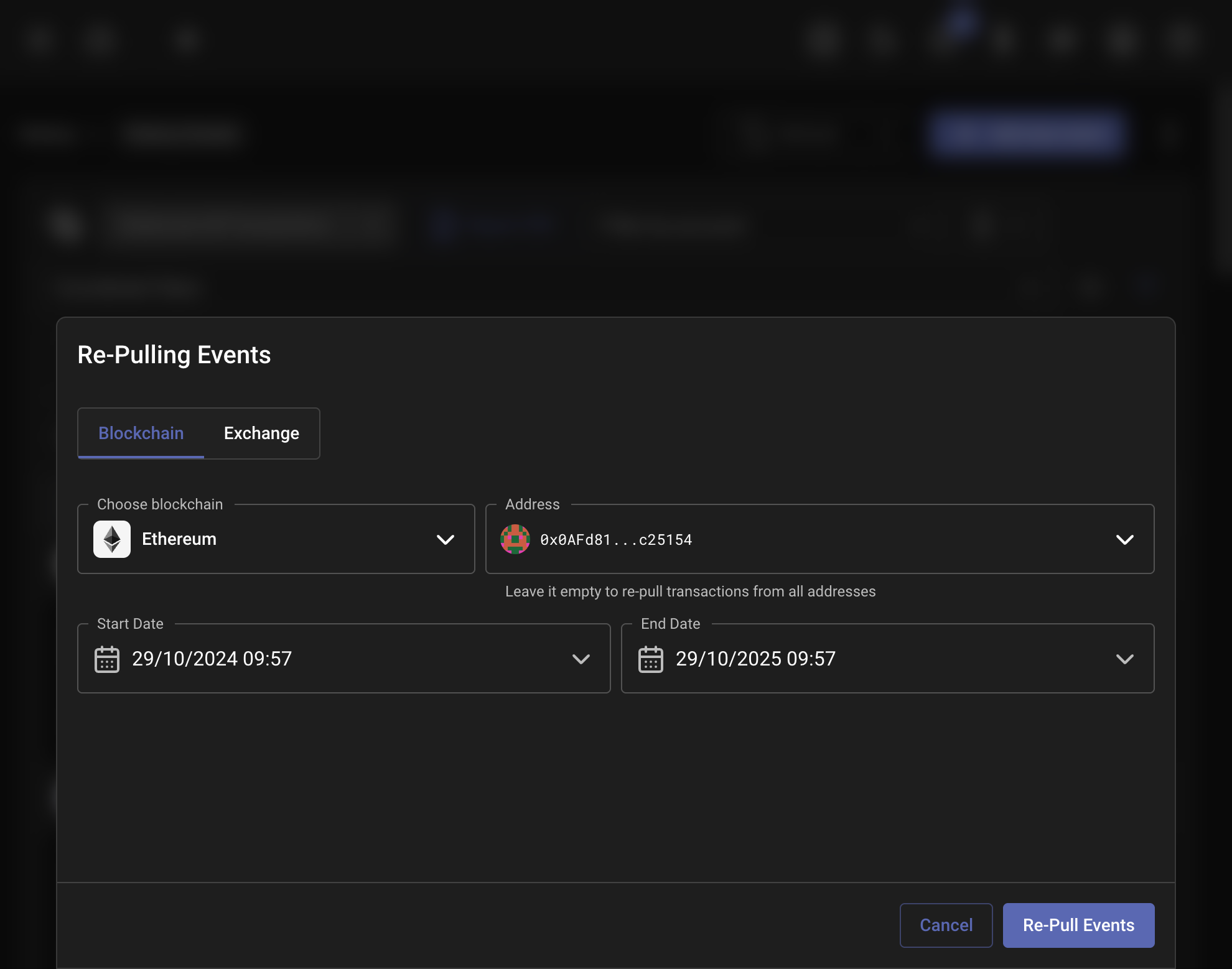
If any missed transactions are found, you'll see a notification indicating how many new transactions were discovered. You can click the action in the notification to view the pulled transactions.
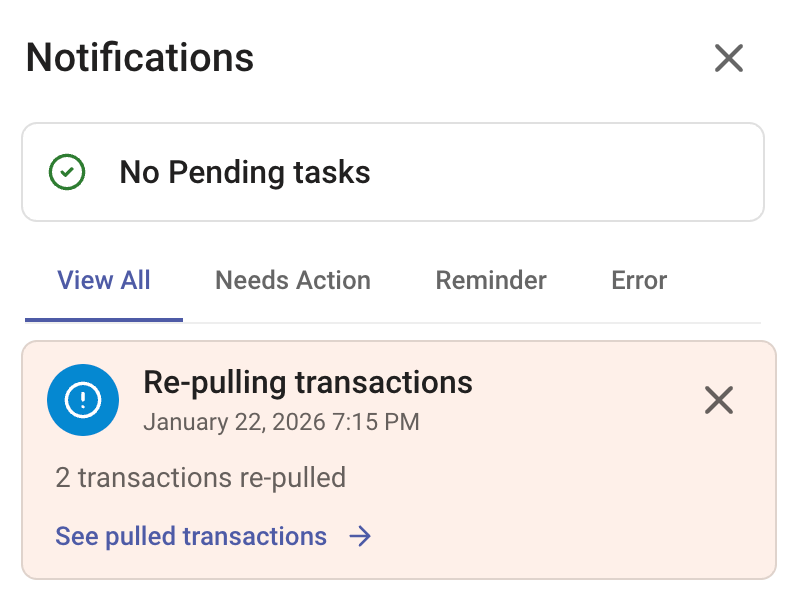
After the transactions are pulled, blockchain transactions need to be decoded, while events from exchanges will appear directly. For blockchain transactions, you can either:
- Wait a few moments for automatic decoding
- Click the refresh button to trigger decoding manually
- Check the transaction decoding status to monitor progress
Once decoded, the blockchain transactions will appear in the history view with all their associated events.
Missing accounting rule
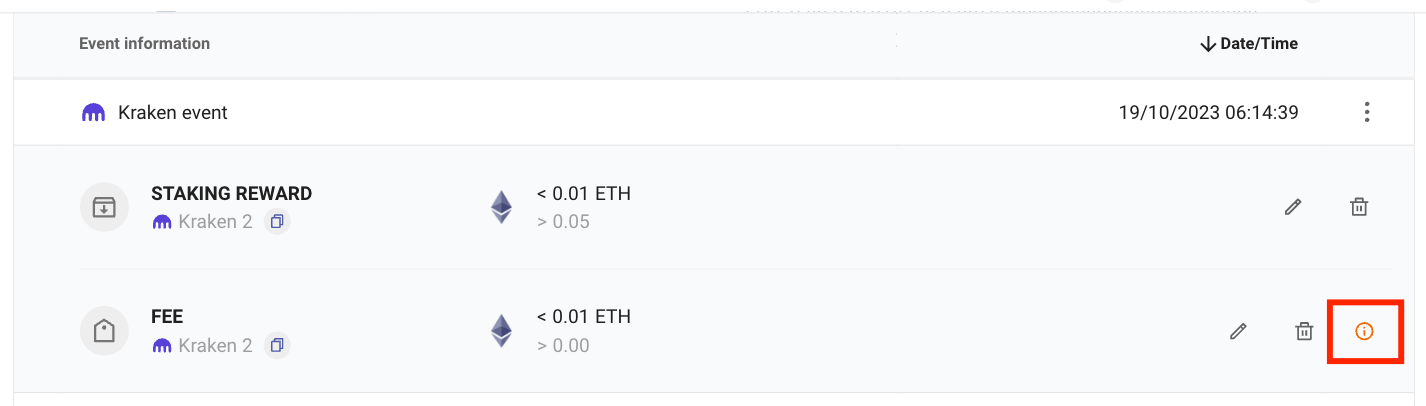
If you see this warning button, it means the event won't be processed correctly in accounting. It could be due to improper decoding or a missing accounting rule for that event. You can fix it by editing the event or adding the missing accounting rule. You can also edit the events if they have special meaning to you, such as OTC trades or transfers between accounts.
Edit accounting rule

You can customize how events are processed in accounting by editing their accounting rules. When editing an accounting rule, you have two options:
Apply to all matching events - Updates all existing events that share the same combination of event type, subtype, and counterparty. This creates a general rule that affects all similar events.
Apply to this specific event only - Creates a special accounting rule that targets only the selected event, without affecting other similar events.
Ignore events in accounting
By default, all events will be processed in accounting, but you can ignore unwanted events, so they won't be processed. You can click on the three-dots ⋮ menu to display the options for the group of events, and click Ignore events in accounting/Unignore events in accounting.
Select multiple events
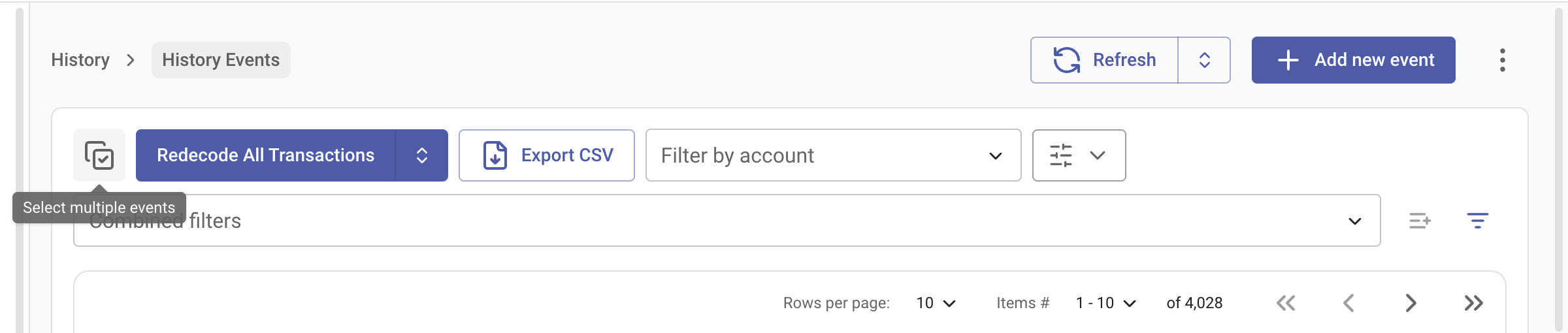
You can go to selection mode and select multiple events by clicking this menu in the top left:
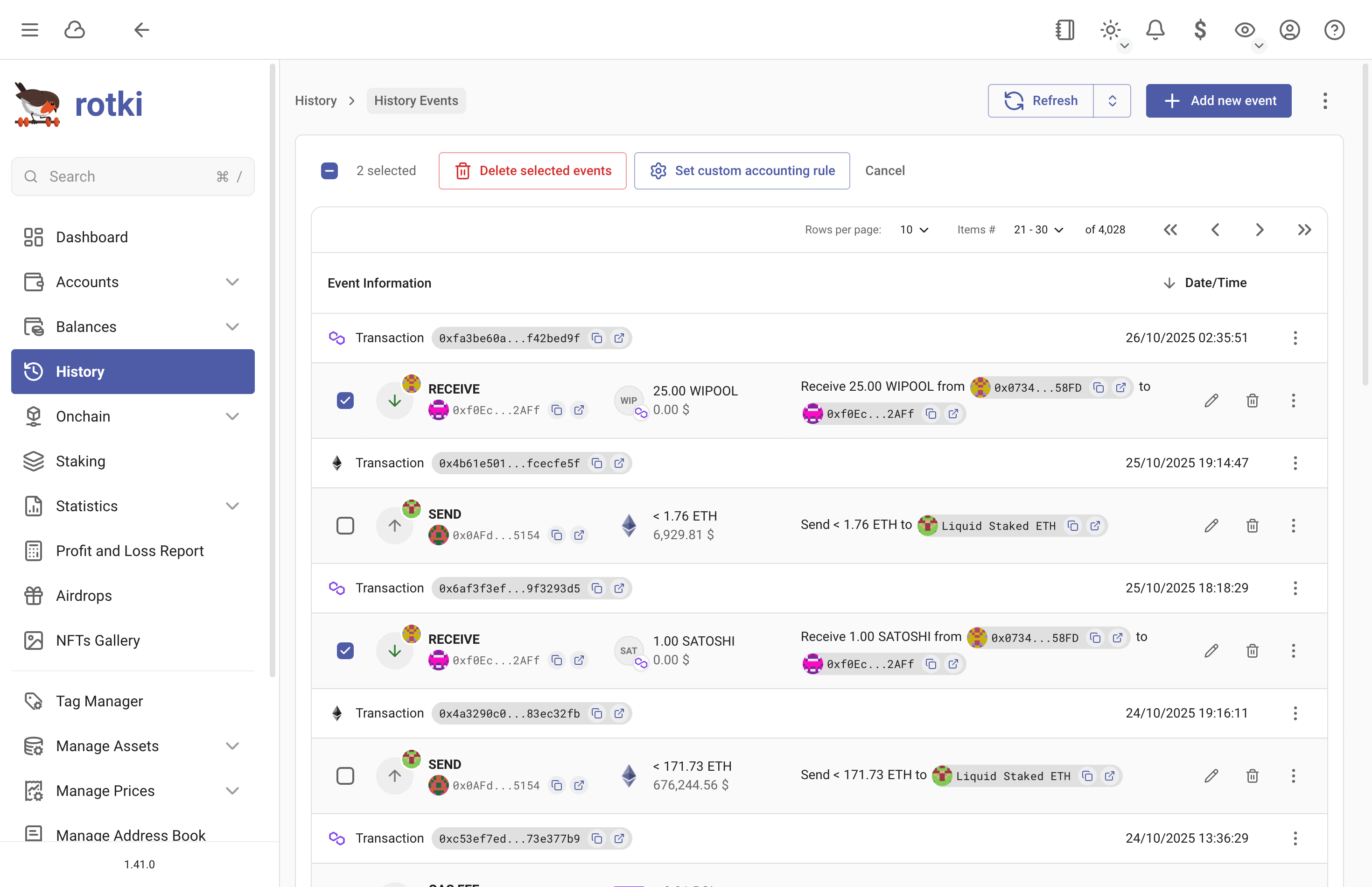
You can perform two actions:
- Delete the selected events
- Set regular accounting rules for specific events
- Note: Multiple selected events must have the same entry type/subtype combination to apply custom accounting rules.
Add / edit events
There are 11 types of events in rotki:
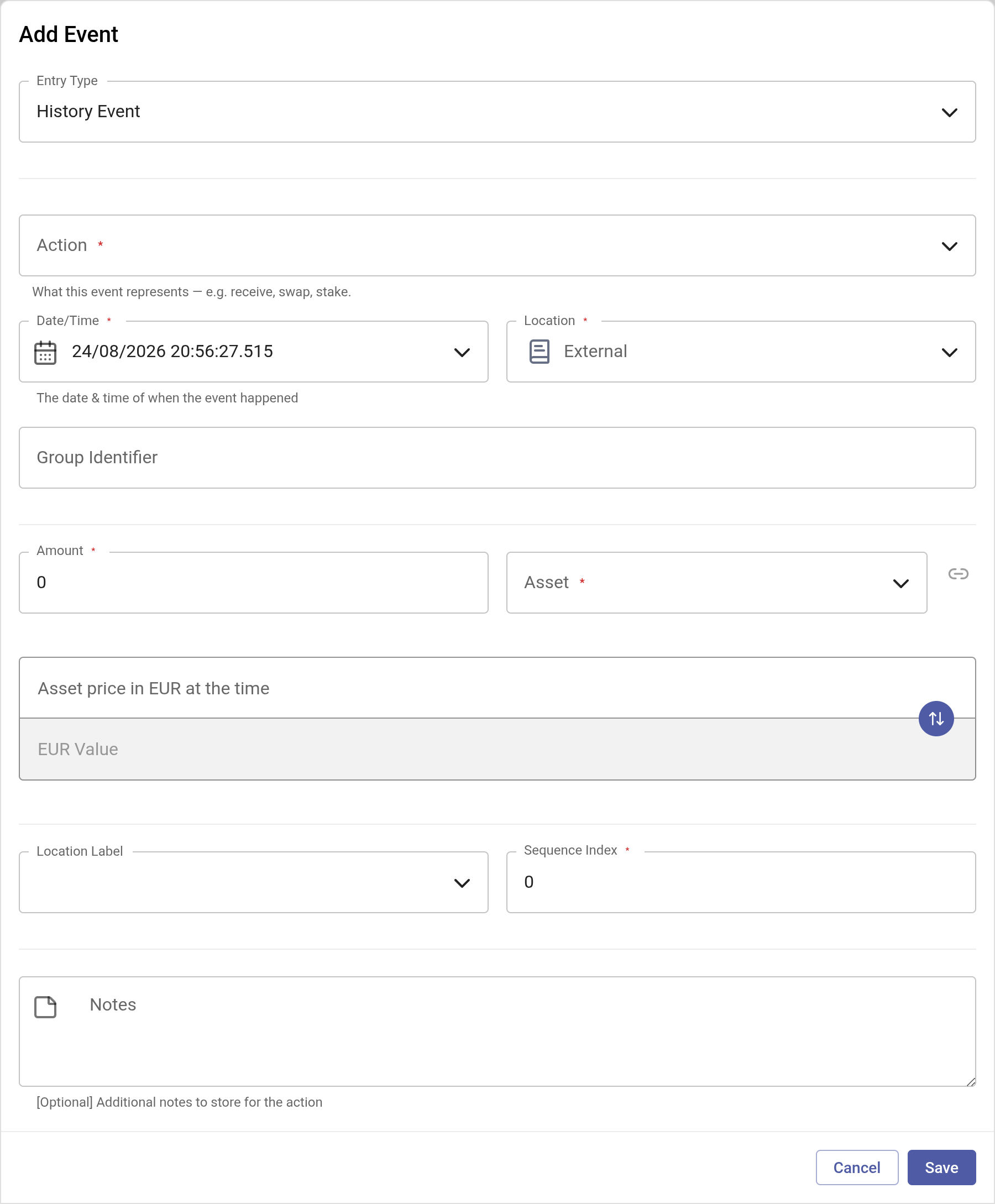
Here the non obvious fields are:
Action: What the event does, named as a verb. See Choosing an action below.Sequence Index: Is an internal index that sets the order in which events happened in the transactions. This allows knowing how events are sorted and should be taken into account. By default it corresponds to the event log index in the blockchain with a few exceptions.
For history event, and EVM history event, if any event was not decoded the way you expected it to be, you can always customize events using the settings described above or file a bug report via the in-app Report Issue dialog (Help & Support > Report Issue), on our github repository, or in our discord server. The customizations that you make also affect how events are processed in accounting.
Choosing an action
Every event form has one Action field describing what the event does, written as a verb rather than as a raw type and subtype pair. Open it and you get a searchable list, so you can type bridge or airdrop instead of working out which combination expresses it.
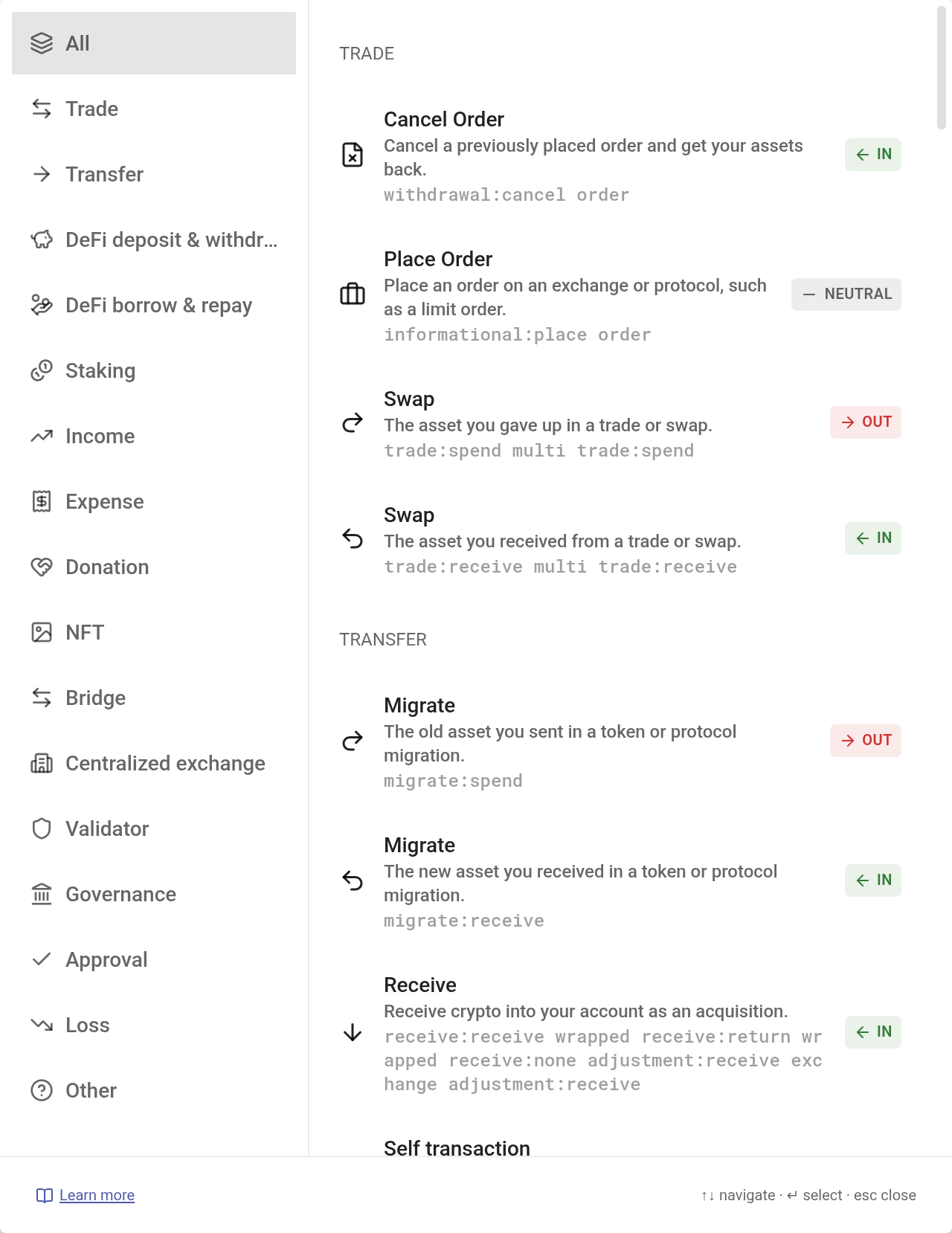
Actions are grouped by intent: Trade, Transfer, DeFi deposit & withdraw, DeFi borrow & repay, Staking, Income, Expense, Donation, NFT, Bridge, Centralized exchange, Validator, Governance, Approval, Loss and Other. Each row carries a one-line description of what it means for your accounting, and a direction badge (In, Out or Neutral) telling you which way the assets move. That badge is how two rows sharing a name are told apart: a swap has both an Out and an In side, and so does a bridge or a migration.
The actions you pick most often are collected in a Recent group pinned to the top of the list. Use ↑ ↓ to move, ↵ to select and esc to close.
The list only offers actions the entry type you are editing can actually produce, so an action that would make no sense for the event in front of you is never shown.
NOTE
Action is a friendlier way to set the same event type and subtype rotki has always stored, not a replacement for them. Accounting rules, the P&L report and the filter bar's Type and Subtype filters still work on the underlying pair, which is documented in the Event Types & Subtypes Reference.
Common customization
These are some common customizations you may want to do, based on the issue. Each names the Action to pick:
transferif you are sending money to a friend (or to another account you own) and don't want the event to be taxable.account deposit/account withdrawif you're moving assets between exchanges or wallets. These won't be taxable in P&L reports and ensure balance tracking is accurate.protocol deposit/protocol withdrawalif assets are going to or coming from a DeFi protocol (staking, lending, etc.) without receiving a receipt token back. These won't be taxable in P&L reports and ensure balance tracking is accurate.bridge outif you are depositing to a bridge in order to move something to another chain, andbridge inif you are receiving something from another chain via a bridge.- For a swap: both events get
swap, the first one theOutside and the second theInside. What's also important is thesequence_index. They need to be subsequent and the send should come before the receive. send/receiveif it is a plain expenditure / receipt.claim rewardif you got a reward for something.airdropif you received an airdrop.deposit/returnif you interacted with a protocol (e.g. Curve, Yearn, Aave, etc.) and received a wrapped token / returned one to reclaim the underlying asset.feeif you are paying a fee for some of your actions.migrateif it is a migration of assets from one protocol to another and you don't lose / gain anything from this event. For example when migrating from SAI to DAI. There are two events in a migration, and both getmigrate: theOutside for the old asset you sent, theInside for the new one you received.stakeif it is a staking deposit event. For example staking in eth2 or in liquity.renewif it is a renewal of any subscription or service that you are paying for.informationalif the event contains some useful information but it shouldn't be considered in accounting at all.
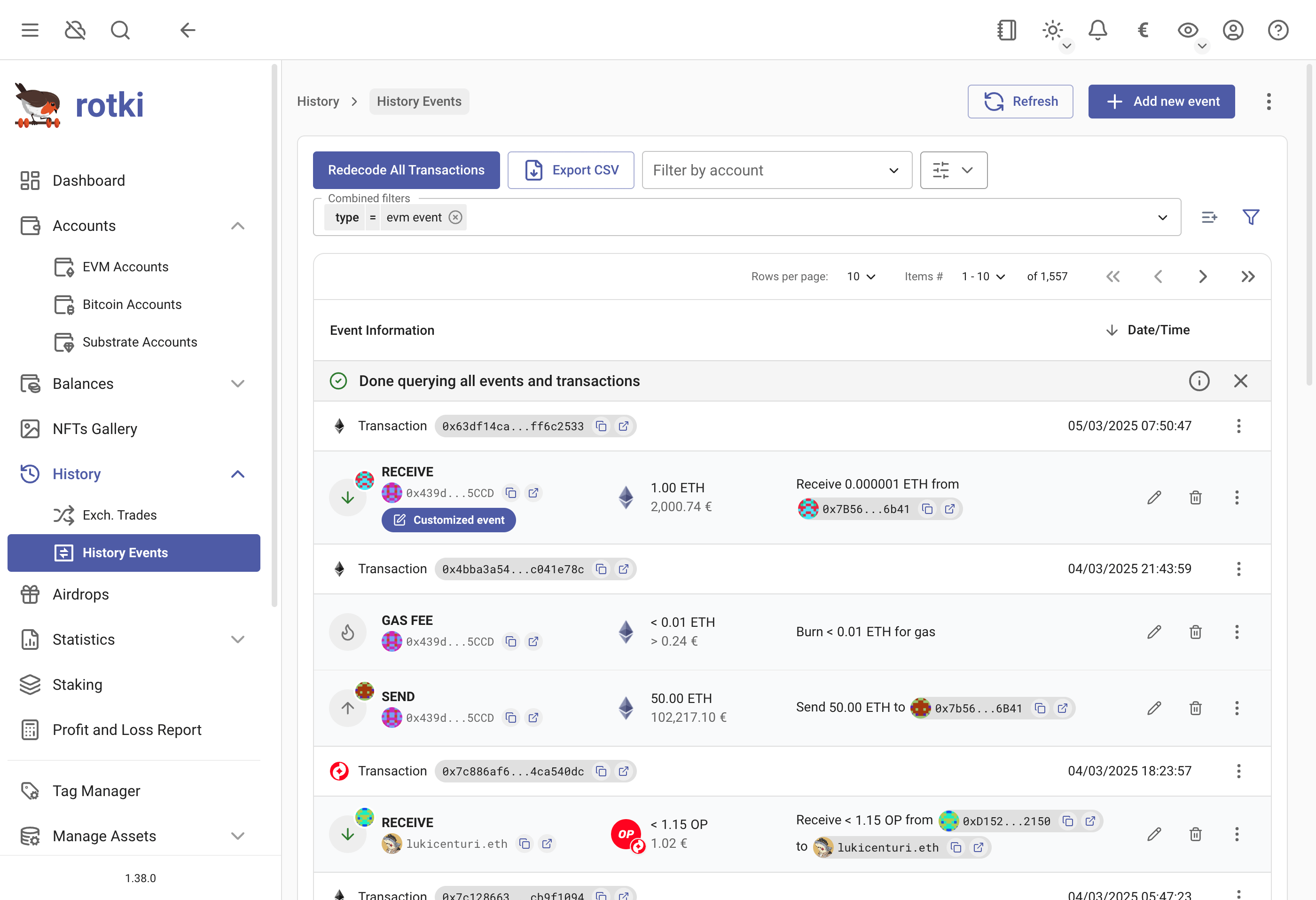
Events you have modified are marked in the UI with a small blue pencil badge under the event type; hovering it shows Customized. The mark matters beyond bookkeeping: a redecode rebuilds events from the chain but skips the customized ones, so anything you edited by hand survives it.
Updating the price of an event
The fiat value shown next to an asset on a history event row is computed from the historic price rotki has for that asset at the event timestamp. If the value looks wrong (for example, the oracle returned a bad price for that block, or no oracle has data that far back), you can override it directly from the event row without leaving the page.
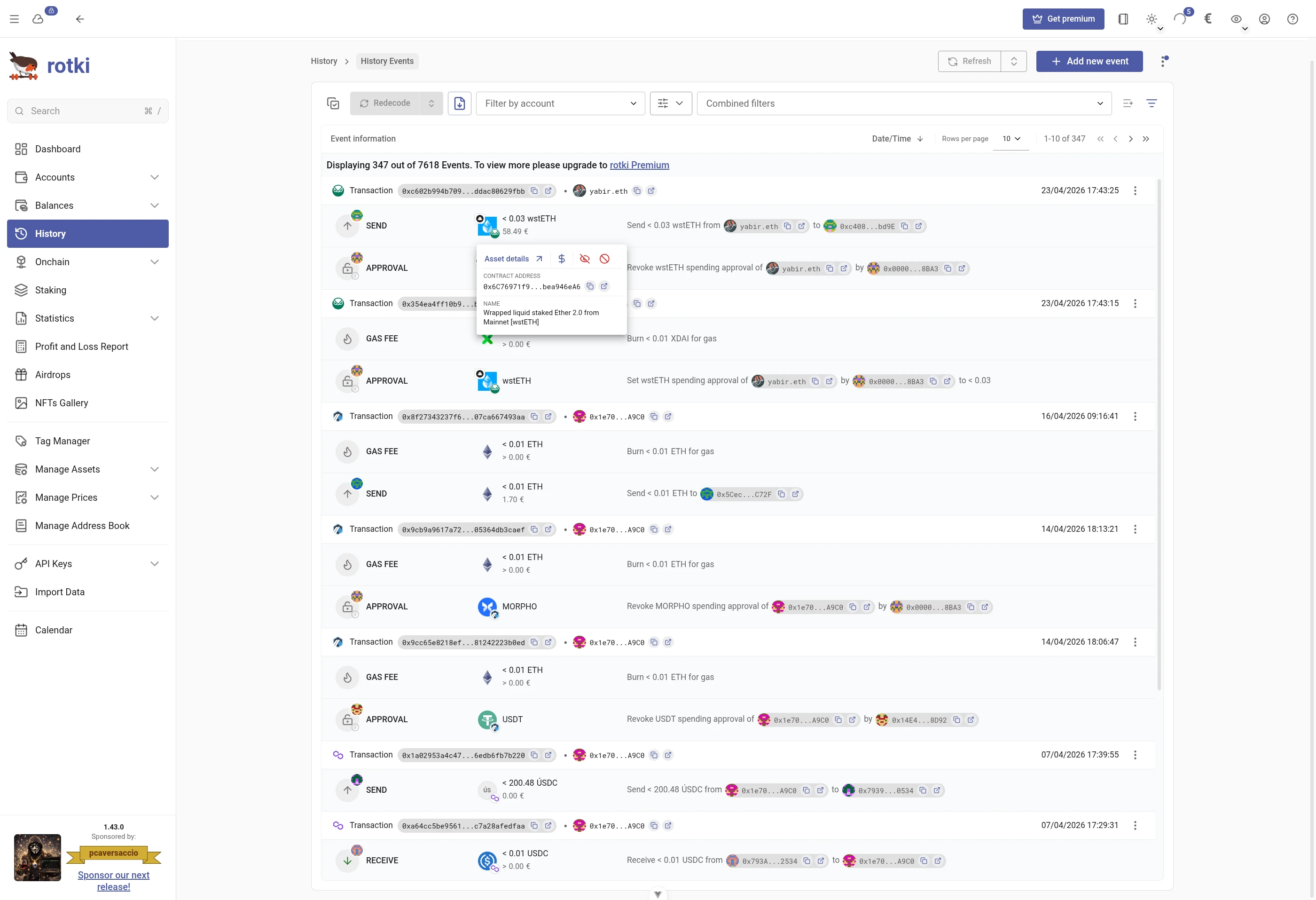
Click the asset chip on the event row to open its menu and pick the Update price action (the dollar icon).
This opens the price update dialog:
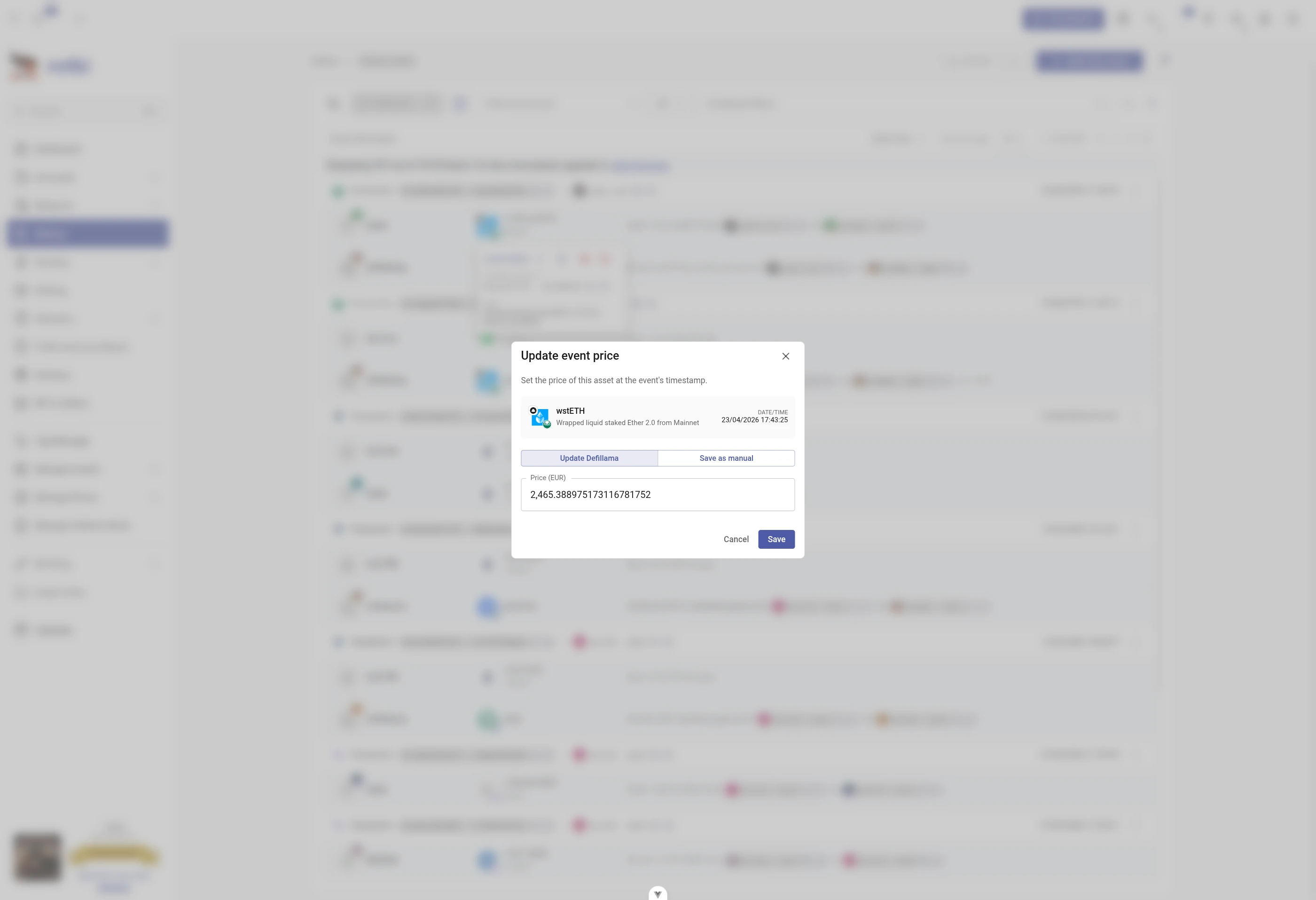
The dialog prefills with the price rotki currently has stored for (asset, your main currency, event timestamp):
- If a cached oracle entry exists for that timestamp, you can choose between updating the oracle entry (overriding the value the source returned, keeping the source attribution) or saving a manual price that takes precedence over the oracle. The toggle shows the actual source name (
Cryptocompare,CoinGecko,DefiLlama, etc.). - If nothing is cached for that timestamp, the dialog only offers the manual option.
Saving updates the stored historic price and invalidates rotki's in-memory cache, so any other view showing that price (other history events with the same asset/timestamp, balances, snapshots, P&L reports) updates immediately.
Resolving Issues
rotki detects issues with your history events that may affect accounting accuracy, and collects them in the actions center at the top of the page.
See Resolving history event issues for what each category means and how to clear it: unmatched asset movements and bridge transactions, duplicate customized events, internal transaction conflicts and undecoded transactions.