
Balances
Exchange Balances
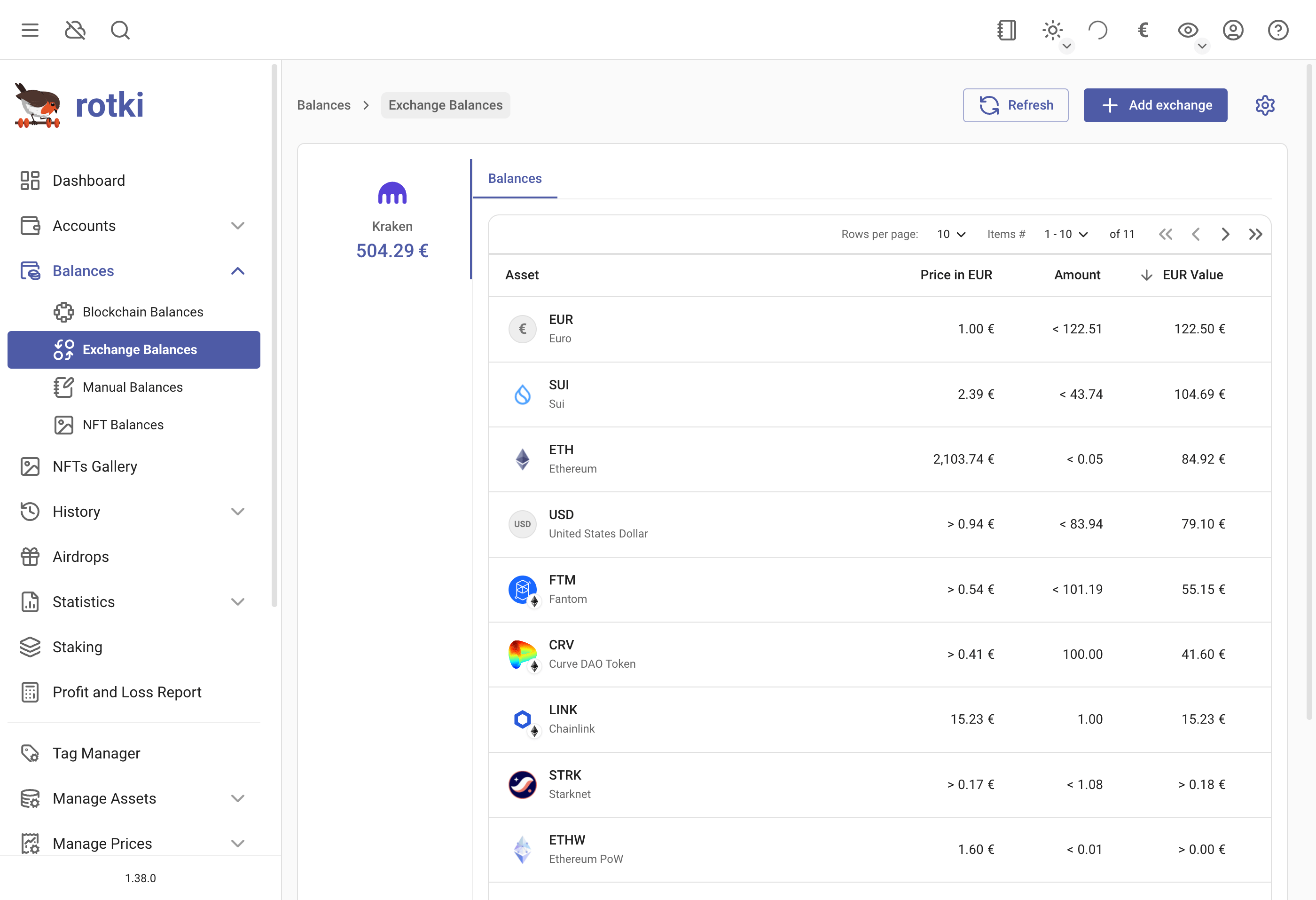
You can check all of the asset balances that you have in each connected exchange in the Exchange Balances sub-page. Clicking the Add exchange button takes you to the API Keys page where you can manage your exchange connections (see Exchanges API Keys).
Manual Balances
You can add any type of asset to rotki, that may not officially supported yet. This includes things like:
- Real estate
- Stocks
- Assets from unsupported blockchains or exchanges
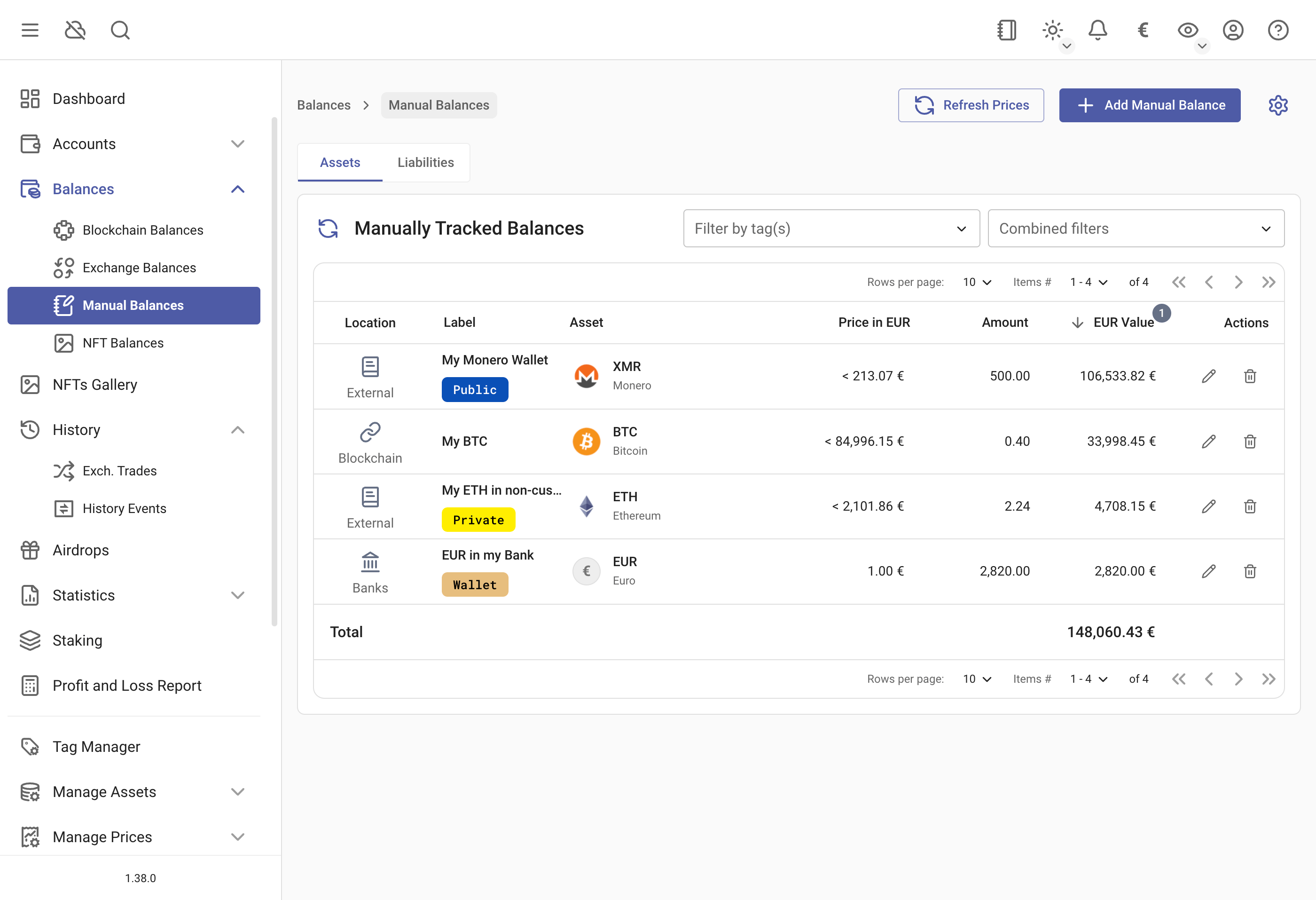
To add or edit a manual balance:
- Go to the Manual Balances page
- Click
Add Manual Balance(top right) - Add a unique label
- Select your asset from the dropdown
- Add any tags you want
- Enter the amount and location
You can also filter the manual balances from the filter bar above the table, with a pill for location, name, asset or tags. Locations are shown with their icon and name, and assets with their icon and symbol, so you pick them from a list rather than typing an identifier.
By pressing the edit button for the account you can also add tags to the blockchain account. If you want to create a new tag or edit an existing one you can open the tag manager and choose the name, description and colors of the tag.
NFTs
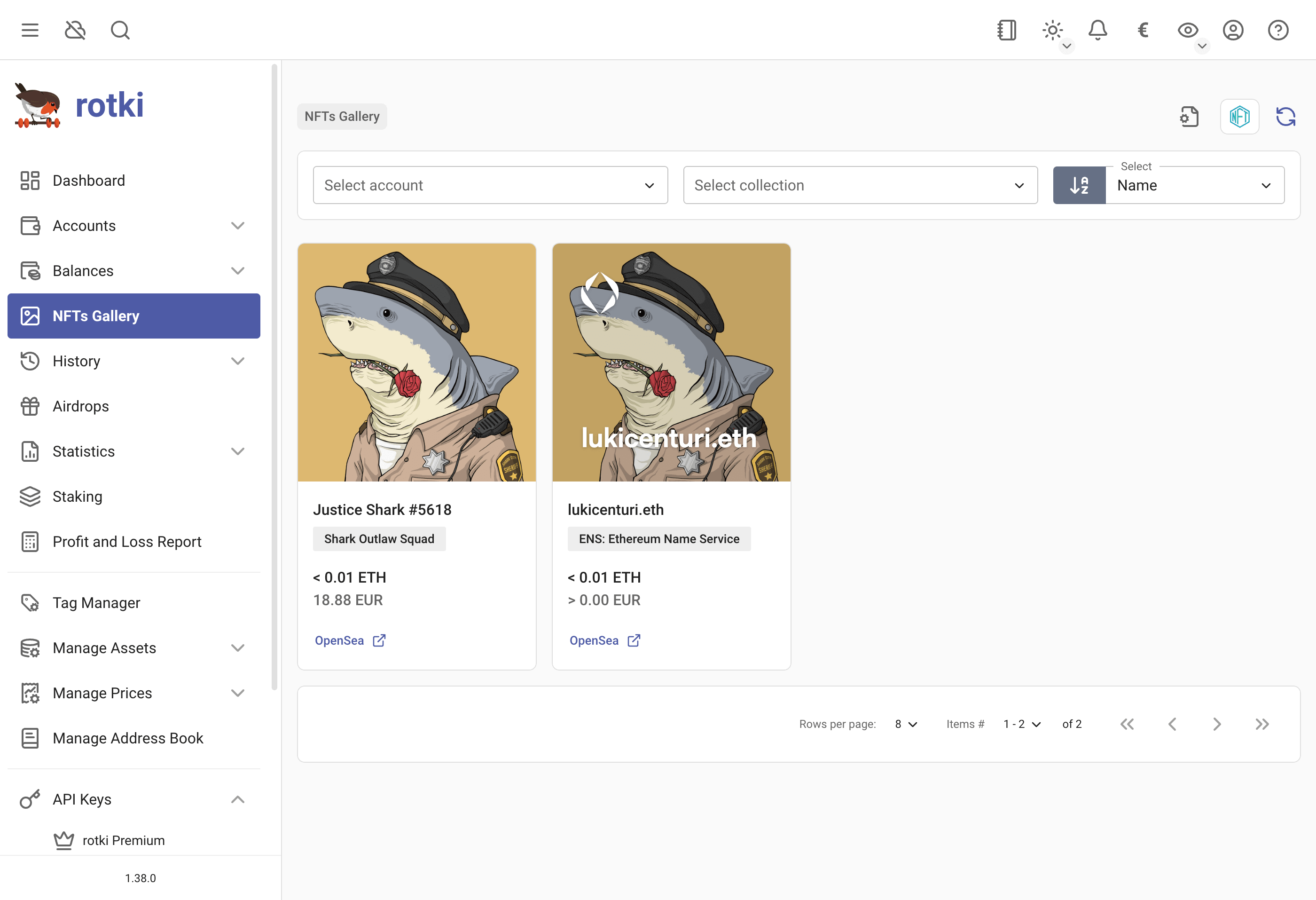
rotki provides an NFT gallery where you can view the NFTs owned by your accounts.
You have an overview of the total value of your NFTs in the application dashboard, on the NFTs table.
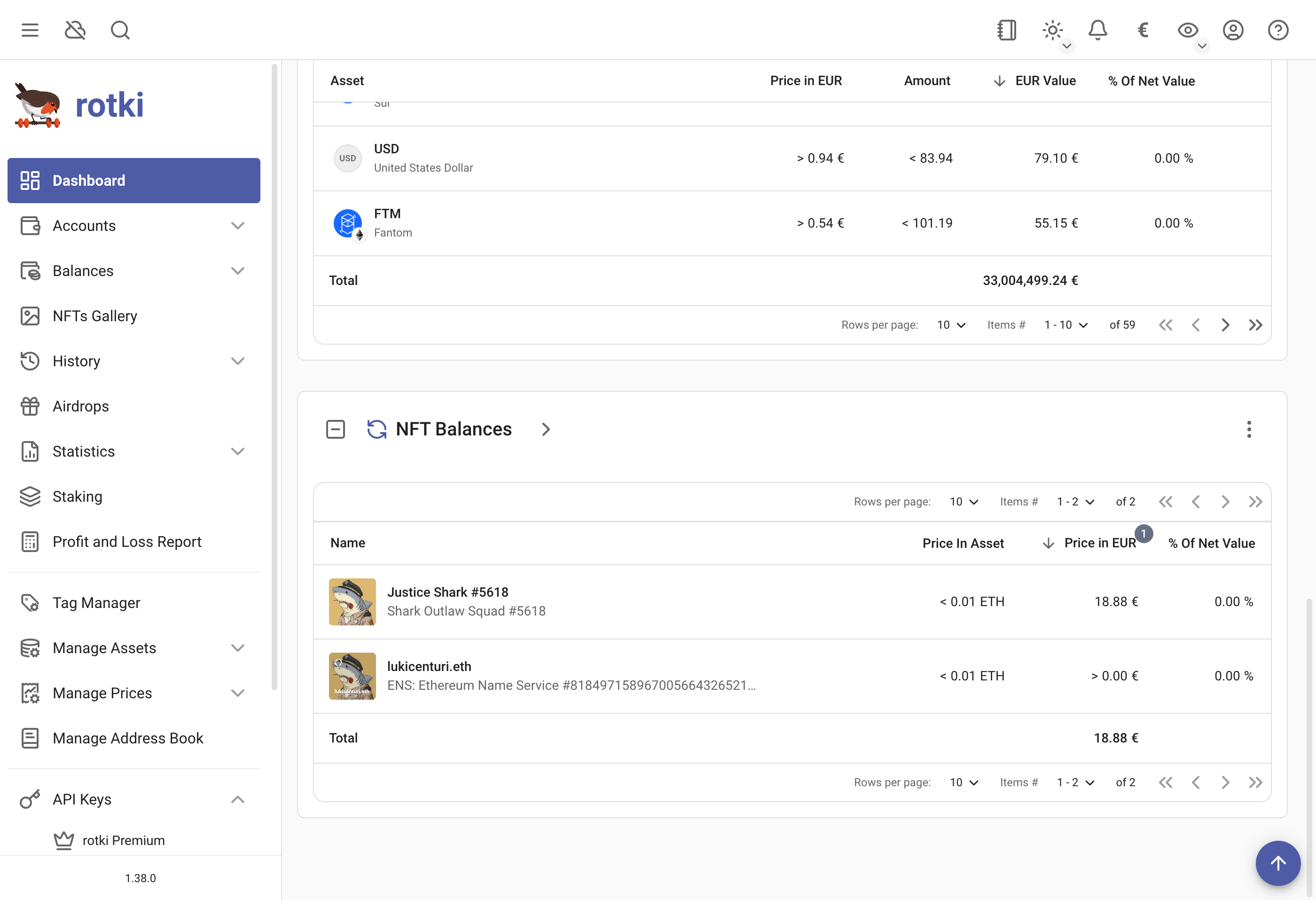
An estimation of the value of the NFTs you own is counted into your total net worth. The estimation strategy is currently the maximum of either the floor price of the collection or the last sale of the NFT. If a manual price has been given this is always preferred.
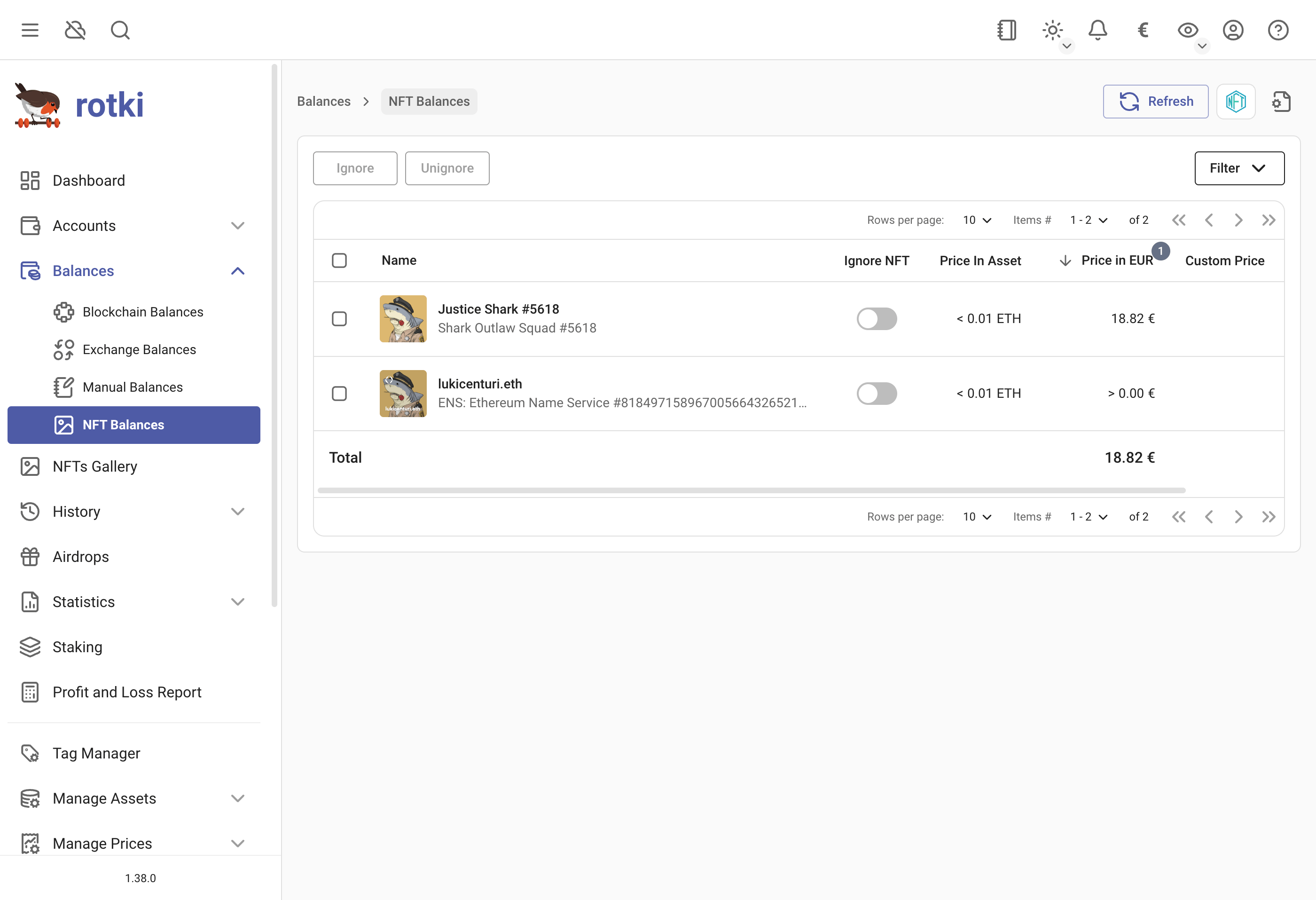
If a price cannot be found for an NFT asset or if you want to change the calculated price estimate you can easily set the price for an NFT asset manually. You can do this by either clicking on the > button in the NFTs table in the dashboard or by going to Blockchains & Accounts → NFT Balances. And then click on the pen icon for the NFT you are interested in.
For privacy concerns, it is possible to allow all or only a certain list of domains for images rendered, this can be done here by clicking on the icon highlighted below.
More details here Critical Privacy Vulnerability: Getting Exposed by MetaMask
The configuration menu:
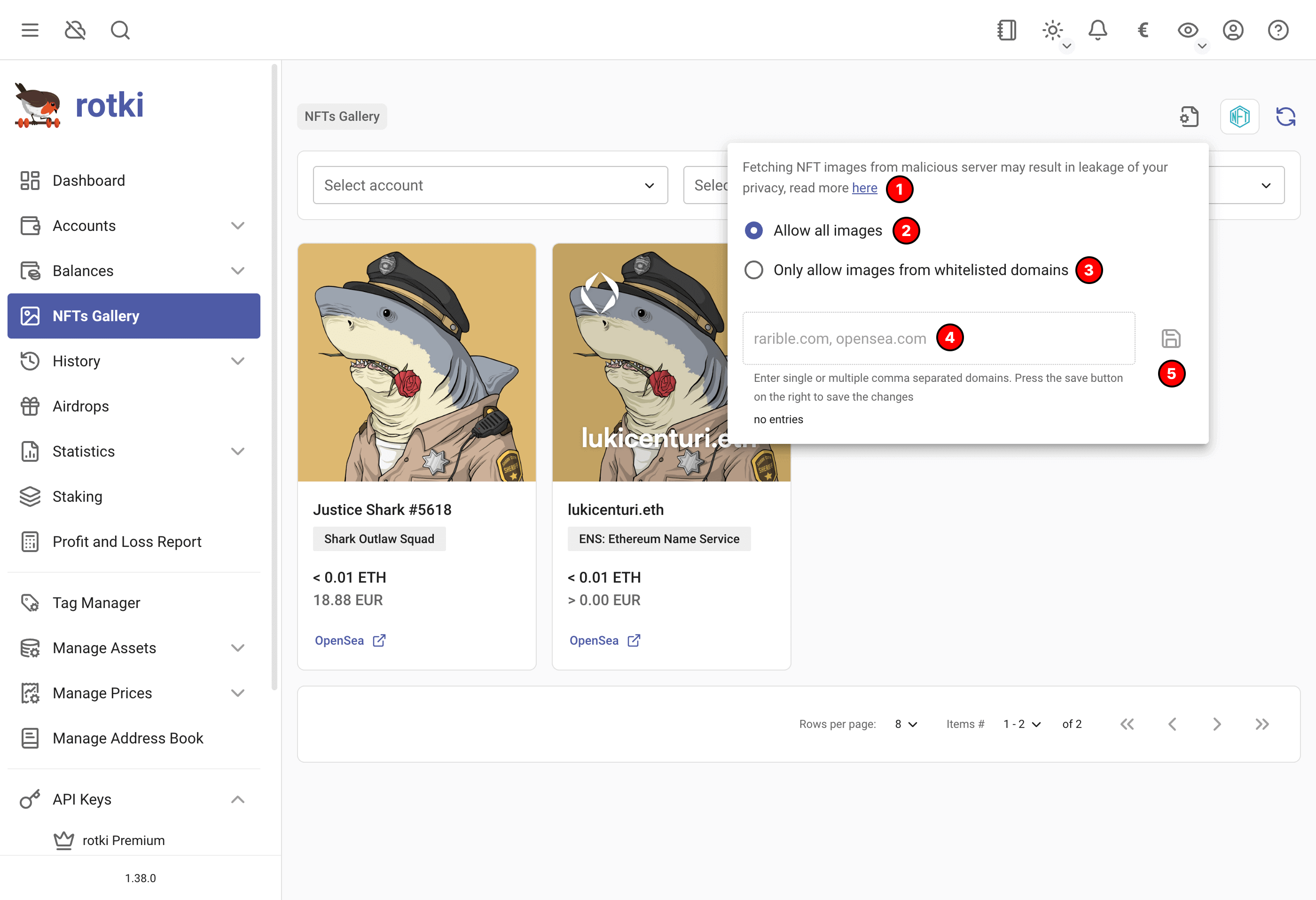
Highlight details:
- Link to blog post about image rendering and privacy.
- Option to allow all NFT images to be rendered.
- Option to allow only whitelisted domains.
- If only whitelist, input list of allowed domains.
- Save button.
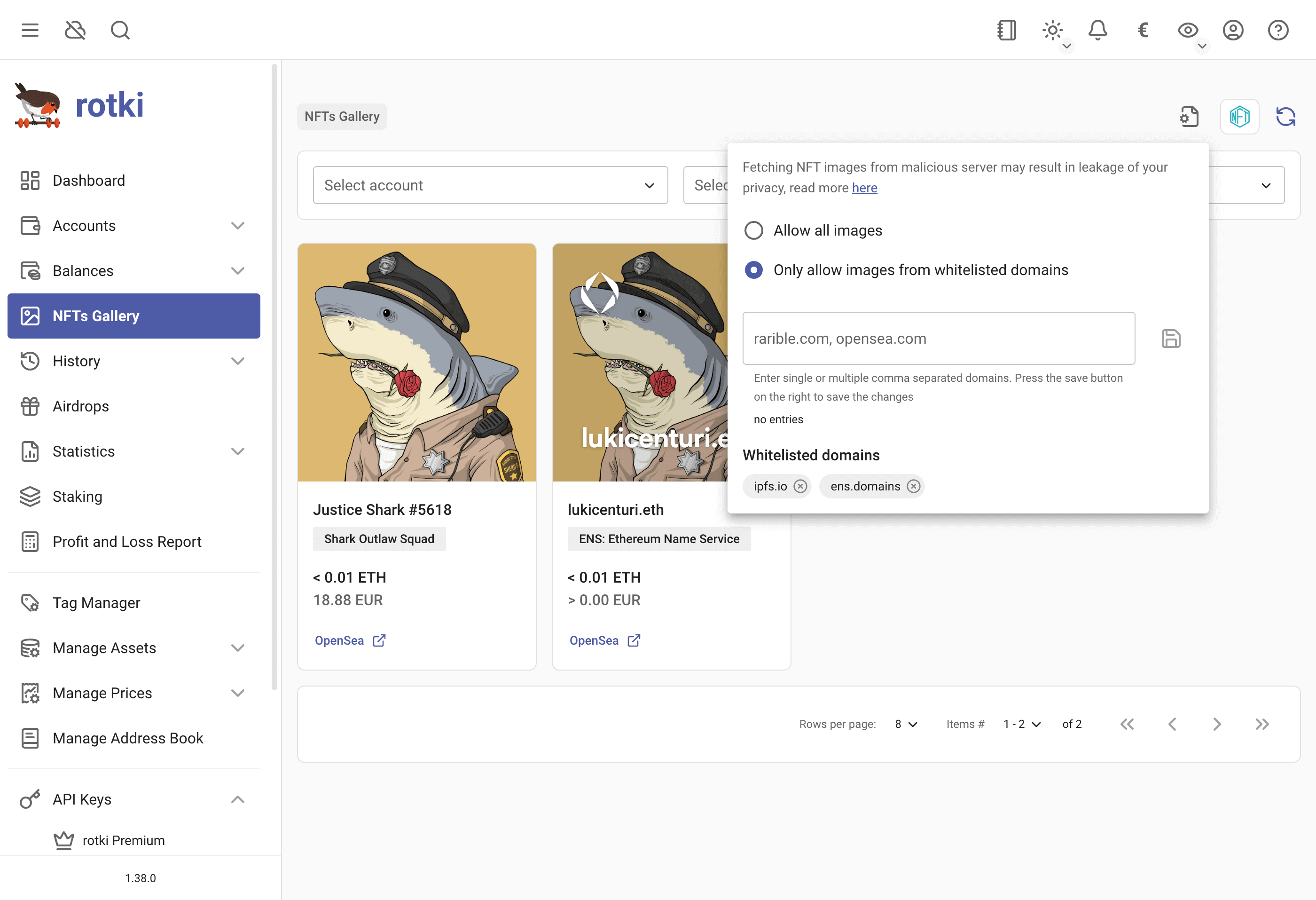
This will enable image rendering of only whitelisted NFT domains.
Filtering by tags
You can filter the tables by a combination of tags.
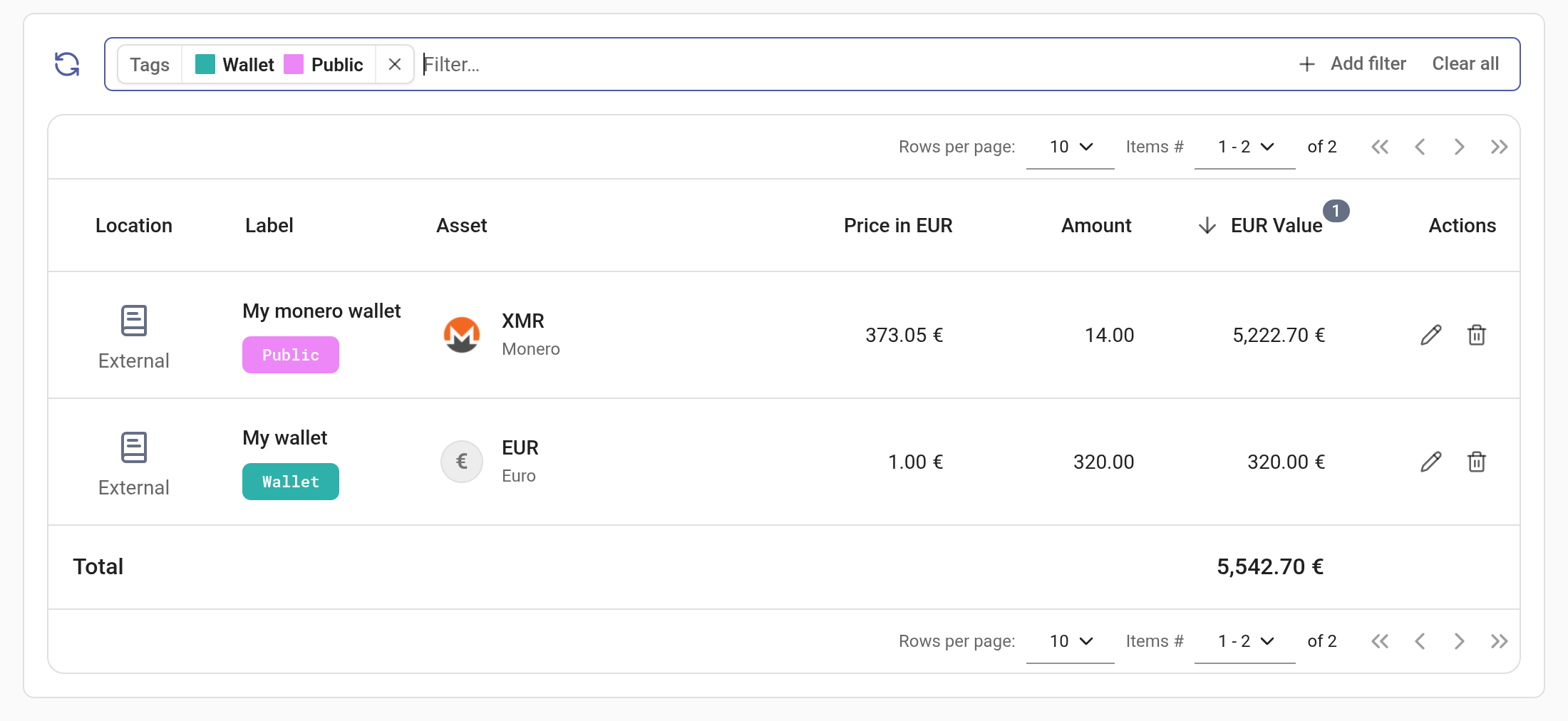
Add the Tags pill to the filter bar above the table and pick the tags you want. Each tag is drawn in the colours you gave it, so a set of tag filters is readable at a glance. Removing the pill clears the tag filter.
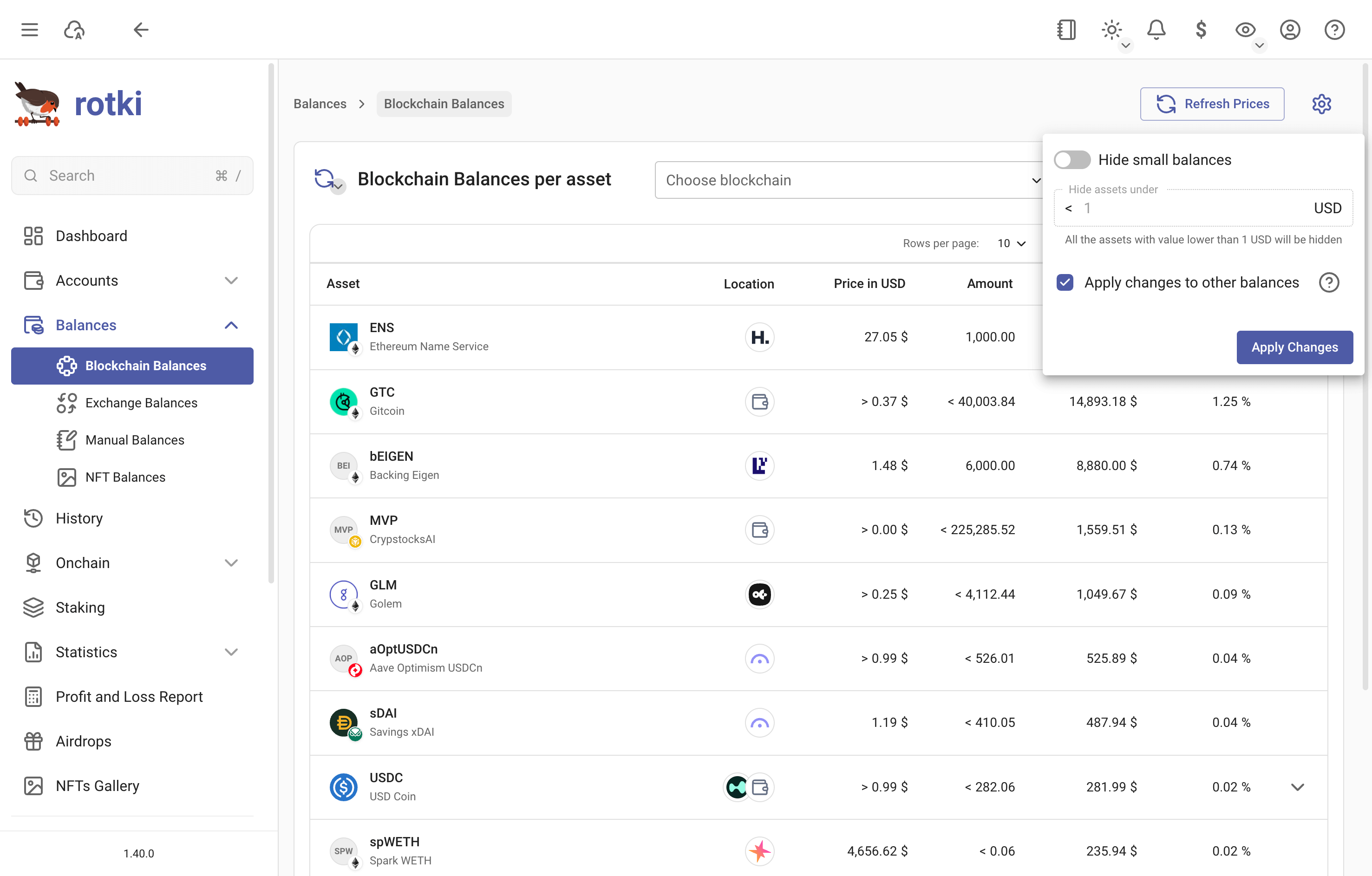
Hide small balances
You can filter out small balances and set the threshold yourself.
By default, this setting will apply to all balance types (blockchain balances, exchange balances, and manual balances). You can uncheck the checkbox to apply the setting only to the current balances view.
NOTE
You need to press "Apply Changes" for the setting to take effect.
Airdrops
rotki can detect some airdrops for you
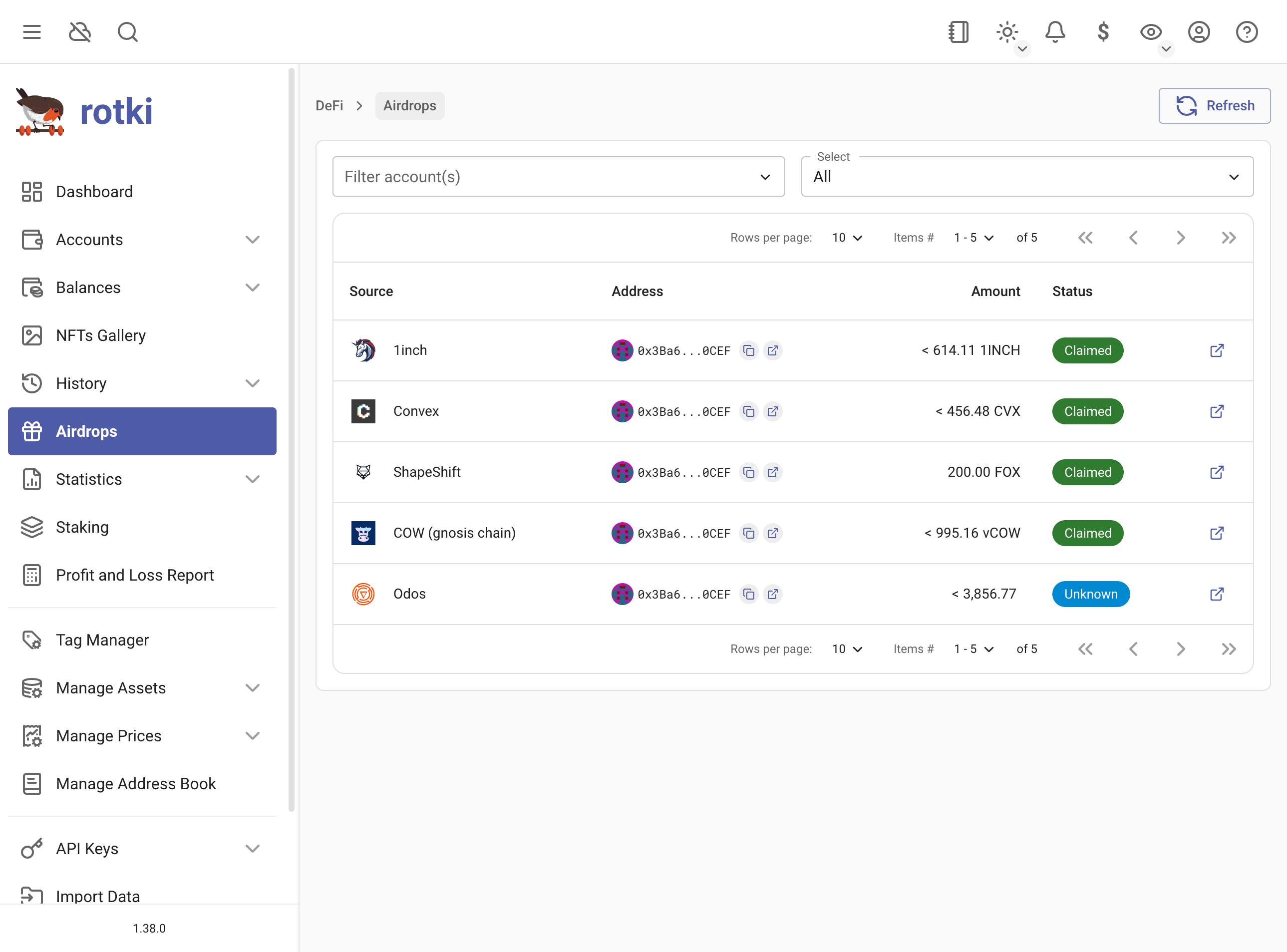
The list of supported airdrops is pulled from the rotki/data repository and is updated automatically. New airdrops may be added over time without requiring an app update.
Each airdrop shows one of the following statuses:
- Claimed — The airdrop has been claimed.
- Unclaimed — The airdrop is available but has not been claimed yet.
- Missed — The claim window has expired.
- Unknown — rotki can't determine the status. You need to check it yourself.
Balances Snapshots
rotki automatically saves balance snapshots in your local database. They are used for the dashboard's net-value graph and portfolio statistics. Snapshots are saved:
- At login
- Then on a configurable interval, every 24 hours by default
Use the Snapshots manager to take a snapshot manually, import or export snapshot data, and review, edit, or delete existing snapshots. You can also open a snapshot directly by clicking its point in the dashboard's net-value graph, or force one from the snapshot controls next to that graph.
NOTE
Taking a snapshot manually refreshes all balances without using the cache. It can take time and may reach third-party API rate limits, so use it when you need a current saved record.