
Tracking Accounts
To manage Blockchain Accounts, you need to visit the Accounts section from the left sidebar.
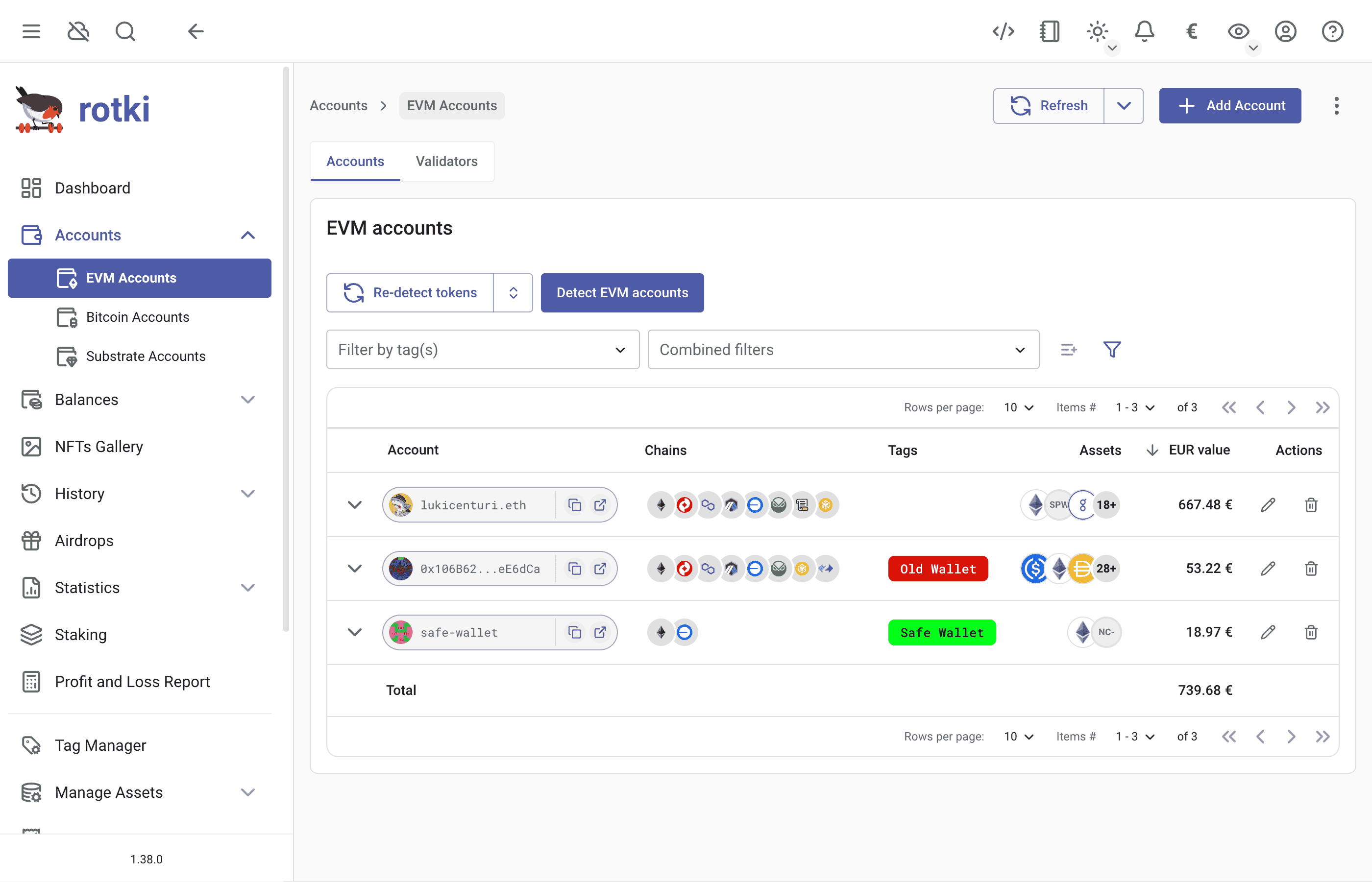
Blockchain Accounts
rotki allows to track balances of blockchain accounts.
For now, the following chains are supported in rotki (and the list will be growing as we add more chains in the future):
| Chain Type | Blockchain | Chain ID for importing purposes |
|---|---|---|
| EVM Chains | Ethereum | eth |
| Optimism | optimism | |
| Polygon PoS | polygon_pos | |
| Arbitrum One | arbitrum_one | |
| Base | base | |
| Gnosis | gnosis | |
| Scroll | scroll | |
| Binance Smart Chain | binance_sc | |
| Avalanche | avax | |
| zkSync Lite | zksync_lite | |
| Bitcoin Chains | Bitcoin | btc |
| Bitcoin Cash | bch | |
| Substrate Chains | Polkadot | dot |
| Kusama | ksm | |
| Solana Chains | Solana | solana |
Steps to Add an Account:
- Go to the chain category sub-page
- Click
Add Account(top right) - Select your blockchain
- Enter the address in
Accounttextbox - Click
Save
Adding Multiple Accounts:
- Check
Add multiple addressesbox - Enter addresses as comma-separated list
Adding Account to all EVM Chains
- Choose
All Supported Chainsin the chain selector.
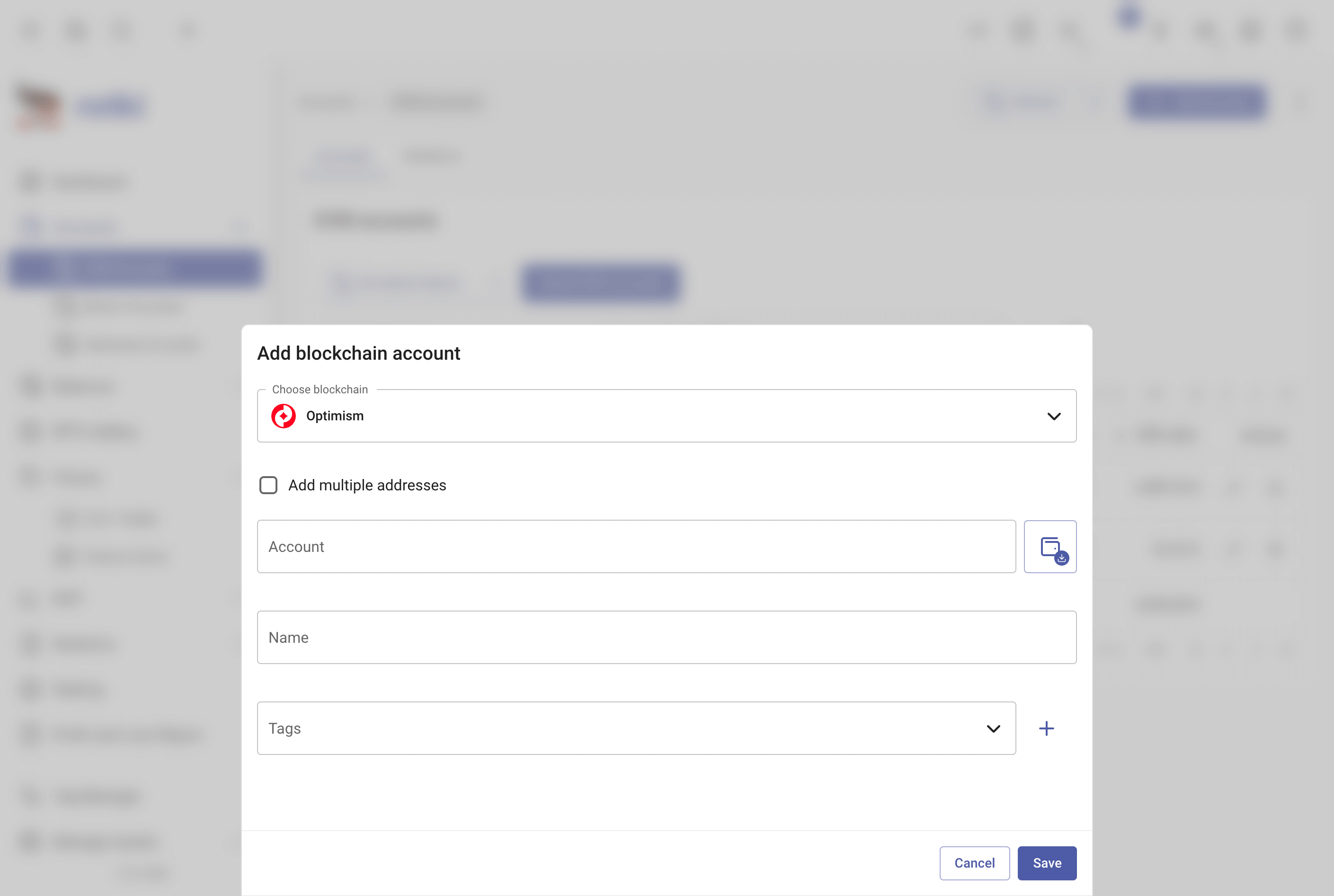
You can edit or delete an account using the buttons at the end of the row. For editing, you can modify the label or the tags.
Account detection on Binance SC
We verify whether an address should be tracked by querying its on-chain activity through the indexers you have configured. Since Binance Smart Chain is not accessible under the free tier for any supported indexer, a paid Etherscan API key is required to detect activity there. If that key is not provided, BSC address detection will not work.
Bitcoin Chains
The Bitcoin and Bitcoin Cash account form has a single address field that accepts either:
- A plain address (a single BTC or BCH address), or
- An xpub (extended public key) for automatic address discovery.
rotki detects which one you pasted and adapts the form accordingly — you don't need to switch modes.
What is an xpub?
An xpub is a special key that lets rotki find all your wallet addresses without giving access to your funds. When you provide an xpub, rotki will:
- Generate your addresses locally
- Query the blockchain activity for each address
- Stop when it finds unused addresses
- Store this information securely in your local database
Address types
| Type | Common Name | Address Starts With | Description |
|---|---|---|---|
| P2PKH | Legacy | "1" | The original Bitcoin address format |
| P2SH-P2WPKH | Segwit | "3" | More efficient than legacy |
| WPKH | Native Segwit | "bc1" | Most efficient for transactions |
| P2TR | Taproot | "bc1p" | Newest type with enhanced privacy |
How to add an account
Paste your address or xpub into the input. The form reacts as follows:
- Plain BTC/BCH address — the address type is inferred from the prefix and no extra choice is needed.
ypub...— automatically tracked as Segwit (P2SH-P2WPKH).zpub...— automatically tracked as Native Segwit (WPKH).xpub...— ambiguous (it can back any of the four wallet layouts). All four address-type buttons appear inline, with Native Segwit selected by default. Pick the one your wallet uses; the picker stays visible so you can correct a misclick before saving.
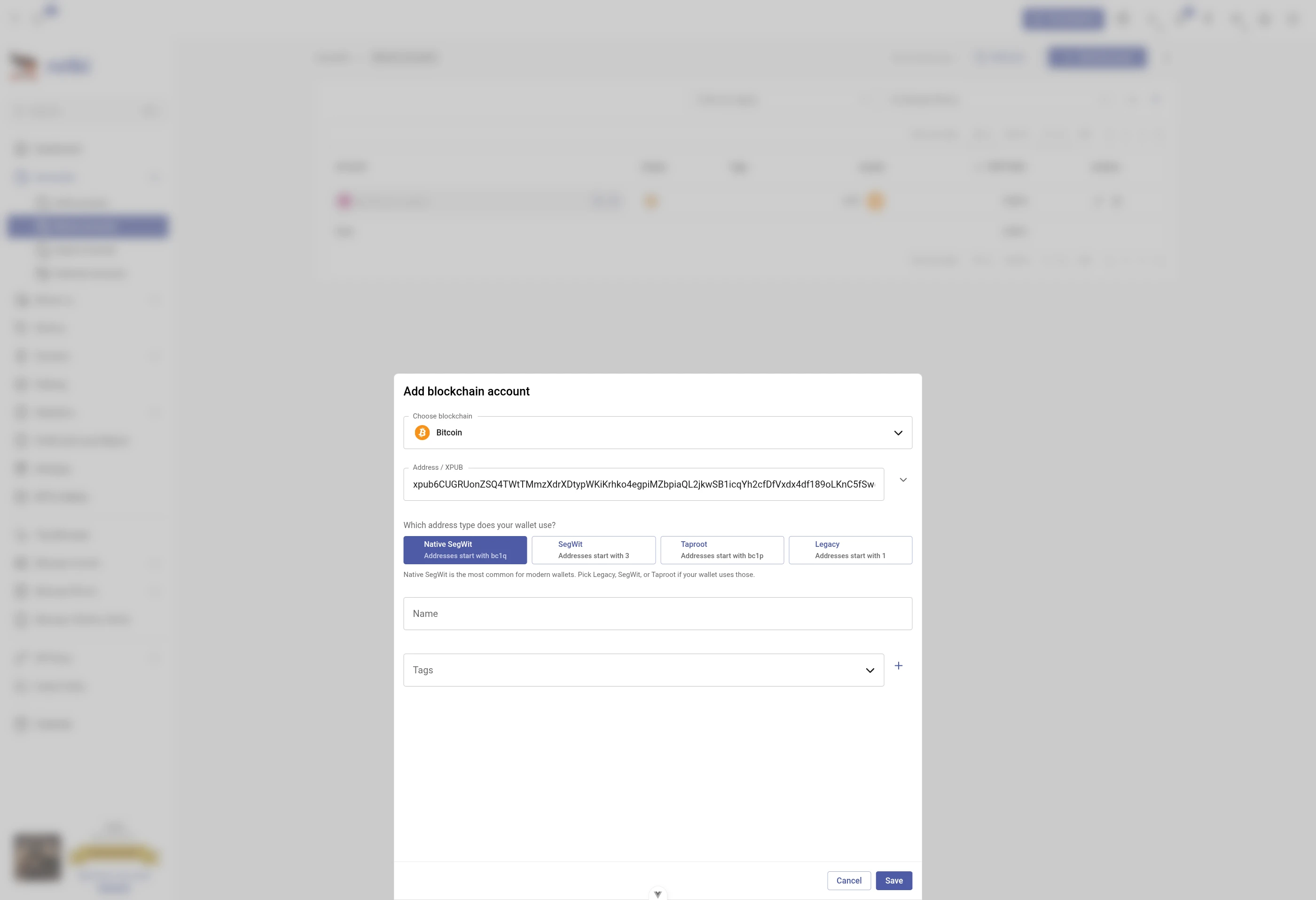
Good to know
- For Ledger hardware wallet users, you can get your xpub by following this guide
- Bitcoin Cash only works with Legacy (P2PKH) and Segwit (P2SH-P2WPKH) addresses
Filtering accounts
Accounts are narrowed from the filter bar above the table, which works the same way as the one on the history events page. Each filter is a pill: Chain shows each network with its logo, Accounts lets you pick one or more tracked accounts from a list showing each one's avatar, name and address, and Tags filters by the tags you assigned. Typing in the bar narrows across all of them at once. See Filtering history events for the shared syntax and keyboard handling.
A set of filters you return to can be saved as a named view from the star button in the bar, and applied again in one click. Filters you had already saved for this table are carried over the first time you open the views menu.
NOTE
A bookmarked link to this page that carried an account filter needs to be taken again. Filters are written into the address differently now, so an older link will not restore the same selection.
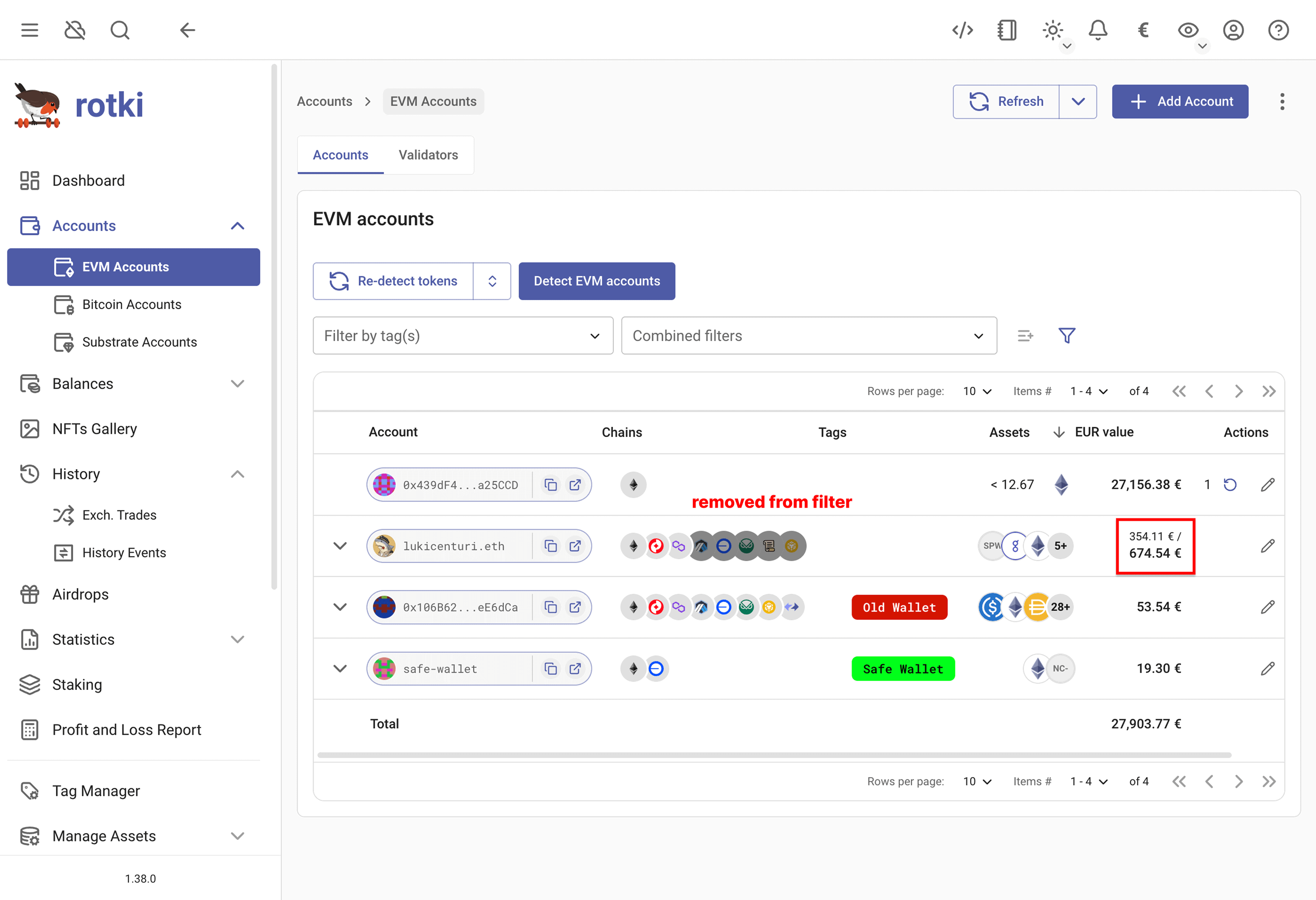
Excluding a chain from one account's total
The filter bar decides which rows the table shows. Excluding a chain is a separate thing: it changes what a single row counts.
An account tracked on several chains shows one icon per chain in its Chains column. Click an icon to exclude that chain from that account, and click it again to put it back. An excluded chain's icon is dimmed, and the row's value then shows two figures: the smaller one above is the total for the chains still included, and the one below it is the account's full total across every chain.
Hovering the column reveals an x button that clears the exclusions for that row. Its tooltip reads Enable all chains.
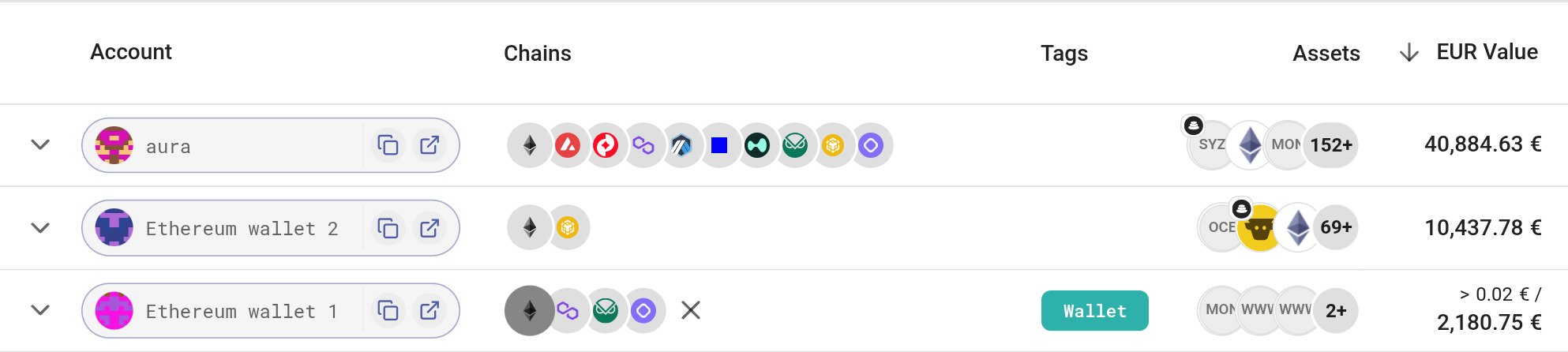
This only applies to accounts tracked on more than one chain. On a single-chain account the icon is not clickable, and its tooltip just names the chain.
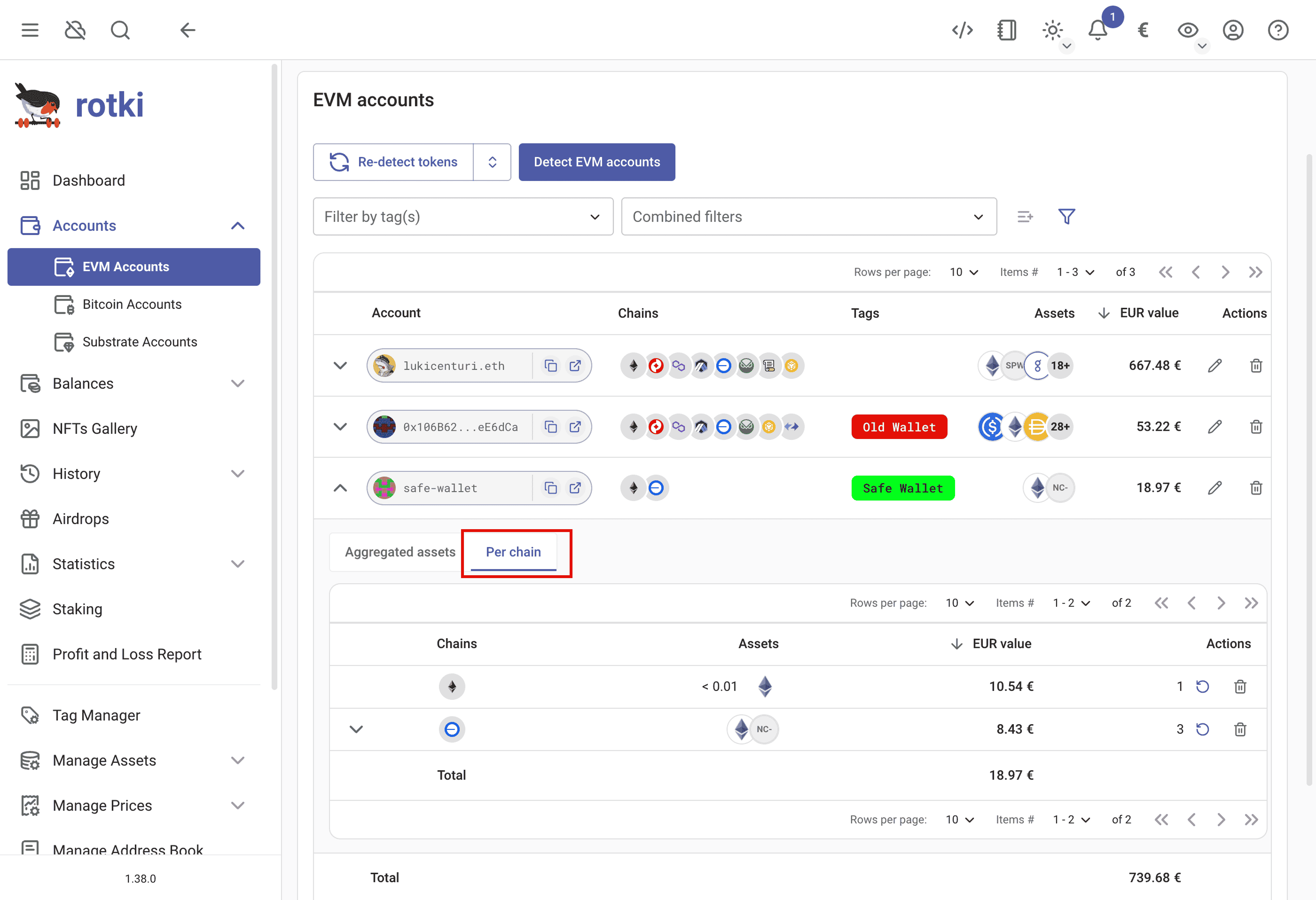
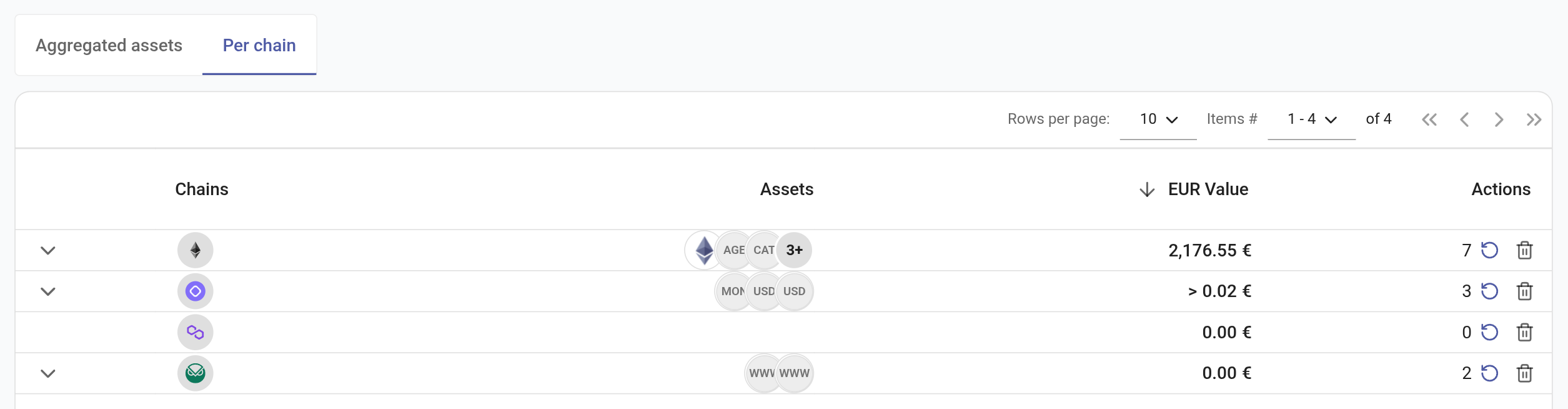
Additionally, there is an option to toggle between viewing the aggregated assets across all chains or displaying the assets per individual chain. This provides flexibility, allowing you to either get a total balance view from all chains at once or focus on specific chain assets.
ENS names resolution
rotki automatically resolves ENS name and ENS avatar for every EVM address that has ENS name set in ethereum mainnet. If there is a primary ENS name specified for an address, this name will be shown instead of a raw blockchain address across the app. You can find the blockchain address by hovering the mouse over the ENS name. If an ENS avatar is set, it will be shown instead of the address blockie.
Token detection
For EVM accounts, it is possible to trigger the process of detecting tokens before refreshing the balances. There are several ways to do that:
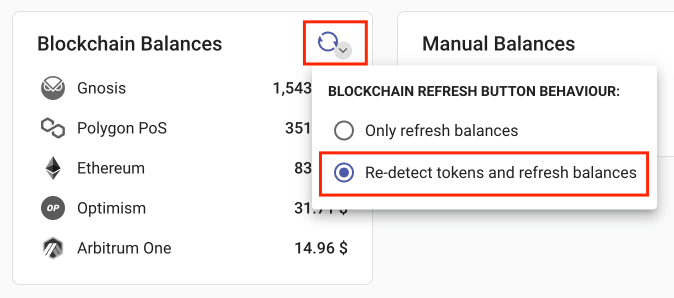
- To re-detect tokens for all EVM accounts on all chains, go to the dashboard and open the arrow beside the
Blockchain Balancesrefresh button. Setting the behaviour toRe-detect tokens and refresh balancesmakes every later click of that refresh button detect tokens first.
- To re-detect tokens for every address on one or more chains, open the arrow beside
Re-detect tokensin the EVM accounts toolbar. Tick the chains you want and press the button at the bottom, or use a row's ownRe-detectto do that one chain immediately.
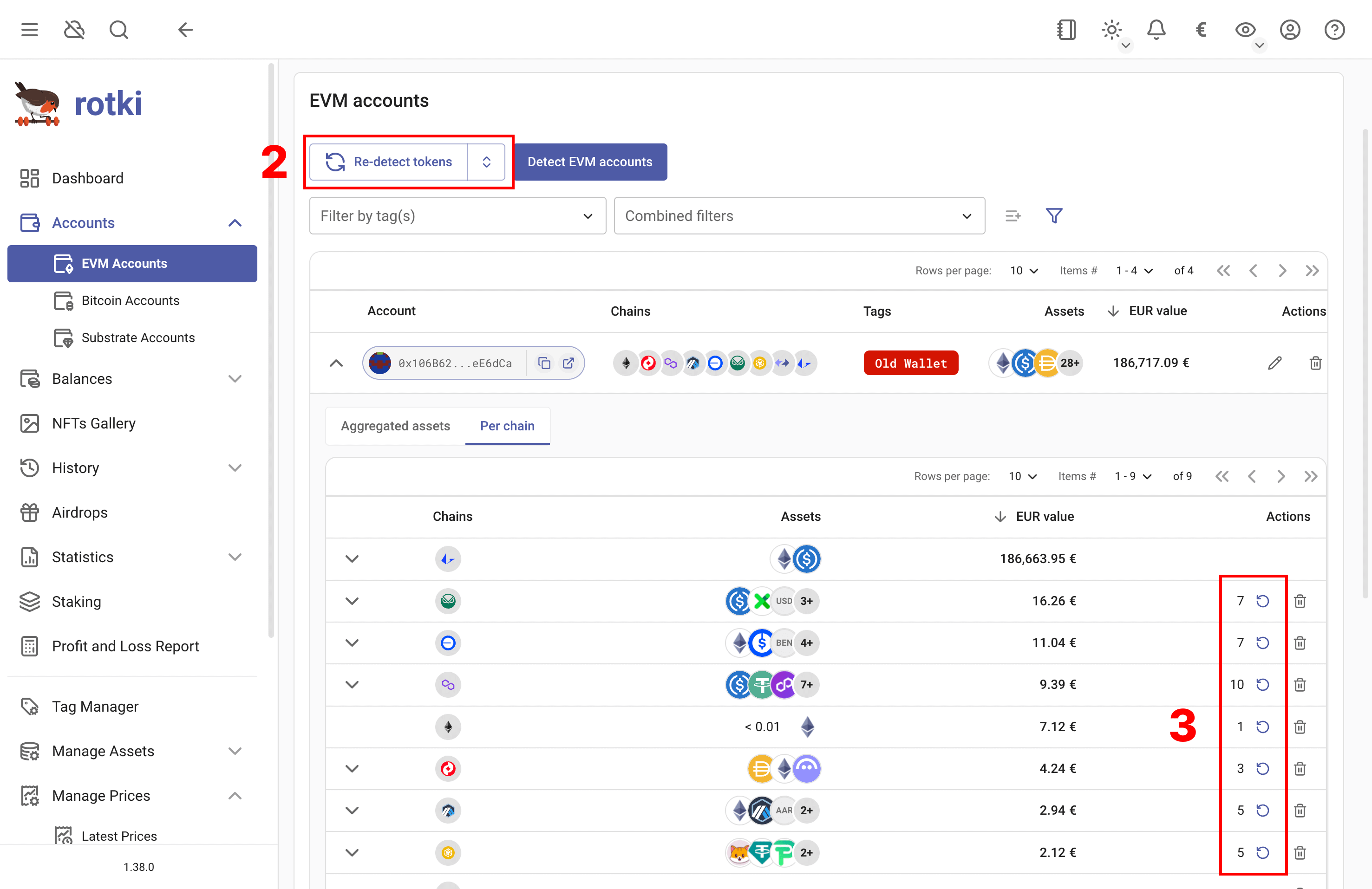
- To re-detect tokens for one account on one chain, expand that account, switch to
Per chain, and click the refresh button on the chain's row. Its tooltip shows when tokens were last detected for that pair.
Import and Export Blockchain Accounts (CSV)
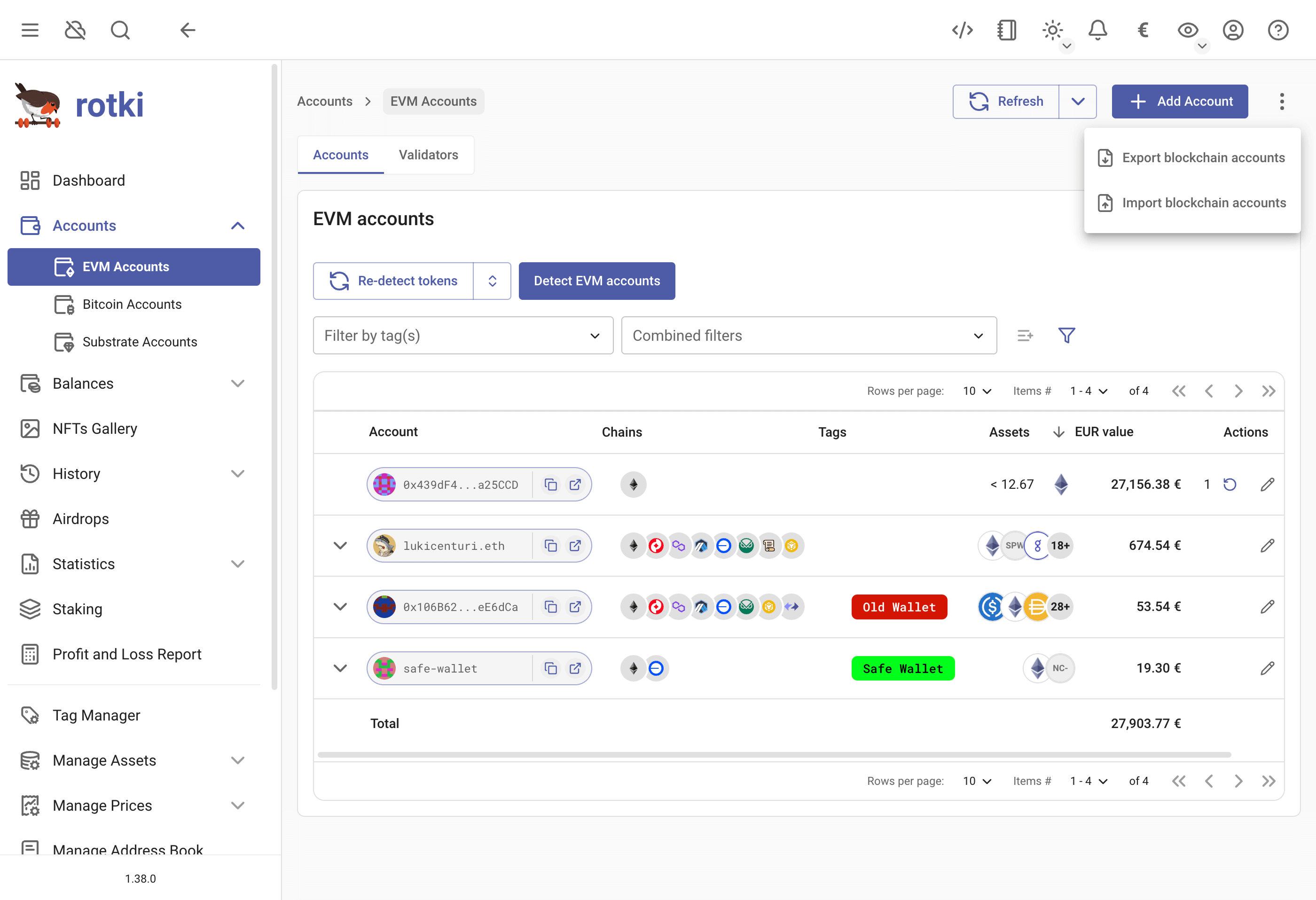
You can export your blockchain accounts to CSV and then import them again into another rotki account (if you need to do it for your tax accountant, etc.). Also, if you have many accounts that you want to add to rotki, you can create your CSV and import it into rotki.
You can do it in from any submenu from the menu Accounts by clicking the three-dot menu.
Blockchain Accounts CSV
[Download CSV Example]| address | address extras | chain | label | tags |
|---|---|---|---|---|
| 0x99A91871b93E13F53D8209529B5E390664bf25d8 | evm | eth with validators | eth-1;eth-with-validators | |
| 0x9DBE4Eb4A0a41955E1DC733E322f84295a0aa5c0 | evm | hahaha | evm-tag | |
| 0xc37b40ABdB939635068d3c5f13E7faF686F03B65 | evm | |||
| bc1qdf3av8da4up78shctfual6j6cv3kyvcw6qk3fz | btc | bitcoin-1 | bitcoin-1 | |
| qz5hccuhr036drq7m3mah3qf5x3f5phv05v5rtu5z2 | bch | bitcoin-cash-1 | bitcoin-cash-1 | |
| EbEjgkw4Z2jFtaDad7zj59LrfmyuznXJzCmQh2qUfMvjiUj | ksm | kusama-1 | kusama-1 | |
| 14rw69gBpjYwdiw5MzvsZCSYVnHqubpUSHC5QPNBY5MPAoRi | dot | polkadot-1 | polkadot-1 | |
| xpub6CcGTthbwnbxsMRuEF3XoYdekGtnGTsbiZ4ZKeqMC1UuqPYqh2xQj9hbEQj8AB9EuGeFHz4o3hWayZm5ahr5fyV2SNfNyA6htsZngM1DFBz | btc | xpub-1 | xpub-1 | |
| 0x80858247aa14f2c23e9a83b65d2a3e3de22f16ddaaf3fad0fee52601d3f67f71ccb72b196a4789a9d0aa057721745996 | eth2 | |||
| 0x918583458bae9b00cfb9d78497d58f9678cf91755a08682410756909de021666208ecf84e97ac5abddbf5f17af5fb11d | ownershipPercentage=50.00 | eth2 | ||
| 0xab423fb58c3498a8014bcc115be96bea77c99004fb59d3580d75fff0054e113d126ee6dd65faa027732f7cf38fdb4dd2 | ownershipPercentage=22.00 | eth2 | ||
| 0xa49152b5babd0130d9e5e3480eb9d17dfad5c090e6a7b6849e14b6baba0d47444fdd454303bfd202b6ae895654f678c0 | ownershipPercentage=33.00 | eth2 |
- The
addressfield is required. For an xpub, input the xpub address. For a validator, input the publicKey. - The
address extrasfield is optional. You can specifyownershipPercentage=xxfor validators andderivationPath=xxfor xpubs. - The
chainfield is required. You can find supported chain IDs in the supported blockchain section. Useevmto add to all EVM chains. - The
labelfield is optional. - The
tagsfield is optional. Multiple tags should be separated by semicolons (;).
Blockchain aggregated balances
You can see the list of aggregated assets from Blockchain Accounts from menu Balances > Blockchain Balances. You can also see the breakdown of the assets, which locations they belong to, whether they are in the wallet, or being put into some protocol.
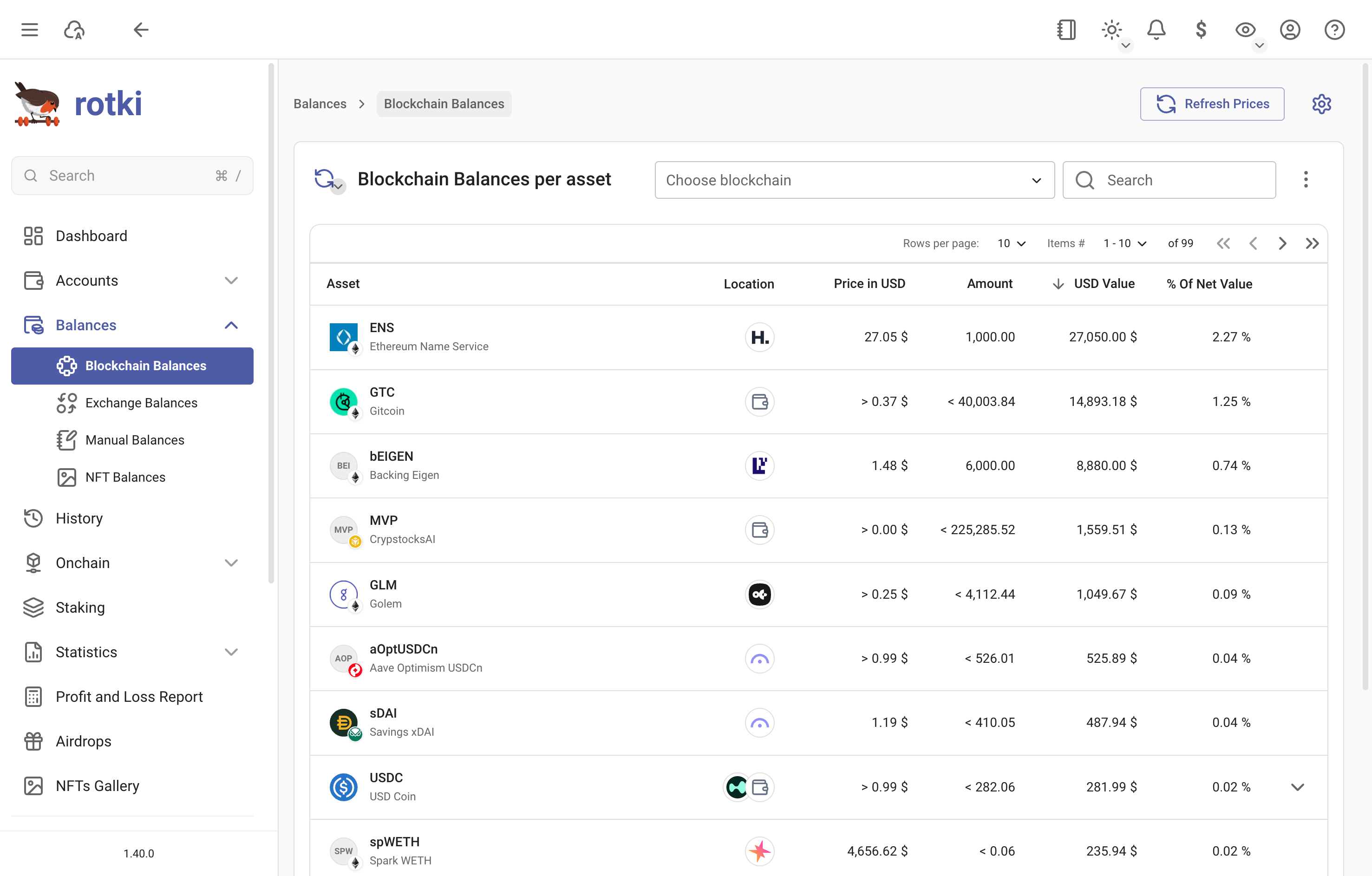
The search box above the table finds an asset by name, symbol or contract address, and shows an exact symbol or name match first. Pasting a contract address is the quickest way to identify a token whose name you do not know, or to tell apart several tokens sharing a symbol.