
Snapshots
Snapshots are saved records of your portfolio's balances and net worth at a particular time. rotki uses them to show the dashboard net-value graph and statistics over time. They are stored locally in your rotki database.
Open Statistics → Snapshots to manage them. You can also open a particular snapshot from the dashboard by clicking a point on the net-value graph.
Browse snapshots
The snapshots page lists each saved record with its date, net worth, and change from the previous snapshot. Add a Period filter to focus on a date range, sort the table by date or value, and use pagination to move through the results.
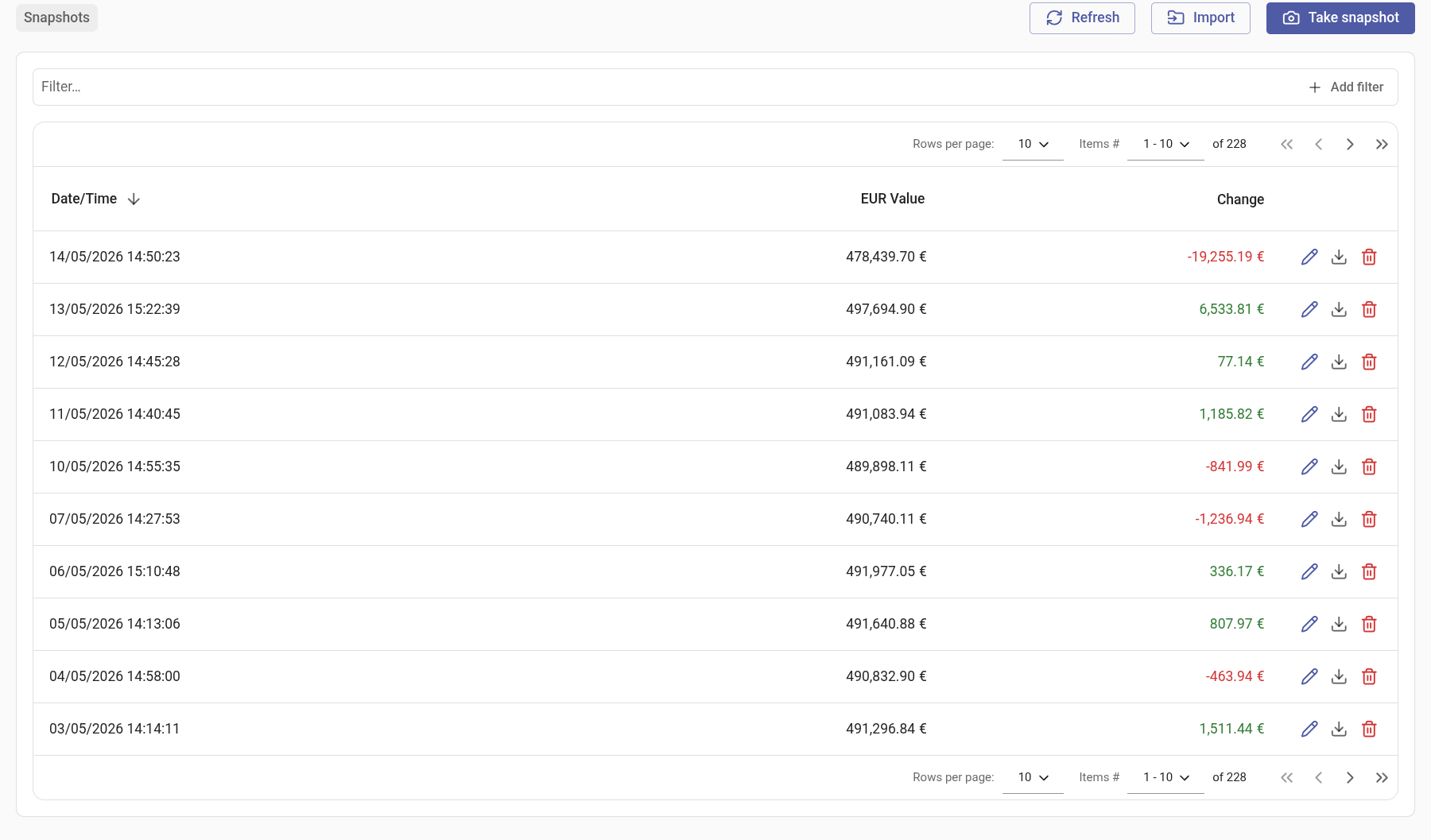
For each snapshot, you can:
- Open it in the editor.
- Export it for backup or transfer.
- Delete it after confirming the action.
Use Refresh to reload the list.
The net worth shown in the list and on the dashboard graph is the snapshot's stored total, minus the value of any assets you ignore. Opening a snapshot shows the sum of its balances instead, ignored assets included, so the two can differ. They also differ when the stored total no longer matches the balances, for example after an earlier hand edit. The editor then shows the corrected value, but rotki only stores it the next time you save a change to that snapshot.
NOTE
Without a premium subscription, the list only includes snapshots from the last two weeks, the same range as the dashboard graph. Older snapshots stay in your database.
Take or import a snapshot
Select Take snapshot to refresh all balances while ignoring the cache and save a new record. This can be slow and may be rate-limited by exchanges or other external services, so rotki asks you to confirm first.
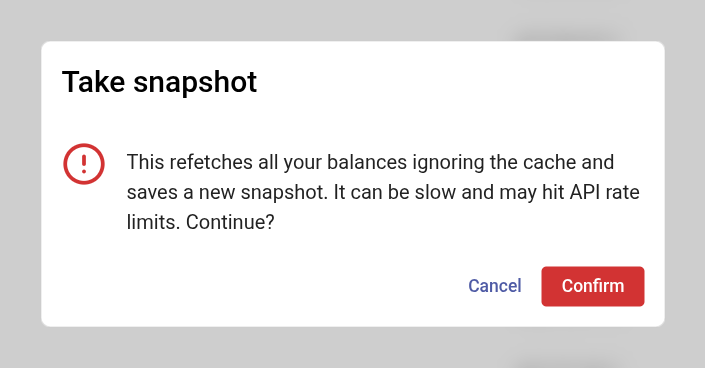
If an exchange or blockchain balance query fails, the snapshot is not saved. Other failures, such as an NFT price lookup, do not block it. To save it anyway, enable Ignore Errors in the snapshot controls next to the dashboard's net-value graph and take the snapshot again. The setting persists across sessions, and a snapshot saved this way may be incomplete.
To restore previously exported data, select Import and provide both import CSV files:
balances_snapshot_import.csvlocation_data_snapshot_import.csv
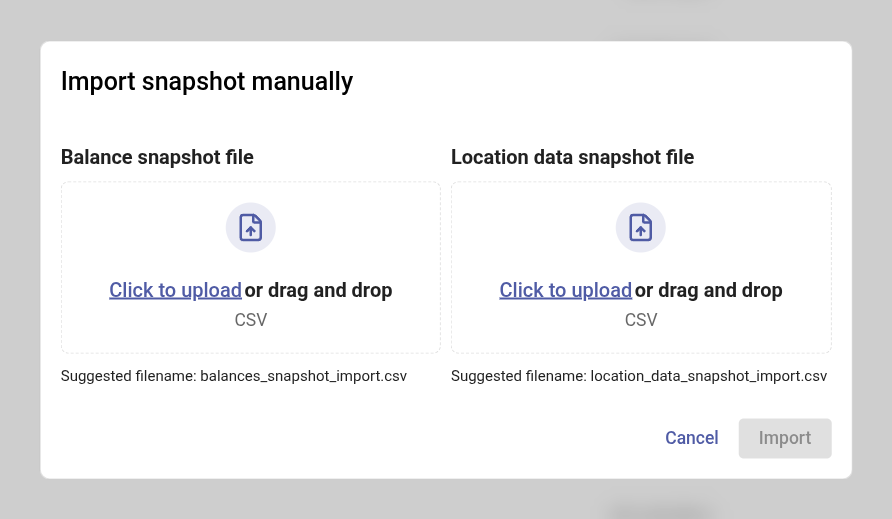
After a successful import, rotki logs you out so the imported data is loaded on your next login.
Edit a snapshot
Opening a snapshot shows its net worth, change since the previous snapshot, allocation by location, warnings, and a table of its asset balances, liabilities, and NFTs.
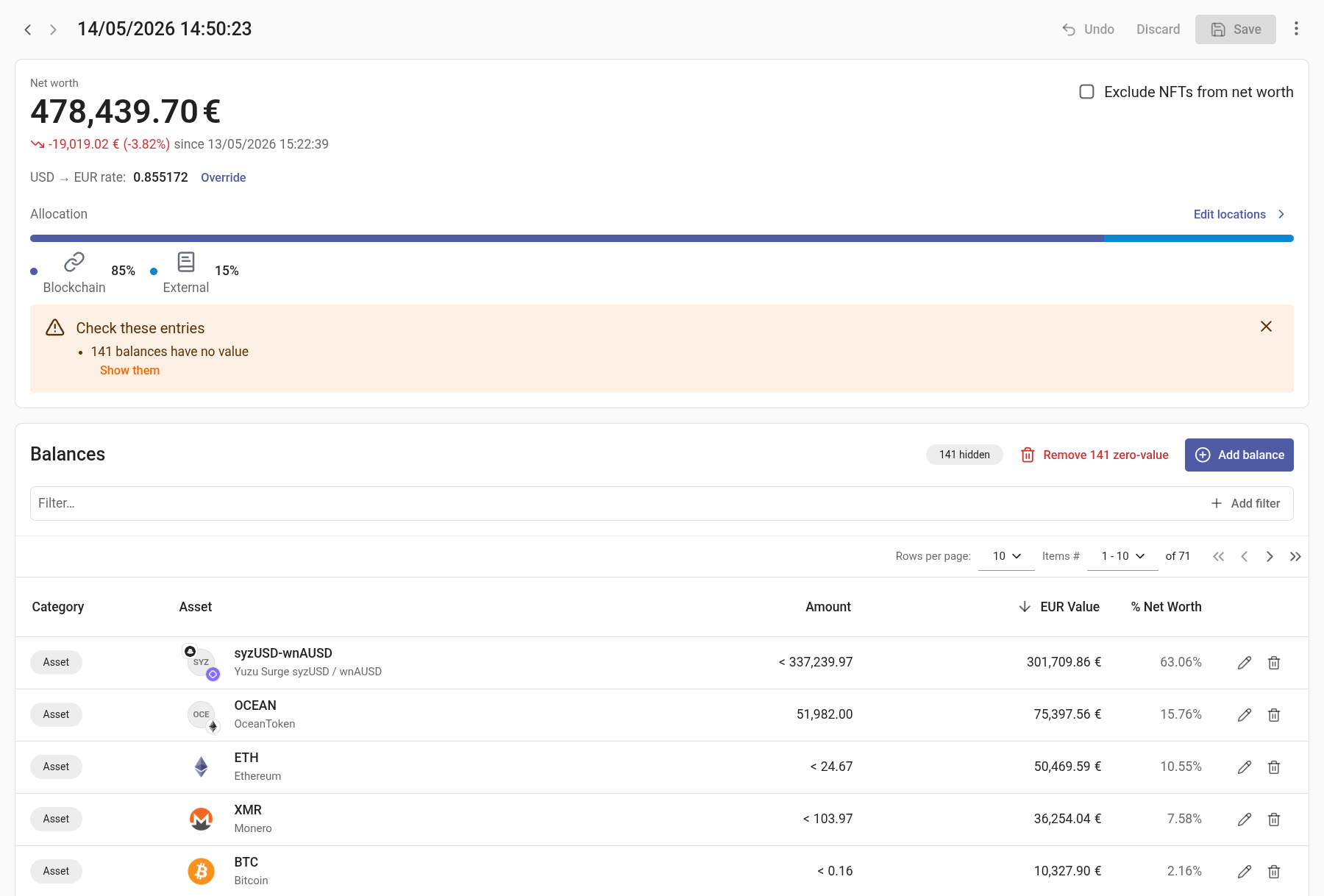
You can add, edit, or remove balances. Every balance must be assigned to a location; when necessary, split a balance's value between several locations. The editor can also hide spam, ignored, and zero-value rows, and lets you remove zero-value balances in bulk.
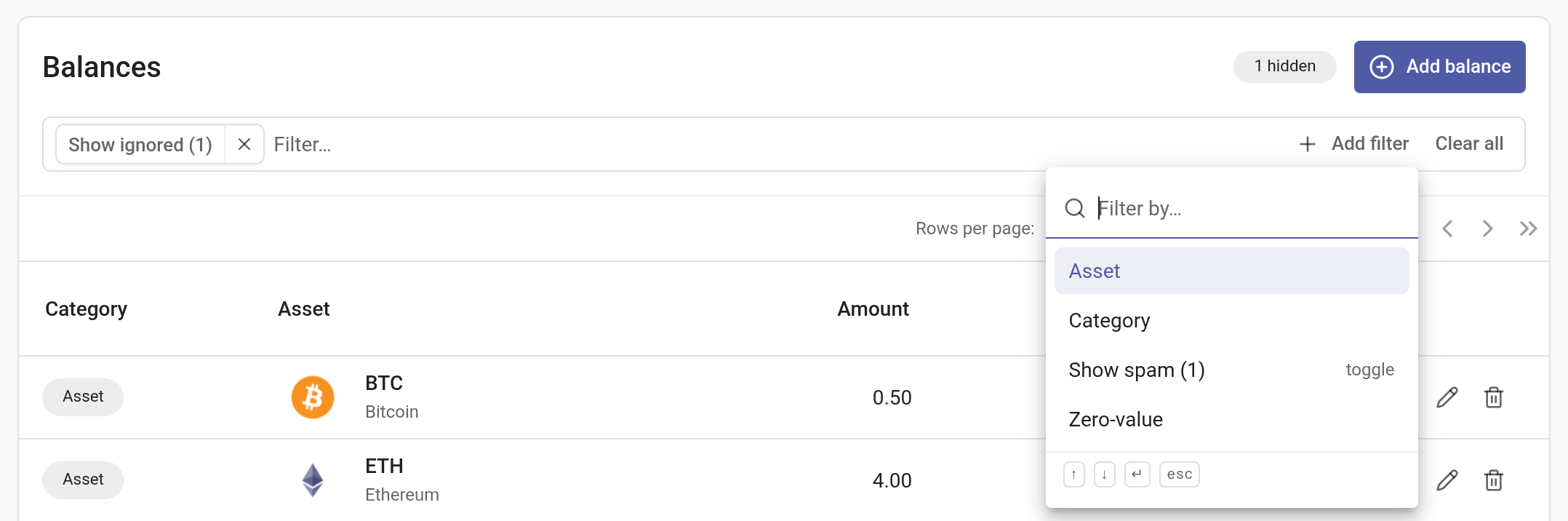
To show hidden rows, open Add filter and turn on Show spam or Show ignored. A spam token is usually also ignored, so you may need both before its row appears. The count next to the table title tells you how many rows the filters are hiding.
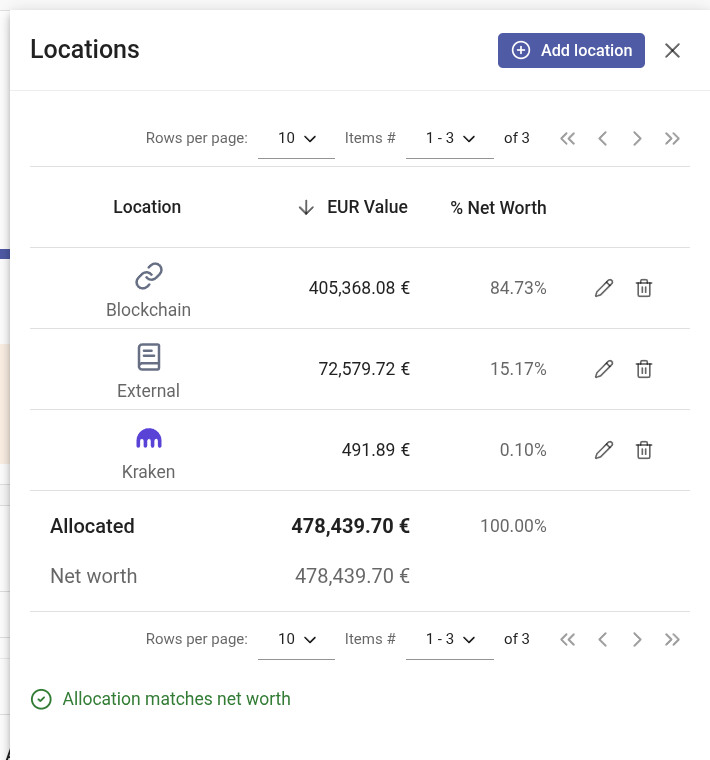
Select Edit locations to add, edit, or remove location allocations, or distribute an allocation across locations. If the totals do not agree, you have to reconcile them before you can edit balances.
The editor flags potential data issues such as duplicate or negative balances, NFT amounts other than one, zero-value rows, and large changes in net worth. These are warnings to review, not automatic changes.
Changes stay in a draft until you select Save. You can review the pending changes, undo the last change, or discard the entire draft. rotki asks for confirmation before leaving a snapshot with unsaved changes.
Reconcile the totals
A snapshot records its value in two ways: one row per balance, and one subtotal per location. The editor treats the balances as the source of truth, so the net worth it shows is always the sum of the balances, assets minus liabilities. Hidden spam and ignored rows count toward it too.
When the location subtotals add up to something else, a Totals do not match warning appears above the balances, showing the Sum of balances and the Sum of locations. This usually means the snapshot was edited by hand at some point: a balance was changed without its location, or a location was changed without its balances. Until the two sums agree, adding, editing, and deleting balances is disabled.
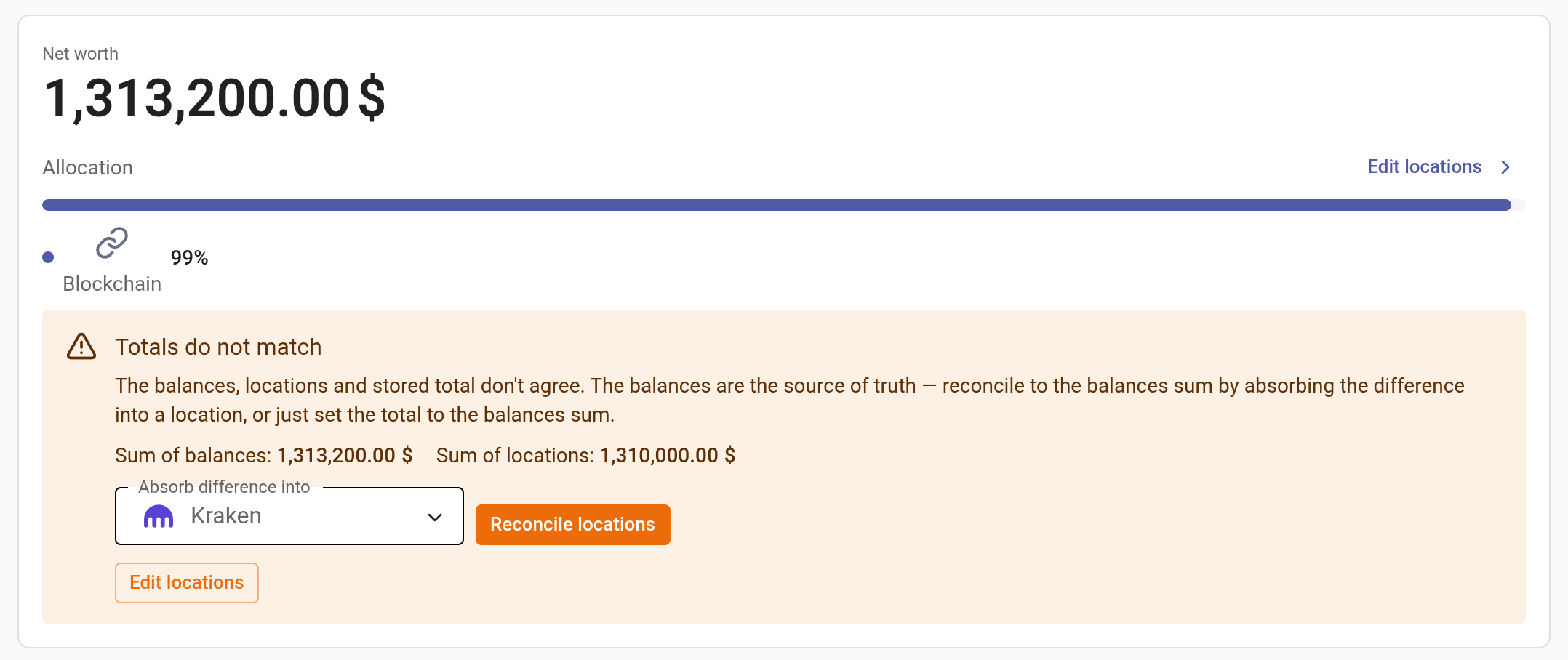

To reconcile:
- Work out which location the difference belongs to. Select Edit locations to compare each location's subtotal with the balances held there.
- In Absorb difference into, choose that location. Check the selection before you continue: the editor preselects the largest location, or keeps the one you chose in the previous snapshot, and neither is necessarily the one that is off.
- Select Reconcile locations. rotki moves the chosen location by the difference, the warning disappears, and the balances can be edited again.
- Select Save.
If the difference is spread over several locations, fix them in the locations drawer instead: edit each location's value, or use Distribute across locations. Distributing asks for the new value of each location, not for the difference, and the values must add up to the net worth. Once the drawer shows Allocation matches net worth, the warning disappears.
Example: remove a high-value spam token
A snapshot taken while a spam token had a price can carry a large, fake value. If that snapshot was also edited by hand before, you need to reconcile it before you can delete the token:
Open the snapshot. Its net worth includes the spam token, even though the list and graph leave out ignored assets, and the Totals do not match warning is shown.
Reconcile the totals as described above. The location holding the spam token is likely the largest one and therefore preselected; pick the location that was actually edited instead.
Open Add filter and turn on Show spam and Show ignored until the token's row appears.
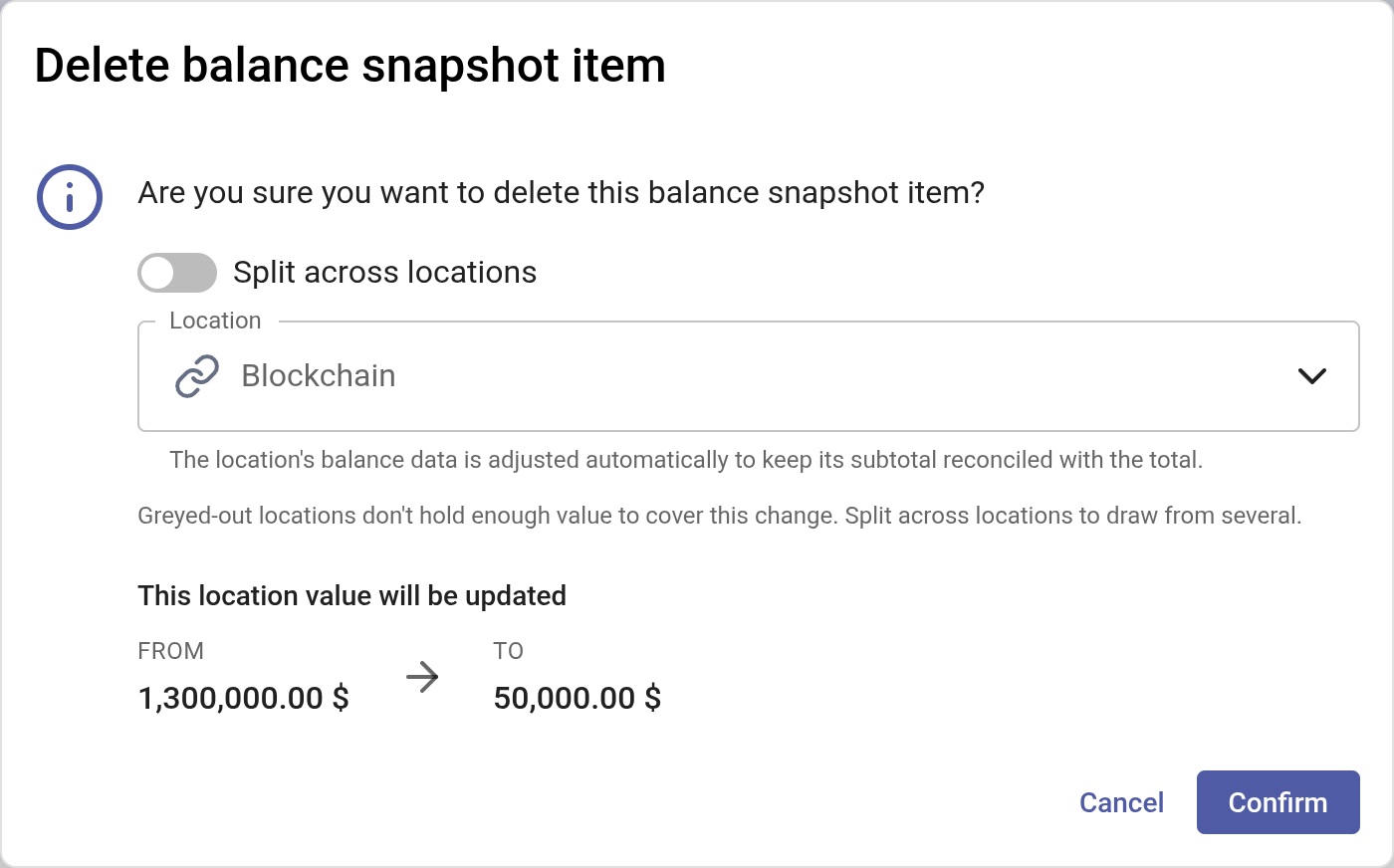
Delete the row. rotki asks which location to take its value from, and greys out locations that do not hold enough. Pick the location that held the token and confirm.
Check that the net worth looks right, then select Save.
Export or delete from the editor
The editor's overflow menu also provides Export and Delete. Export downloads the snapshot data; in the desktop app, rotki lets you choose a folder for the exported CSV files. Deleting a snapshot is permanent after confirmation.
NOTE
If your profit currency is not USD and rotki has no historic USD-to-currency rate for the snapshot date, set a manual historic exchange rate before editing values. This rate also affects price lookups close to that snapshot time.