Resolving history event issues
rotki can detect certain issues with your history events that may affect accounting accuracy. The actions center at the top of the History Events page collects them in one place. Its badge counts the categories that need attention, not the individual items, so a badge of 2 means two kinds of thing to deal with, however many events each covers.

Opening it lists every category as a row with its own count, a short description and its own action button. Categories with nothing to do are listed too, so you can re-check them at any time rather than wondering whether they were ever looked at. Rows are ordered by what you can act on: the ones needing attention first, then ones where only ignored items remain, then any locked behind a premium tier.
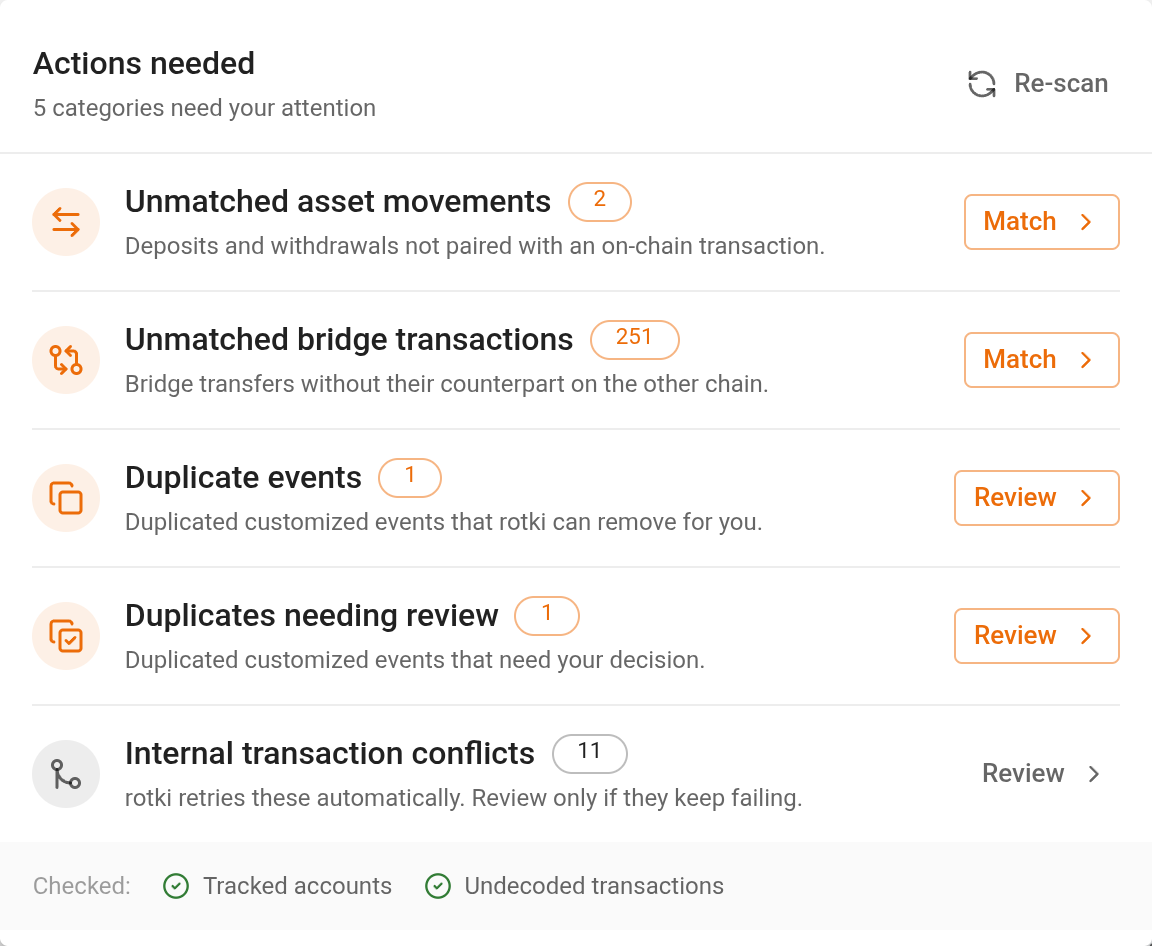
The categories are:
| Category | What it means | Action |
|---|---|---|
| Tracked accounts | You are not tracking any accounts yet, so every other count below is legitimately zero | Add an account |
| Unmatched asset movements | An exchange deposit or withdrawal not yet linked to its on-chain transaction | Match ᴾ |
| Unmatched bridge transactions | A bridge leg not yet linked to its counterpart on the other chain | Match ᴾ |
| Duplicate events | Duplicated customized events that can be fixed automatically | Review |
| Duplicates needing review | Duplicated customized events that need you to choose | Review |
| Internal transaction conflicts | A re-pulled internal transaction disagrees with what was stored | Review |
| Undecoded transactions | Transactions queried but not yet decoded into events | View status |
ᴾ Premium only. A locked row still appears in the list, but it never raises the badge, so the count on the button reflects what you can actually act on.
Two of these mean less than they look. Tracked accounts and Undecoded transactions describe the state of your data rather than a mistake to correct: the first is only ever raised on an empty account, and the second clears itself as decoding proceeds. The remaining five are the ones that affect accounting, and each is covered in its own section below.
When every item in a category has been ignored rather than resolved, the row stays in the list but its action changes to Review ignored, so ignoring something never makes it disappear silently.
Unmatched Asset Movements
Premium Feature
Asset movement matching is only available for certain premium subscription tiers. Visit the pricing page for details on which tiers include this feature.
An unmatched asset movement is an exchange deposit or withdrawal that hasn't been linked to its corresponding on-chain blockchain transaction. For example:
- You withdraw from an exchange, but there is no matching receive event on a tracked blockchain address.
- You deposit to an exchange, but there is no matching send event from a tracked blockchain address.
This can happen when:
- The blockchain address involved is not tracked in rotki.
- The corresponding on-chain event was missed or not yet synced.
- There's a significant time or amount difference between the exchange record and the on-chain event.
- The exchange doesn't provide enough information (such as the blockchain or transaction hash) to automatically link the movement to the corresponding on-chain event, even if that event already exists in your history.
How to resolve
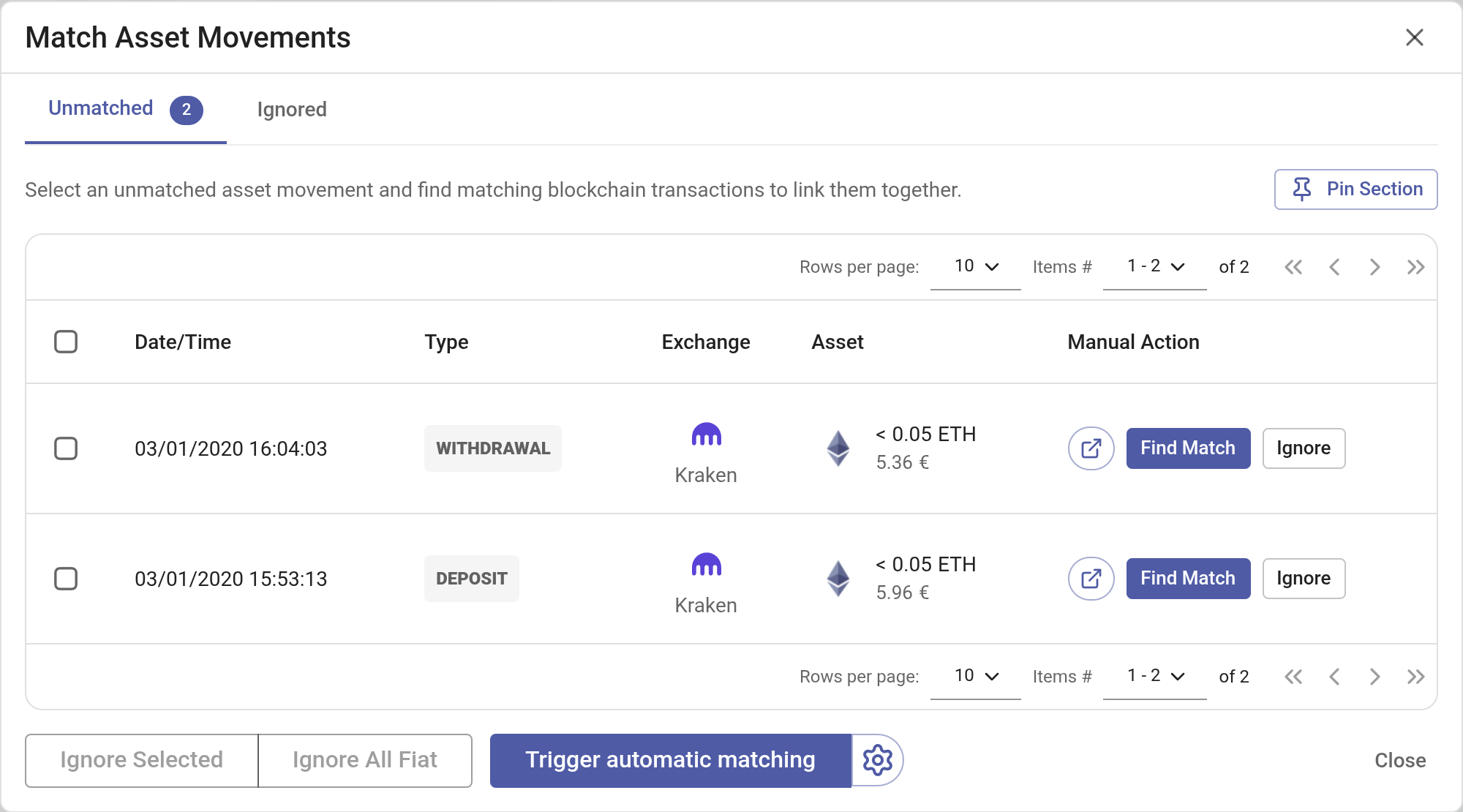
You have several options to resolve unmatched asset movements:
Auto Match - Click the
Trigger automatic matchingbutton to let rotki automatically match movements with corresponding on-chain events based on amount, asset, and timestamp. You can configure the amount tolerance and time range settings before triggering auto match.Find Match (manual) - Click
Find Matchon a specific movement to search for potential matches. You can adjust the search criteria:- Time range (in hours) - Maximum allowed time difference between the movement and the on-chain event.
- Amount tolerance (in %) - Maximum allowed percentage difference between the movement amount and the on-chain event amount.
- Only show same assets - Filter results to the same asset.
Potential matches are displayed in a list. Where one candidate stands out, it is marked as recommended with a thumbs-up; when nothing qualifies, the list is simply the candidates that fit the criteria. Select one or more matching events and click
Confirm Match. A single asset movement can be linked to multiple on-chain events, which is useful when the on-chain side was split across multiple transactions.If nothing comes back, the dialog says so and offers
Widen search, which relaxes the two criteria for you. You can also edit them directly and search again.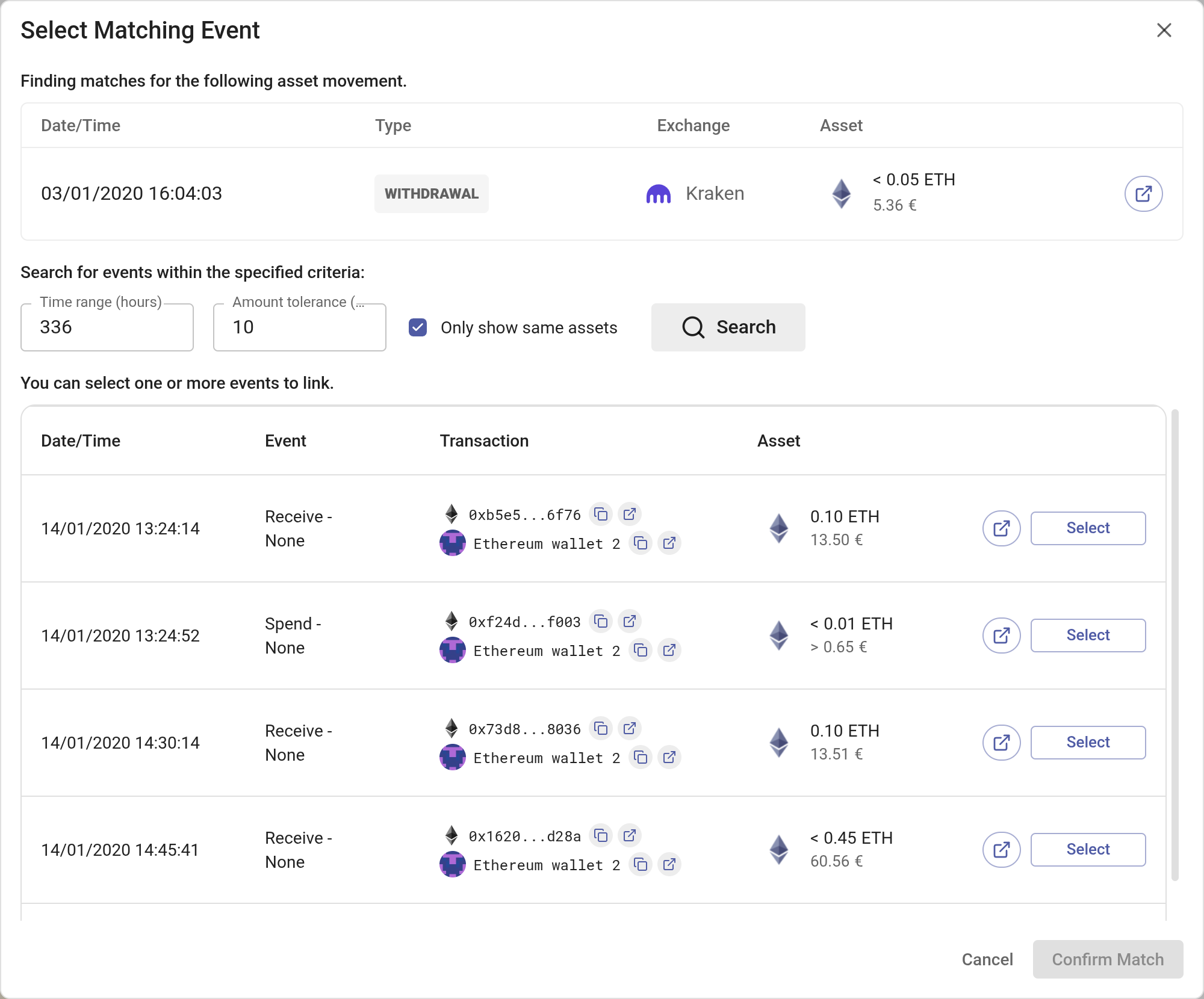
Ignore - If a movement has no corresponding on-chain event (e.g., fiat currency deposits/withdrawals), click
Ignoreto mark it as having no match. Ignored movements are moved to the Ignored tab and can be restored later.Ignore All Fiat - Quickly ignore all fiat currency movements at once, since fiat movements don't have blockchain transactions.
TIP
You can pin the matching dialog to the side of the History Events page, allowing you to browse events while working on matches side-by-side.
Duplicate Custom Events
Duplicate custom events occur when you have customized (manually edited) a blockchain event, and a non-customized version of the same event also exists. This typically happens when:
- A transaction is re-decoded after you had already customized one of its events, creating both the original decoded event and your customized version.
- Events are re-pulled, generating new events alongside your existing customized ones.
Duplicates can cause incorrect accounting since the same action may be counted more than once.
rotki categorizes duplicates into two types:
- Auto-fixable - The customized and non-customized events are exact matches (only differing by sequence index). These can be safely auto-fixed.
- Manual review - The events share the same asset and direction but have other differences. These require manual inspection before resolving.
Each type is its own row in the actions center, reached from the Actions needed button described above: Duplicate events for the auto-fixable ones and Duplicates needing review for the rest, each with its own count and its own Review action.
How to resolve
Auto Fix All - For auto-fixable duplicates, click
Auto Fix Allto remove all the duplicate non-customized events at once, keeping your customized versions.Individual Fix - Click the
Fixbutton on a specific duplicate event to remove just that one duplicate.Manual review - For duplicates that need manual review, click
Viewto see the affected events in the history view. Inspect the events and manually resolve them by editing or deleting the incorrect one.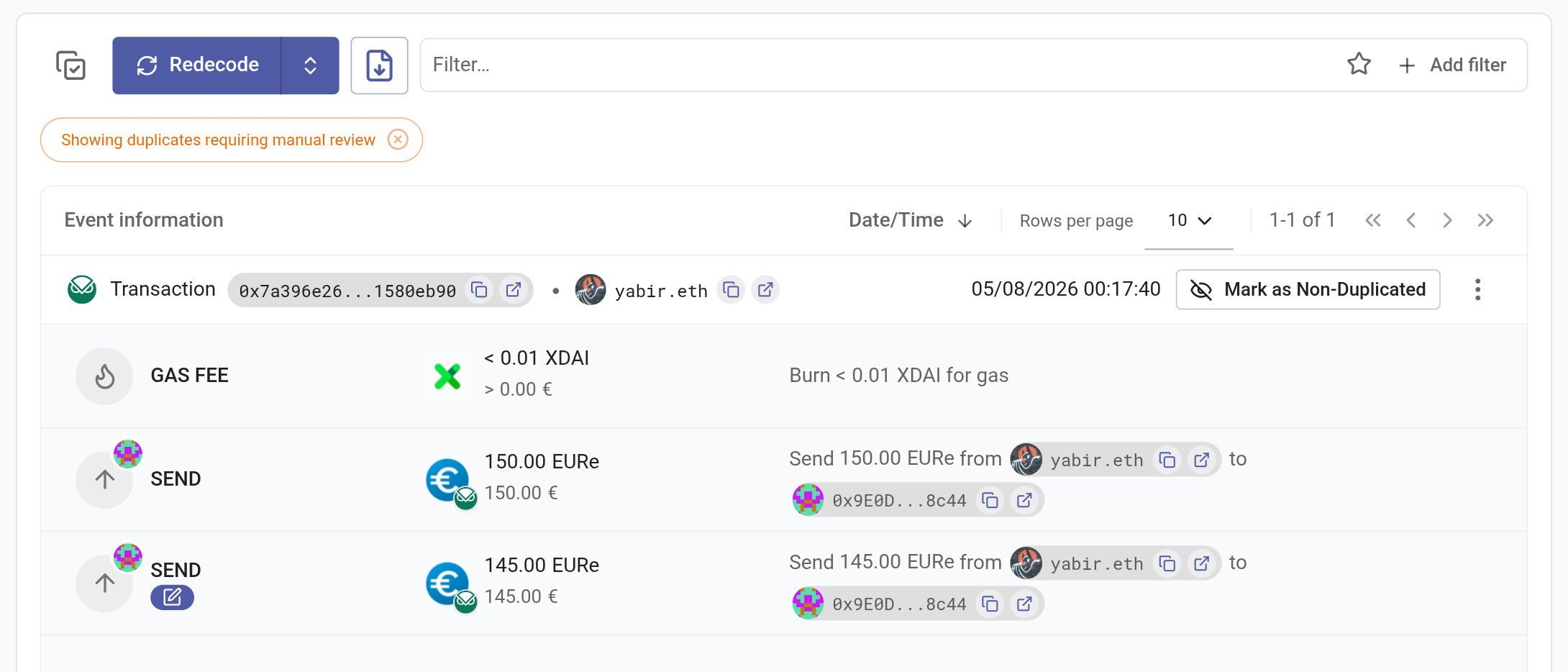
Internal Transaction Conflicts
Internal transaction conflicts occur when rotki detects inconsistencies in internal (trace-level) EVM transactions. These can arise from issues such as:
- All zero gas - All internal transactions in the trace have zero gas values, which typically indicates incomplete or corrupt data from the data source. These conflicts trigger a repull from the data source.
- Duplicate exact rows - Multiple identical internal transaction entries exist for the same transaction. These conflicts trigger a fix & redecode to remove duplicates and re-process the transaction.
- Mixed zero gas - Some internal transactions in the trace have zero gas while others don't, indicating partial data corruption. These conflicts trigger a fix & redecode.
- Mixed zero gas & duplicate - Both zero gas and duplicate conditions are present in the same transaction.
NOTE
This feature was introduced in v1.42.1 as a one-time remediation for internal transaction data issues. The conflicts table is temporary and will be removed in a future release once all conflicts have been resolved.
When conflicts are detected they appear as the Internal transaction conflicts row in the actions center, with the number needing attention and a Review action that opens the dialog below.
Click Review on that row to open the Internal Transaction Conflicts dialog, which shows all detected conflicts organized into three tabs:
- Pending - Conflicts that haven't been resolved yet.
- Failed - Conflicts where the automatic resolution attempt failed.
- Fixed - Conflicts that have been successfully resolved.
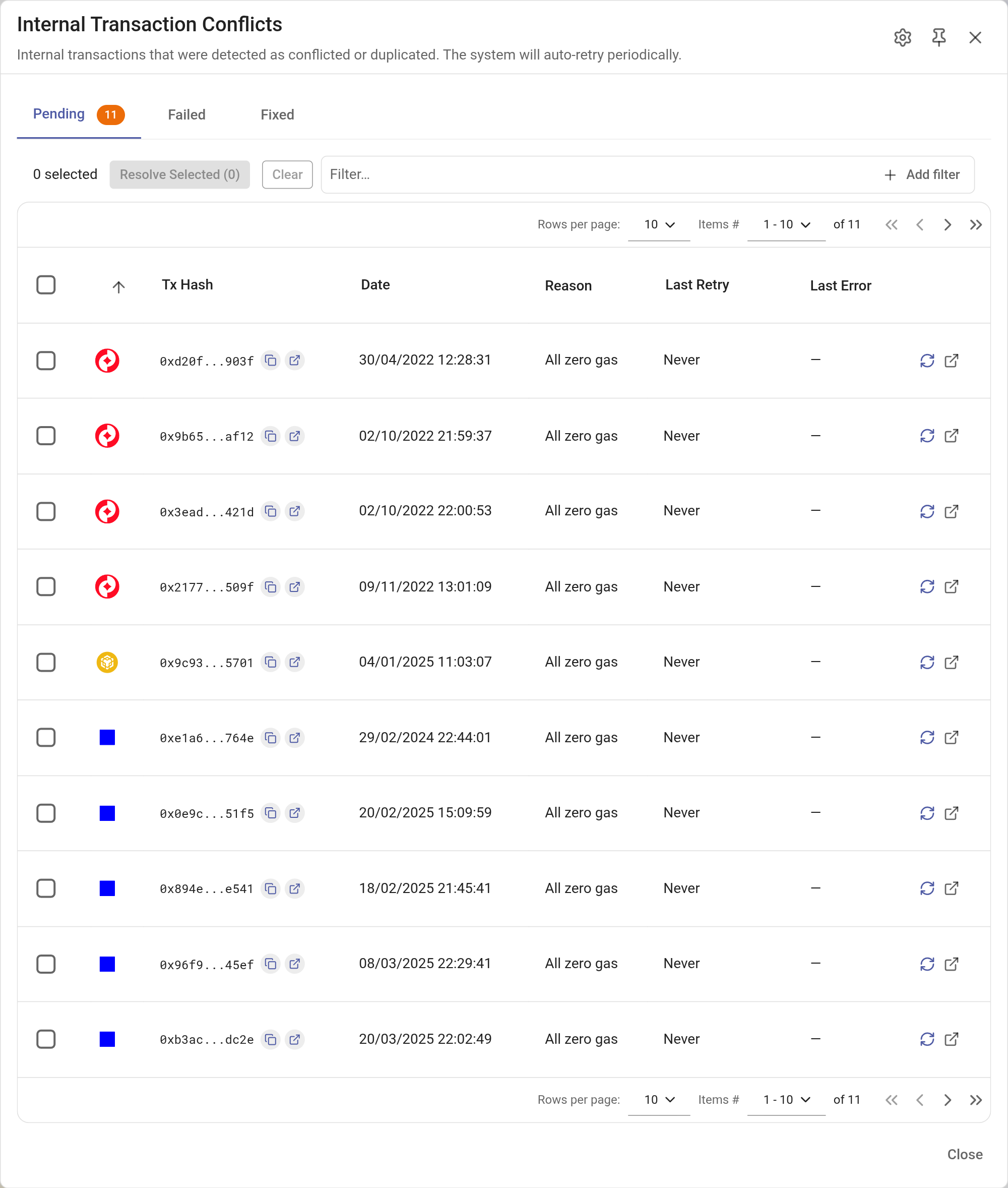
Each conflict shows the transaction hash, chain, action type (repull or fix & redecode), timestamp, reason, last retry time, and any error from the last attempt.
The list uses the same filter bar as the rest of rotki, with a pill for Chain and one for Date. Chain takes a single chain and offers EVM chains only, and Date folds both ends of the range into one pill. The Pending, Failed and Fixed tabs set the status, so it is not a pill. See Filtering history events for the shared syntax and keyboard handling.
How to resolve
Resolve individually - Click the refresh button on a specific conflict to trigger resolution for that transaction.
Resolve in bulk - Select multiple conflicts using the checkboxes and click
Resolve Selectedto process them all at once. A progress indicator will show the current status, and you can cancel the operation at any time.Automatic resolution - rotki will periodically attempt to resolve pending conflicts in the background. Conflicts that have never been retried are prioritized first, followed by those with the oldest retry timestamps. You can configure how often and how many conflicts are processed per run (see Settings below).
TIP
If you have manually customized any history events for a conflicting transaction, your edits are preserved. For fix & redecode conflicts, redecoding is skipped on customized transactions to protect your changes.
Failed conflicts
When a conflict resolution attempt fails (e.g., the data source is temporarily unavailable or returns an error), the conflict is moved to the Failed tab. This tab shows all conflicts where the last resolution attempt was unsuccessful, along with the error message from the last attempt.
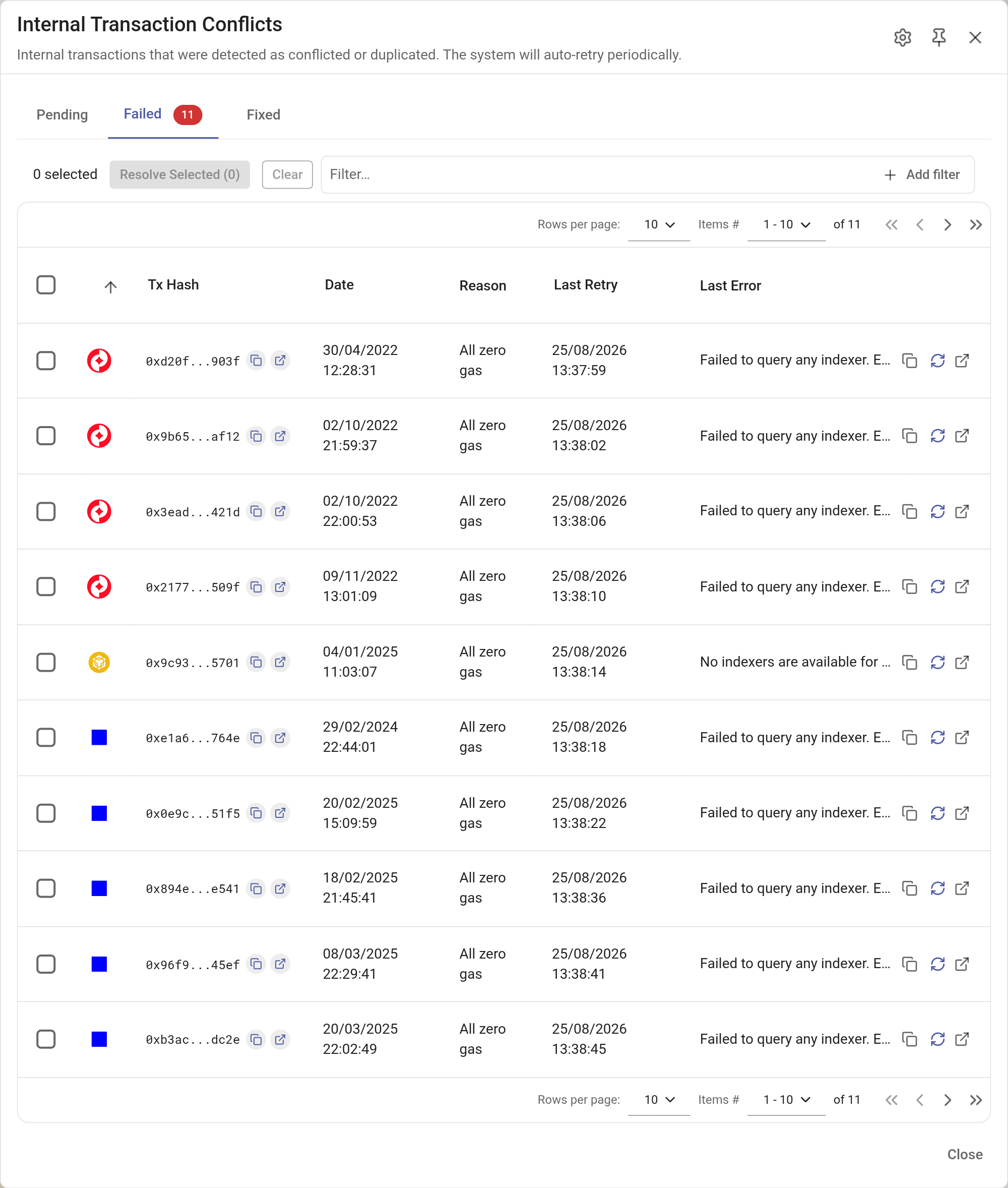
You can retry failed conflicts at any time by selecting them and clicking Resolve Selected, or by clicking the refresh button on individual entries. The automatic resolution system will also periodically retry failed conflicts.
Pinning to sidebar
You can pin the conflicts panel to the side of the History Events page by clicking the pin icon in the dialog header. This allows you to browse your history events while keeping the conflicts list visible for reference.
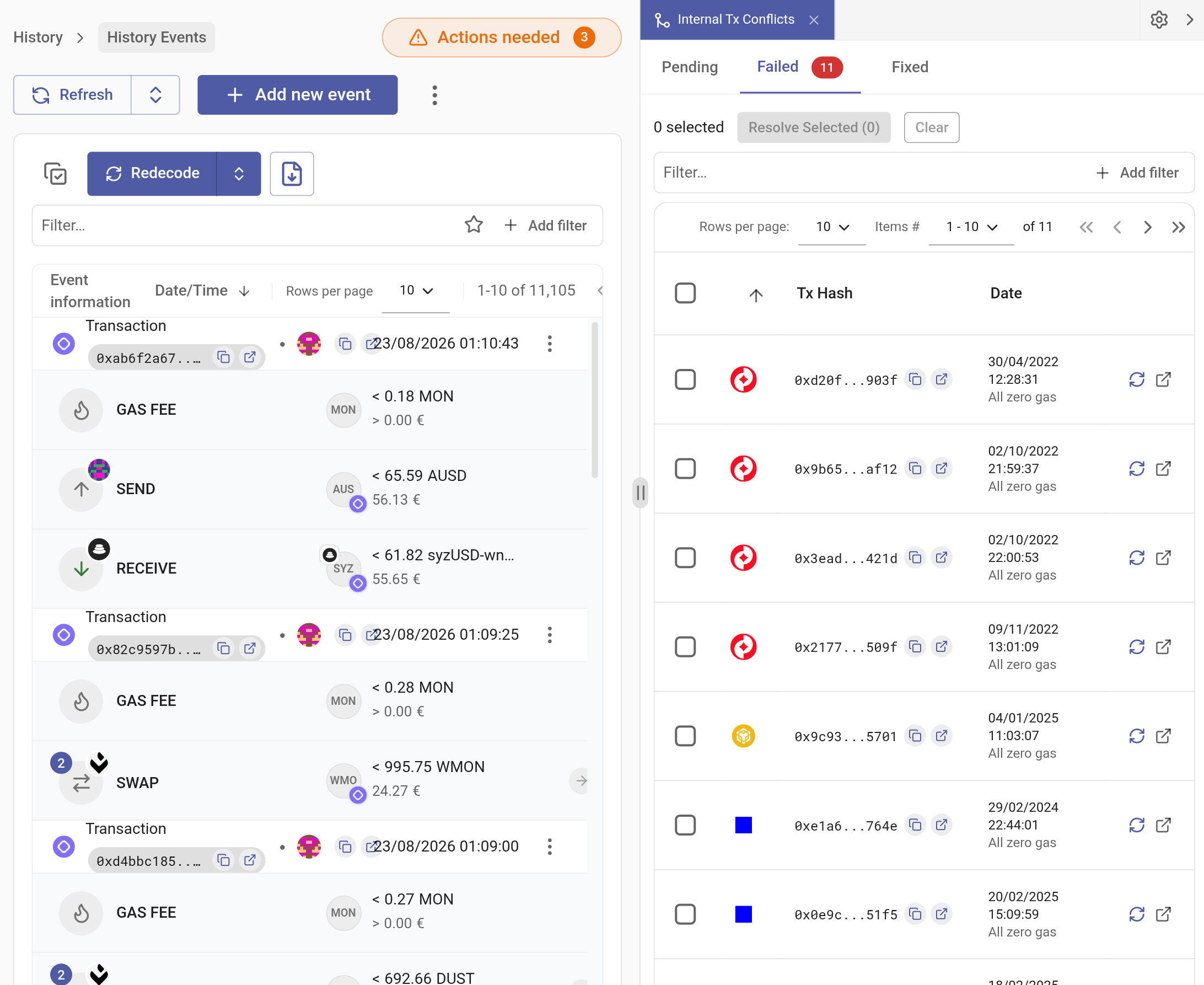
Show in history events
Click the external link icon on a conflict to highlight the corresponding transaction in the History Events view. If the panel is not already pinned, this will automatically pin it, allowing you to browse conflicts and events side-by-side.
Internal transaction conflict settings
You can configure the automatic conflict resolution behavior by clicking the gear icon in the dialog header.
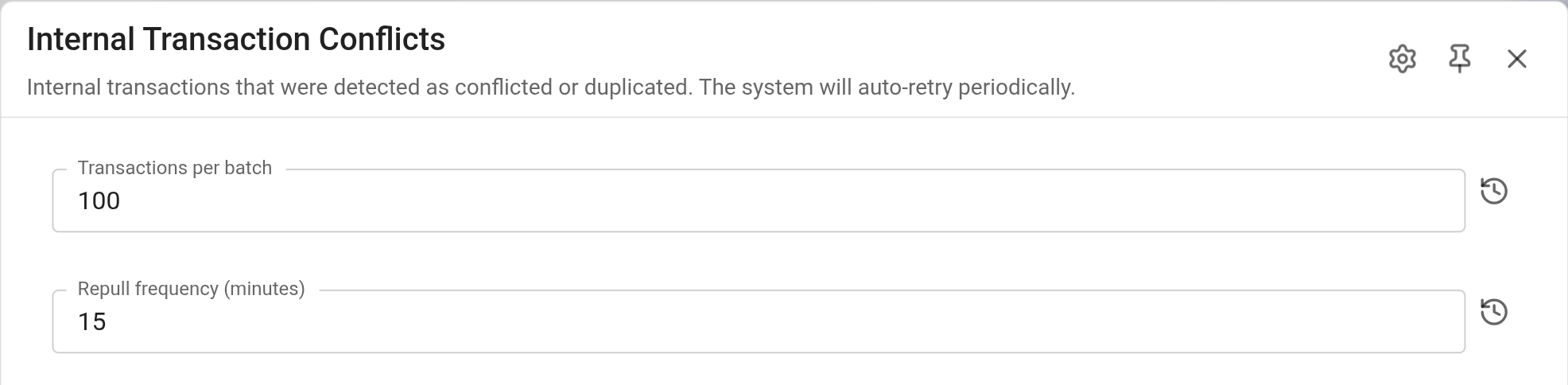
Two settings are available:
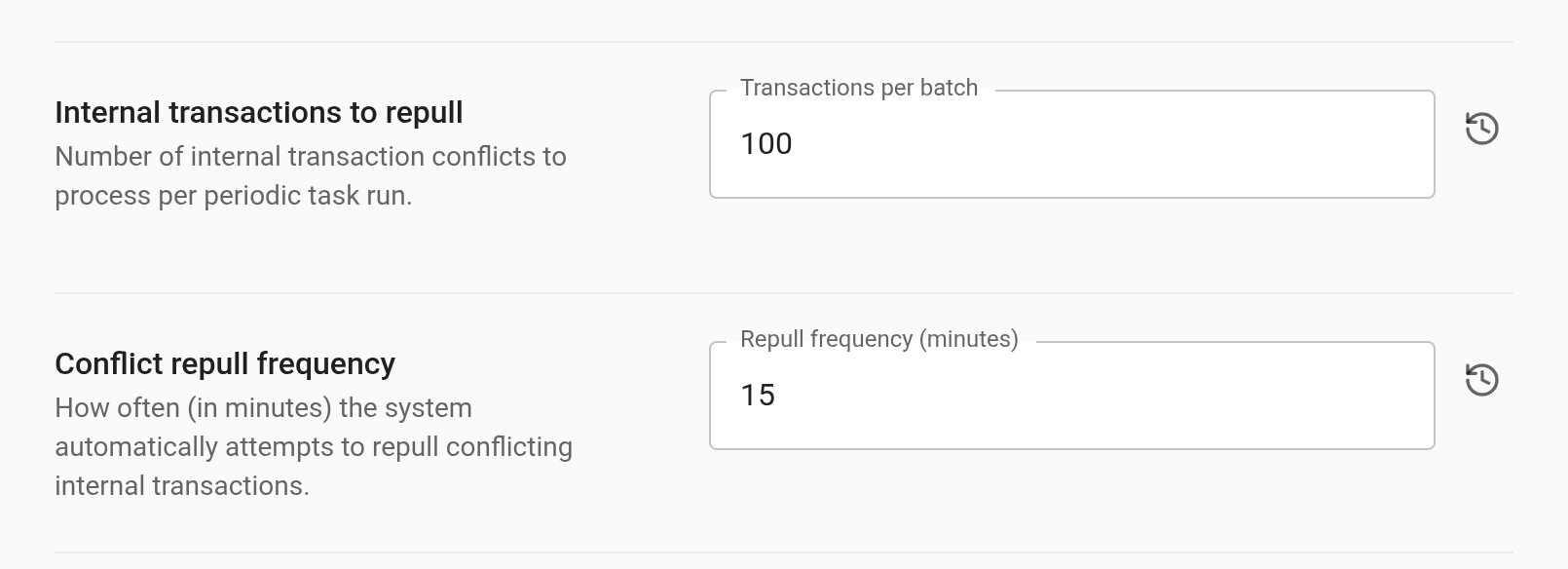
- Transactions per batch - The number of conflicts to process per periodic task run (default: 100, minimum: 1).
- Repull frequency (minutes) - How often the system automatically attempts to resolve conflicts (default: 15 minutes, minimum: 0.5 minutes).
These settings are also available in Settings > General > History Events, where the same two controls are titled Internal transactions to repull and Conflict repull frequency. The fields themselves keep the labels above, so the values you see there are the same ones.