
Device Management
Manage devices using your rotki premium subscription and understand device limits for your plan tier.
What are Device Limits?
Each rotki premium tier includes a limit on how many devices can use the same rotki API credentials simultaneously. This prevents unauthorized sharing while allowing you to use rotki on multiple devices you own.
Device limits vary by tier - check the pricing page for your tier's specific limit.
Viewing Your Devices
You can manage devices from two locations:
On the Website:
From the devices list page, you can see:
- Device name - Identifier for each device
- Last active - When the device last connected
- Registration date - When the device was first added
- Current count - How many devices are active
- Your limit - Maximum allowed for your tier
In the App:
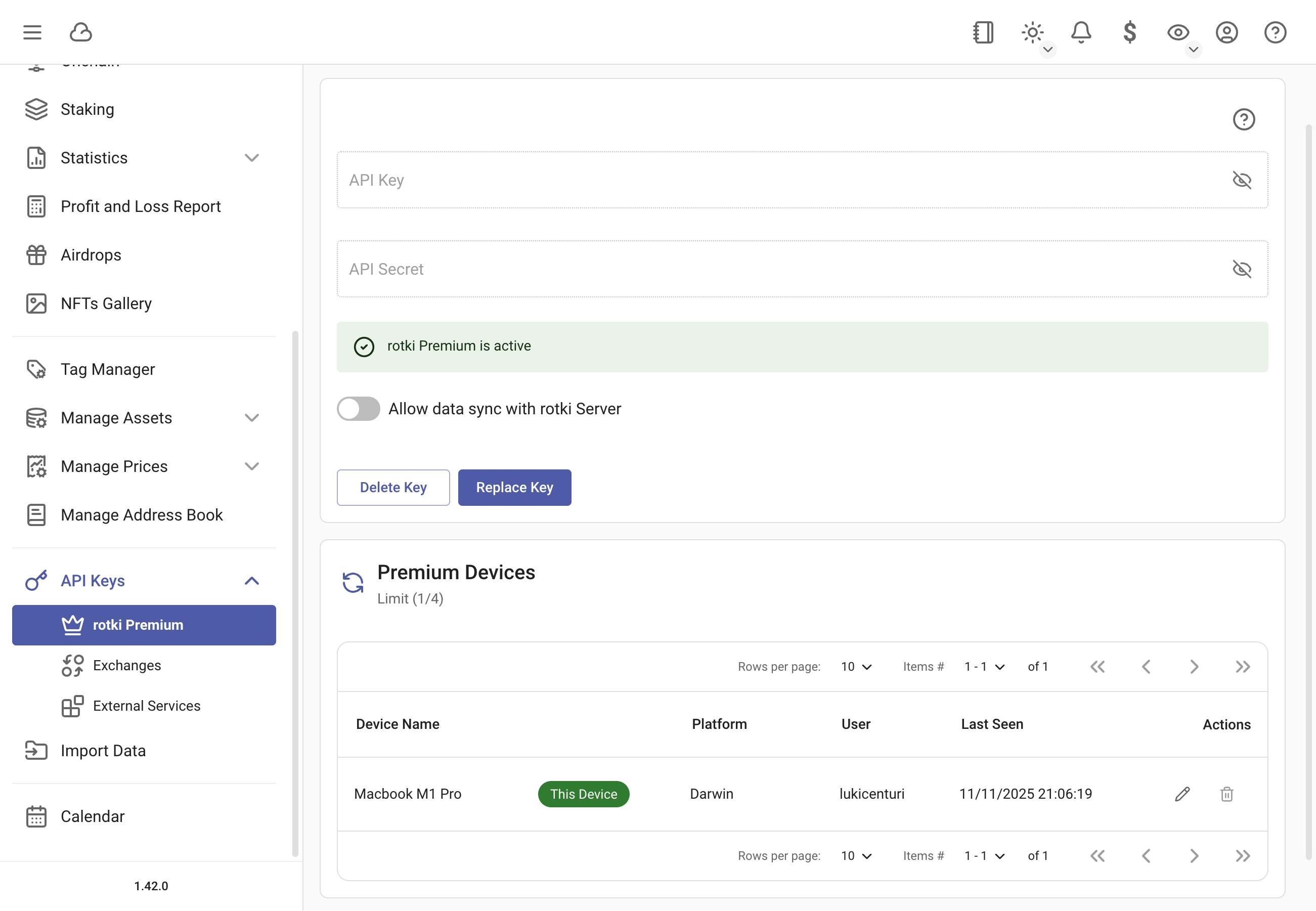
From API Keys → rotki Premium:
- View all devices using your API credentials
- See active device count vs. your limit
- Identify which device you're currently using
- Access device management options
Editing Device Names
Device names help you identify which device is which (e.g., "Work Laptop", "Home Desktop", "MacBook Pro").
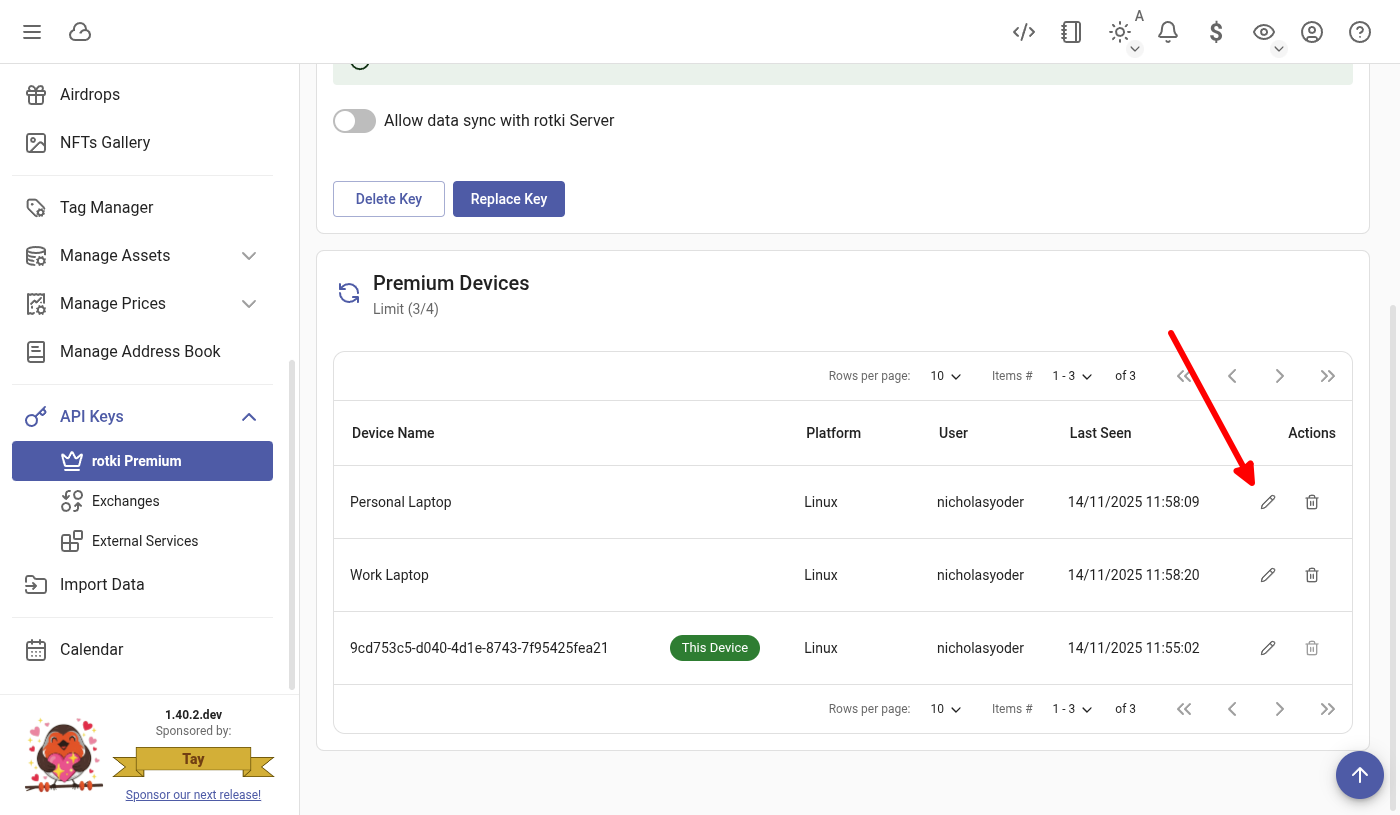
- Navigate to API Keys → rotki Premium in the sidebar of the App
- Find the device to rename
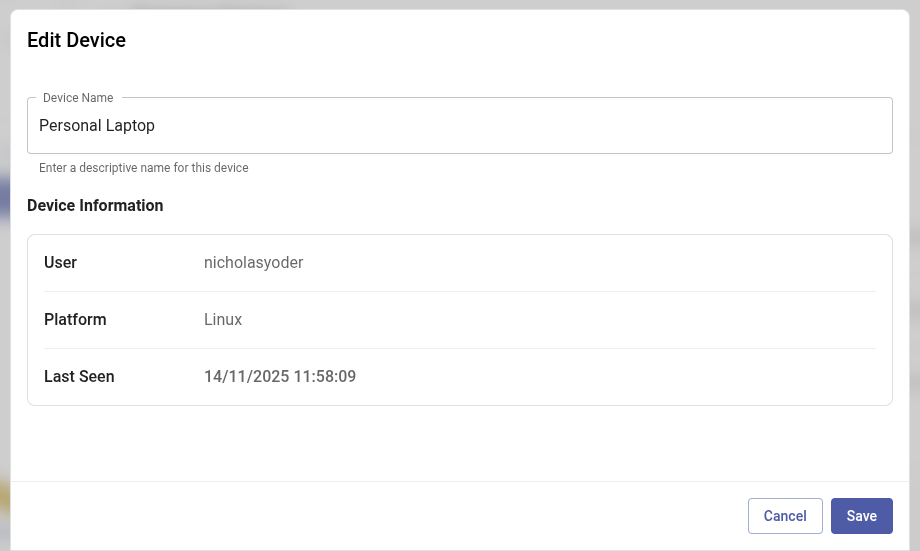
- Click the edit option
- Enter a new name
- Save changes
Naming Strategy
Use descriptive names to easily identify devices:
- "MacBook Pro 2023"
- "Home Desktop PC"
- "Work Laptop"
- "Linux Server"
This makes it easier to identify and remove unused devices later.
Removing Devices
Why Remove Devices
Remove devices when:
- You've reached your device limit and need to add a new device
- You no longer use a particular device
- You've replaced or sold a device
- A device is showing but shouldn't be
How to Remove Devices
On the Website:
- Go to the devices list page
- Find the device to remove
- Click Delete or Remove
- Confirm the deletion
In the App:
- Go to Settings → Account → Premium Devices
- Find the device to remove
- Click the remove/delete option
- Confirm the action
Immediate Effect
Removing a device takes effect immediately. If rotki is running on that device, it will lose premium access and may show authentication errors.
Device Limit Exceeded
What Happens When You Exceed the Limit
If you try to use rotki on a new device after reaching your limit:
- Authentication will fail
- You'll see an error message in the app
- Premium features won't activate
- The app may prompt you to manage devices
What to Do When You Exceed the Limit
To continue using rotki on a new device:
Option 1: Remove Unused Devices
- Identify devices you no longer use
- Remove them from the website or another active device
- Try authenticating again on the new device
Option 2: Upgrade Your Plan
If you genuinely need more devices:
- Review higher tiers on the pricing page
- Upgrade directly from your subscription page
- See Upgrading Your Subscription for details
Understanding Device Registration
When is a Device Registered?
A device is registered when you add rotki premium API credentials to the app and successfully authenticate with rotki servers.
How Devices are Identified
Devices are identified by:
- Hardware identifiers
- Operating system information
- Installation instance
Same Computer, Different Users
Installing rotki multiple times on the same computer (e.g., different user accounts) may register as multiple devices, each counting toward your limit.
Device Registration Limits
- Only successfully authenticated devices count toward your limit
- Failed authentication attempts don't register devices
- Removed devices immediately free up a slot
Managing Multiple Devices
Best Practices
If you use rotki across multiple devices:
- Use descriptive names - Make it easy to identify each device
- Regularly audit - Remove devices you no longer use
- Plan ahead - Consider your device needs when choosing a tier
- Keep track - Know which devices are actively using your subscription
Syncing Data Across Devices
Device management is separate from data syncing. To sync your rotki data across devices:
- Enable "Allow data sync with rotki Server" in each rotki instance
- Use the same API credentials on all devices
- See Sync Data Guide for details
Don't Run Simultaneously
Avoid running rotki on multiple devices at the same time to prevent data sync conflicts.
Checking Your Device Limit
To see your tier's device limit:
- Visit your subscription page to see your current tier and limits.
- Check the devices list page to view a list of all your current devices.
- Navigate to API Keys → rotki Premium in the app to see your limit and a list of your current devices.
Troubleshooting
Device not showing in the list
If a device should appear but doesn't:
- Verify the device successfully authenticated (check in the app)
- Refresh the devices page
- Wait a few moments - registration may be processing
- Check you're logged in to the correct rotki.com account
Can't remove a device
If you can't delete a device:
- Ensure you have an active premium subscription
- Try refreshing the page
- Try removing from the app instead of the website (or vice versa)
- Contact info@rotki.com for assistance
Device keeps re-appearing after removal
If a removed device reappears:
- Ensure rotki isn't still running on that device
- If you still have access to the device, remove the API credentials from the app
- The device will re-register if it's still trying to authenticate
Wrong device count
If the device count seems incorrect:
- Remove and re-add API credentials in the app to force re-registration
- Wait a few minutes for the count to update
- Contact support if the issue persists
Multiple entries for the same device
If one physical device shows multiple entries:
- This can happen if rotki was reinstalled or data was reset
- Remove the duplicate/old entries
- Keep only the active registration
Security Considerations
Unauthorized Devices
If you see devices you don't recognize:
- Immediately remove them from the devices list
- Regenerate your API credentials from the subscription page by clicking Regenerate
- Update your legitimate devices with the new credentials
- Contact info@rotki.com to report the issue
See API Keys & Secrets for security best practices.
Regular Audits
Security Best Practice
Periodically review your devices list (monthly or quarterly) to:
- Ensure all listed devices are yours
- Remove old devices you no longer use
- Verify no unauthorized access has occurred