
API Credentials
rotki premium uses API credentials to connect your subscription to the rotki application. This guide explains how to create, manage, and secure your API credentials.
What are rotki Premium API Credentials?
The API Key and Secret are authentication credentials that:
- Link your rotki app to your premium subscription
- Enable premium features in the application
- Allow cloud backup and sync across devices
- Identify your account for device limit management
Creating API Credentials
After purchasing a subscription, you need to manually generate your API credentials:
- Go to your subscription page
- Navigate to the API Credentials section
- Click the Create button
- Your credentials will be generated and displayed:
- API Key - Your public identifier
- API Secret - Your private authentication token
- You can view both credentials anytime from your subscription page
Manual Generation Required
API Credentials are not automatically created after payment. You must click the button to generate them for the first time.
Using API Credentials in the App
After creating your API credentials, add them to rotki:
- Open the rotki application
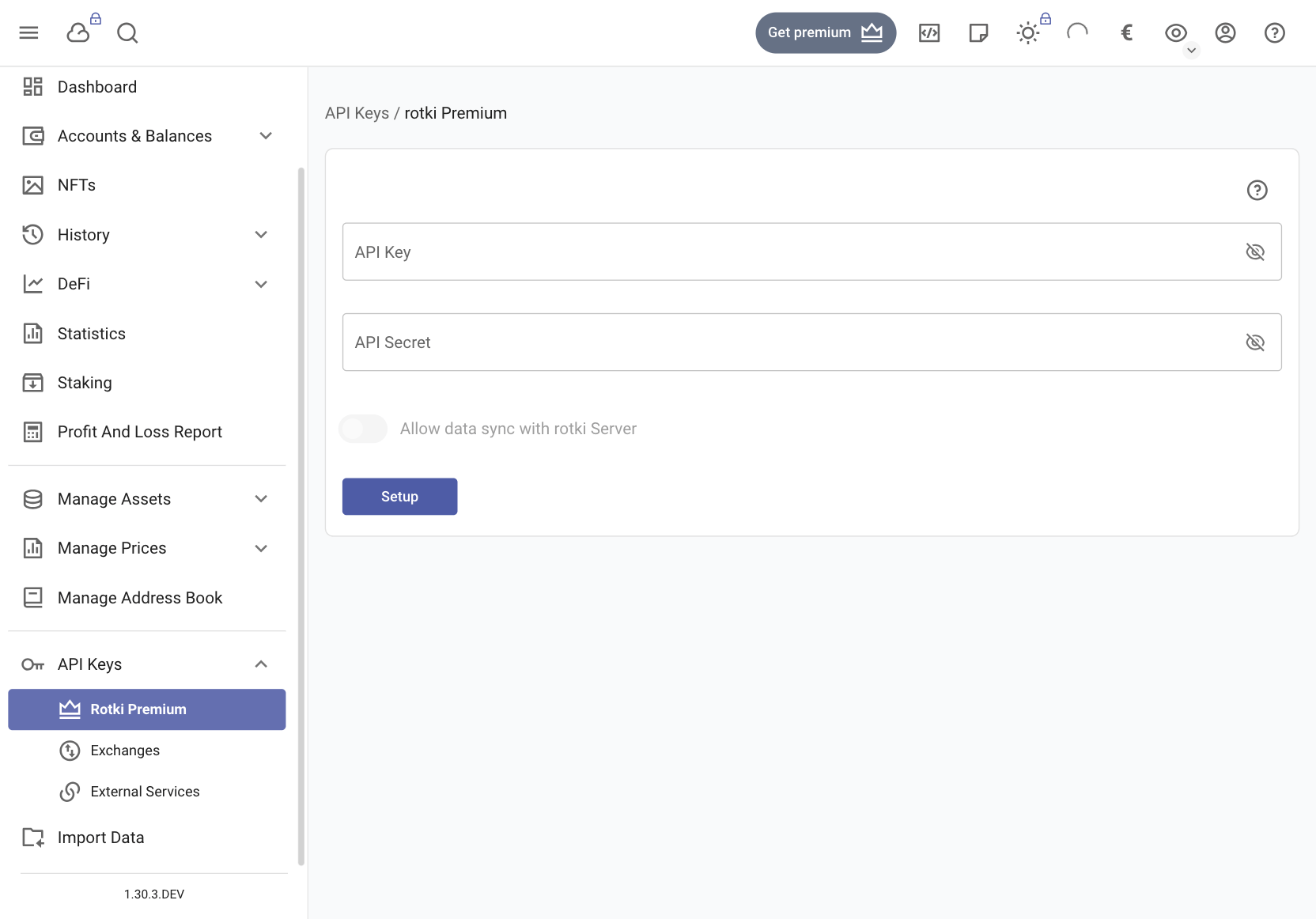
- Navigate to API Keys → rotki Premium in the sidebar
- Enter your API Key and API Secret
- Click Setup
Managing API Credentials
Viewing Your Credentials
From your subscription page:
- Both your API Key and Secret are always visible
- You can copy them anytime you need
- You can see when the key was created
Regenerating Credentials
If you need to create new credentials:
- Go to your subscription page
- Click the Regenerate button
- Your new API Key and Secret will be generated and displayed
- Update credentials on all your devices
When to Regenerate
- If you suspect your credentials have been compromised
- If you want to revoke access from all devices
Security Best Practices
Protecting Your Credentials
Keep Your Secret Safe
- Never share your API Secret with anyone
- Never post it in public forums or Discord
- Never commit it to version control (Git, etc.)
- Never send it via unencrypted channels
Storage Recommendations
Store your API credentials securely:
- Use a password manager (1Password, Bitwarden, KeePass, etc.)
- Keep backups in a secure location
- Don't save them in plain text files
- Don't email them to yourself
If Credentials are Compromised
If you believe your API credentials have been exposed:
- Immediately regenerate your API credentials from the subscription page by clicking Regenerate
- Update all your legitimate devices with the new credentials
- Monitor your account for unusual activity
API Keys and Device Limits
Each premium tier has a device limit. Each rotki app account where you add your API credentials is registered as a new device and counts toward your device limit.
For more information about managing your devices, device limits, and what to do when you exceed your device limit, see the Device Management documentation.
Troubleshooting
Invalid API Key/Secret Error
If you see authentication errors:
- Verify you copied the credentials correctly (no extra spaces)
- Ensure your subscription is active (check subscription page)
- Verify your API credentials are still visible on the subscription page
- Try regenerating your credentials
Can't See My API Key/Secret
If you can't see your credentials on the subscription page:
- Verify you're logged in to the correct rotki.com account
- Ensure you've already generated API credentials (if not, click the generate button)
- Refresh the page
- Contact info@rotki.com if the issue persists
Premium Features Not Working
If premium features aren't activating:
- Verify API credentials are entered correctly in the app
- Check your subscription is active and not expired
- Ensure you haven't exceeded your device limit
- Try removing and re-adding the credentials
- Check the app logs for specific errors
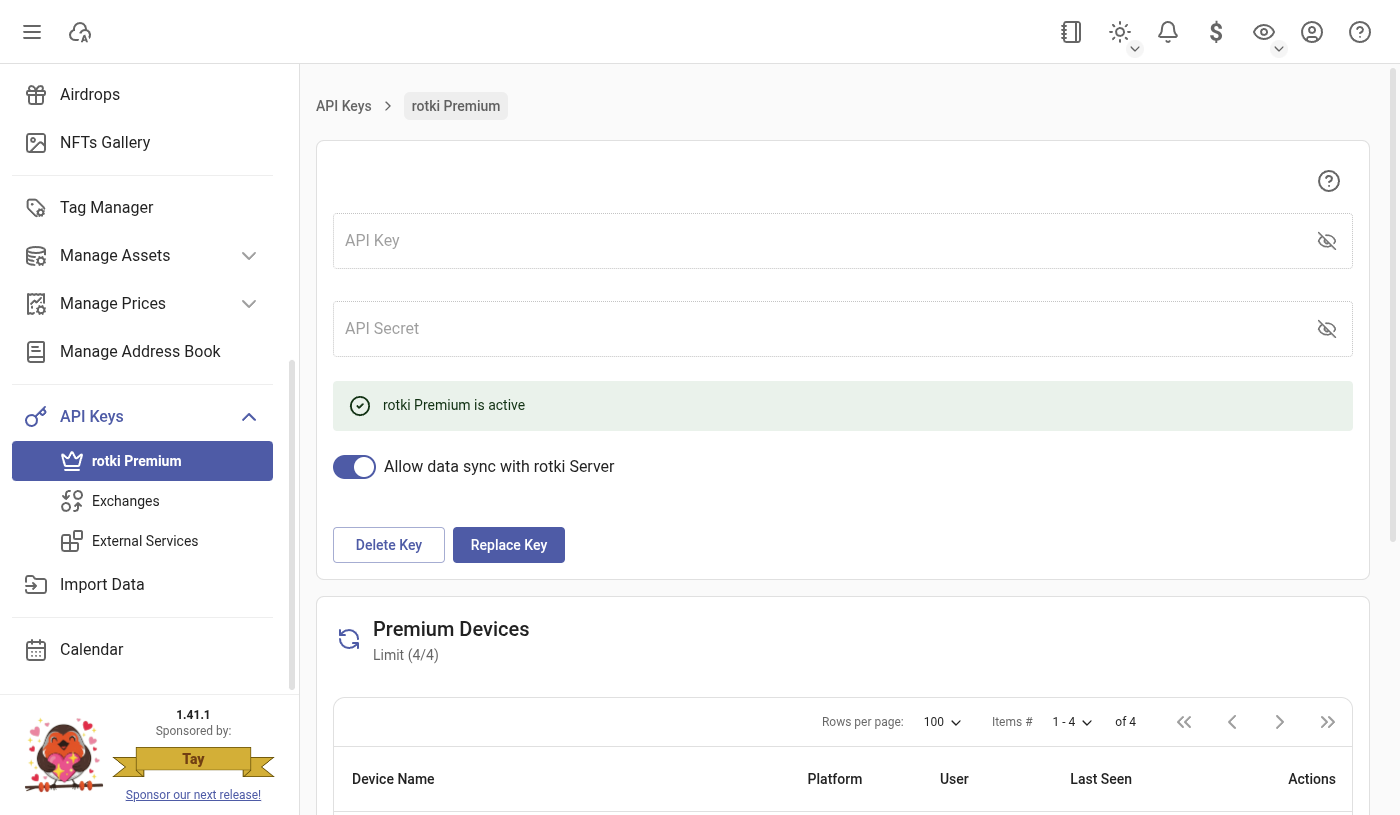
When premium is successfully activated in the app you should see a rotki Premium is active banner in the rotki Premium view.
Multiple Devices Not Syncing
If sync isn't working across devices:
- Verify all devices use the same API credentials
- Ensure "Allow data sync with rotki Server" is enabled (see Sync Guide)
- Check you haven't exceeded device limits
- Manually trigger sync from the toolbar