History events
rotki is capable of pulling and decoding a bunch of different events, ranging from EVM chain transactions to exchanges events and more. When you visit the History Events section the process to obtain all the information will start. You will be able to check the status in an informative breakdown per blockchain address. Free users are limited to a number of latest events.
Supported events
Currently, these events are detected automatically by rotki:
- Transactions from registered EVM accounts (except Avalanche).
- Transactions from registered Bitcoin and Bitcoin Cash accounts.
- Transactions from registered Solana accounts.
- Events from registered exchanges.
- ETH withdrawal events
- ETH block events
- ETH deposit events
- Asset movement events (deposits and withdrawals).
- Swap events (trades).
Additionally, you can add your custom events.
Events filtering
History events can be filtered with these advanced filters. The filters will persist, meaning if you go to another page or log out, the last filter will still be applied when you open the history events page.
- Accounts (tracked blockchain / exchange accounts)
- Time range
- Asset involved in the transaction
- Protocol that interacted in the transaction
- Location of the event (ethereum, optimism, kraken, etc.)
- Event type (deposit, withdrawal, etc.)
- Event subtype (fee, spend, etc.)
- Entry type (EVM event, ETH block event, etc.)
- Counterparty address
- Tx hash/signature of a particular transaction that you want to check
- Index of an eth2 validator that you want to see events for
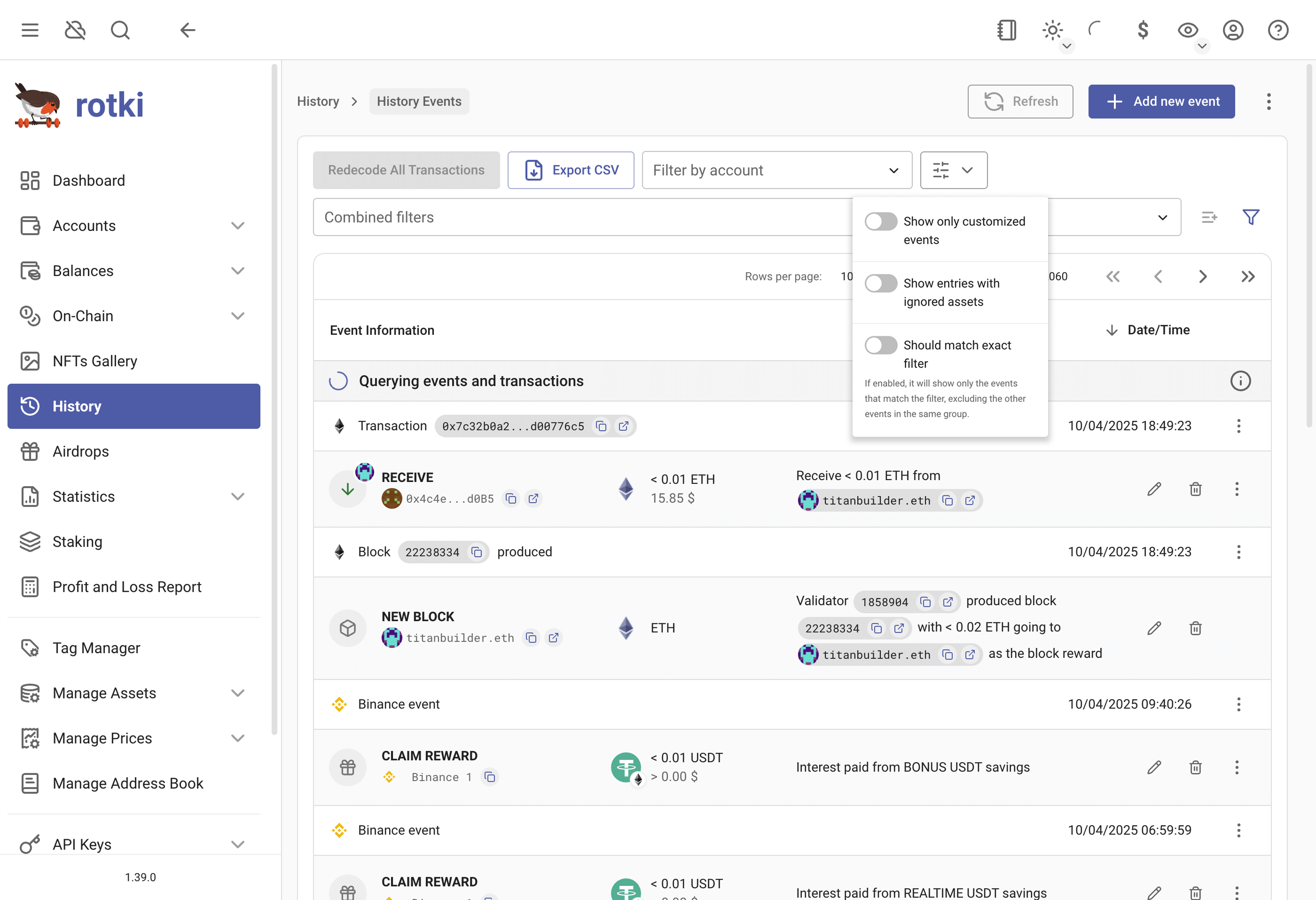
- Show only customized events
- Show entries with ignored assets
- Should match exact filter (whether to only show the events that match the filter, excluding the other events in the same group)
Refreshing Events
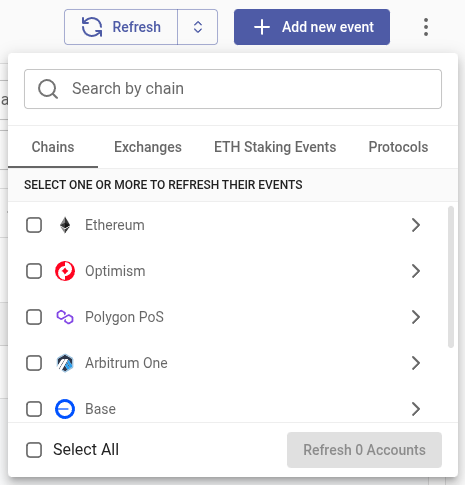
You can choose to refresh all events by clicking the main Refresh button, or you can open the menu and choose to refresh only certain types of events or accounts.
By Chain
Refreshes specific chains, optionally limited to only specific accounts on those chains.
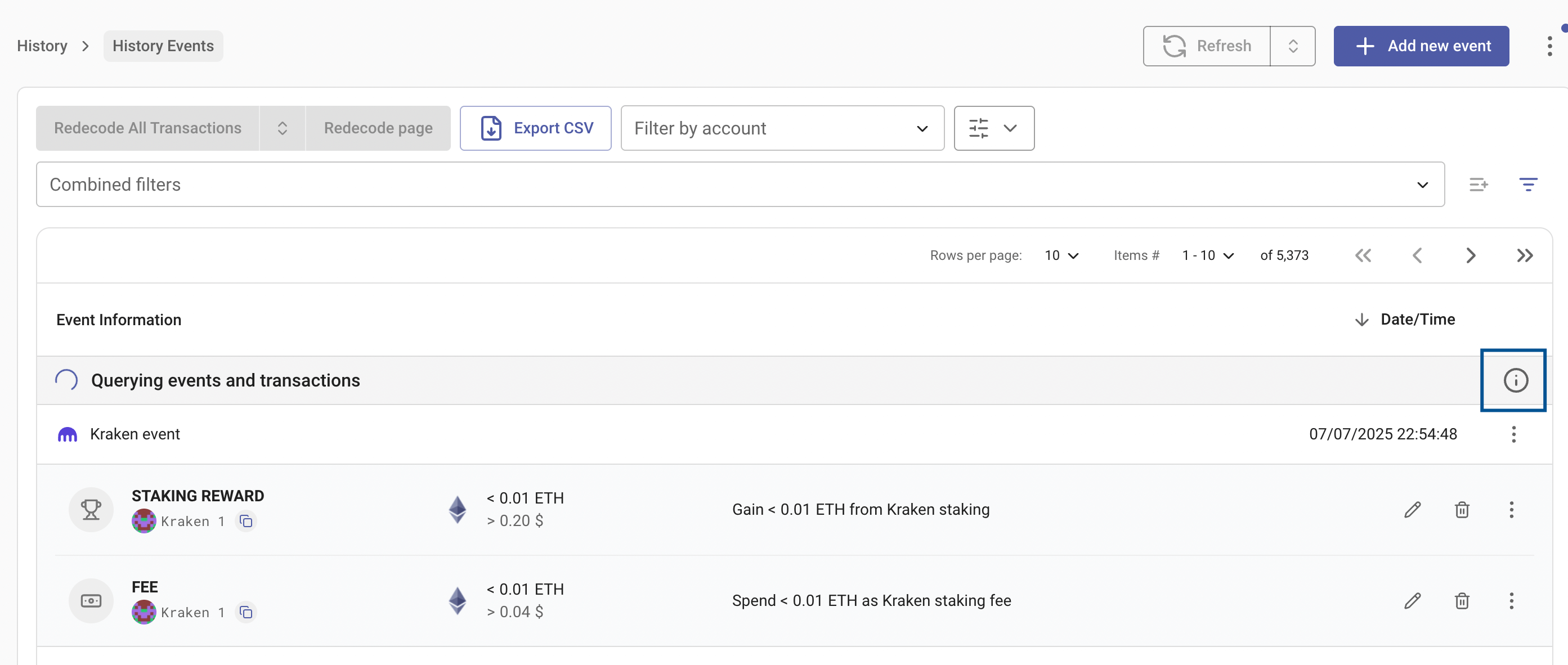
To see the status, you can click the button here:
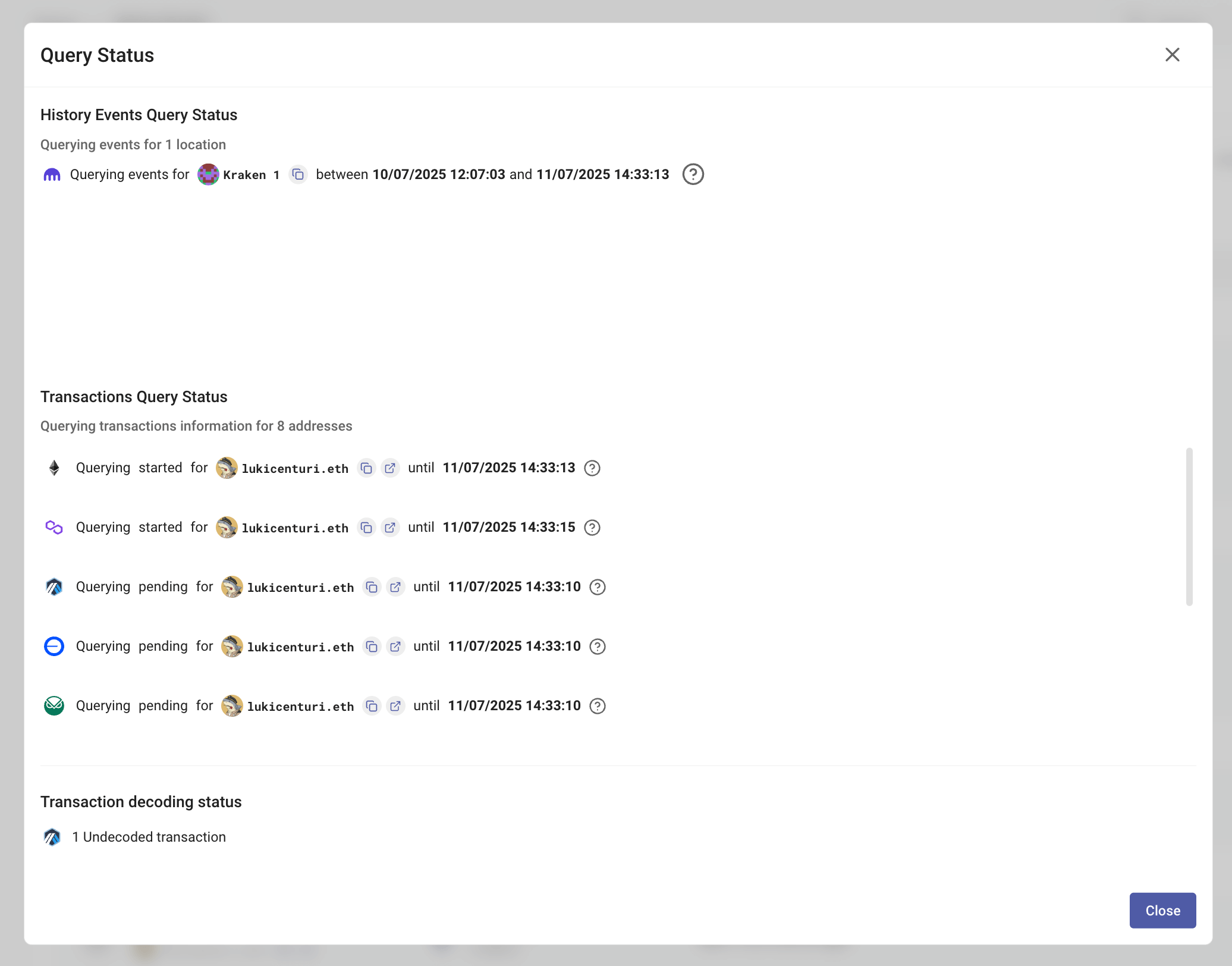
Basically, what happens when you refresh the transactions/events is:
- It will query the transactions from the "last queried time" to the current time.
- For EVM events, after rotki queries these new transactions, it will try to decode them.
- The events will be displayed correctly in the UI only after they are properly decoded.
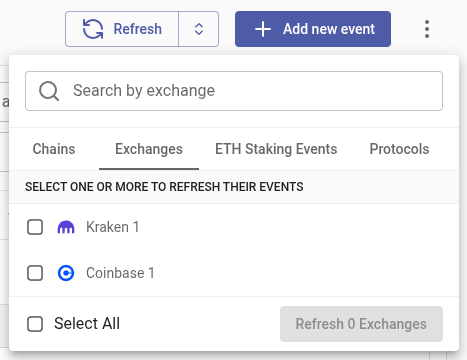
Exchange Events
Refreshes the events from specific exchanges.
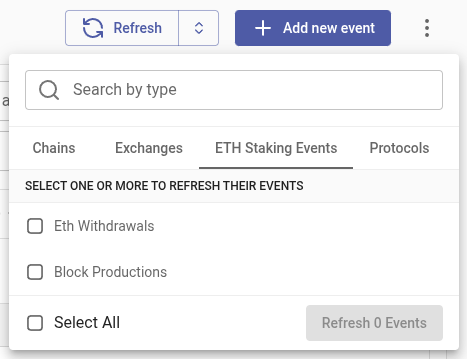
ETH Staking Events
Refreshes ETH withdrawals and block production events.
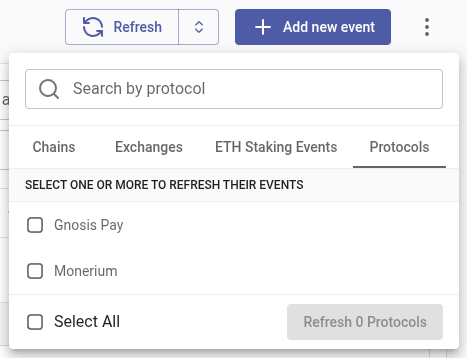
Protocol Events
Refreshes events from specific protocols such as Monerium and Gnosis Pay, pulling data from the protocol's API to enrich the existing onchain events.
Redecoding blockchain transactions
Sometimes you may need to redecode events for blockchain transactions (EVM and Solana).
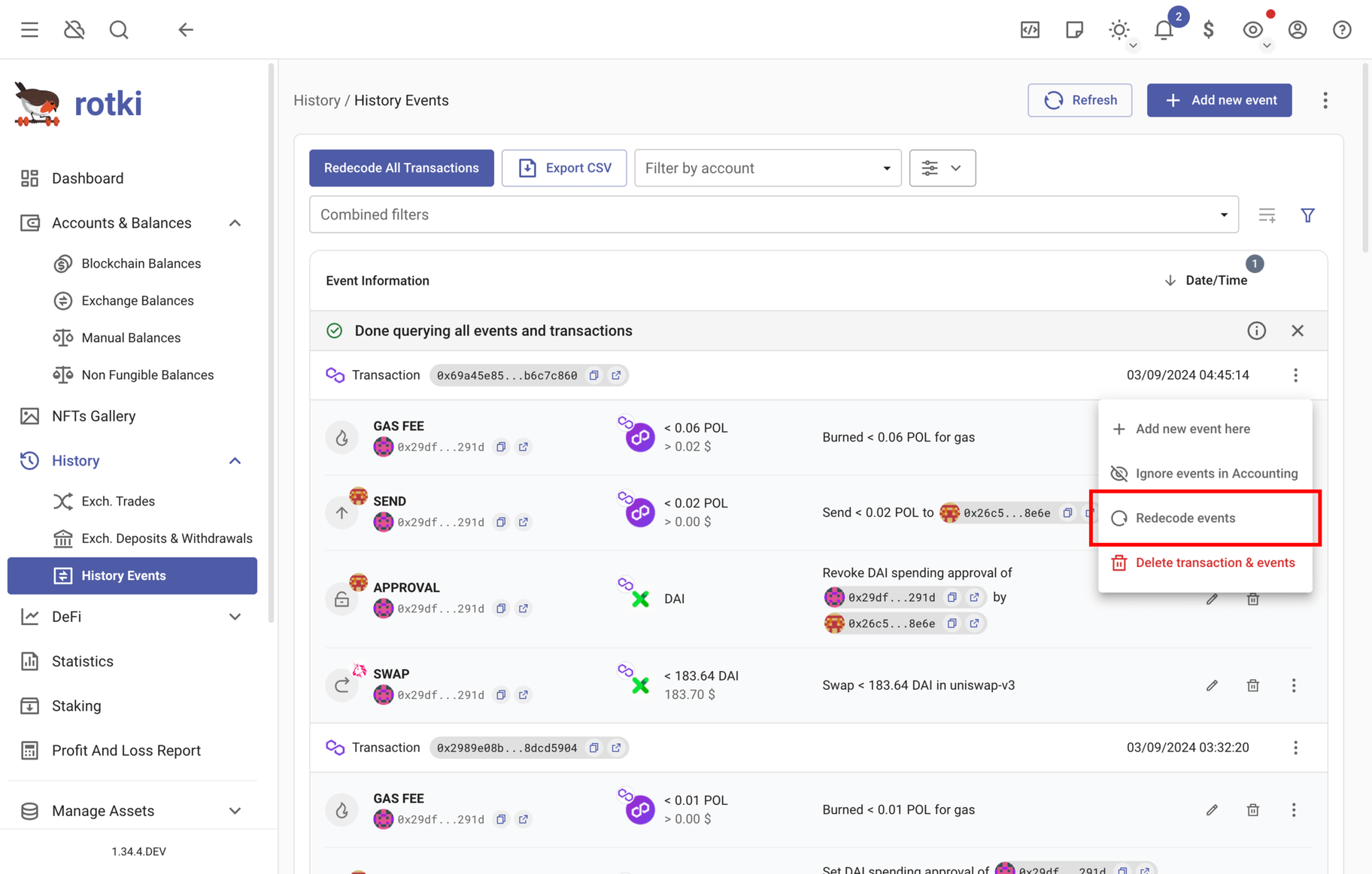
Redecode a single transaction
- Click the three-dots
⋮menu on the transaction row - Click
Redecode events
This will re-read and re-decode the transaction's events and try to understand what happened. If the transaction contains custom events, you will get an extra confirmation asking whether to also reset these custom events.
Advanced: Redecode with options
If you need more control, use Redecode with options (button at the right of Redecode events) to:
- Select how custom events should be handled by the redecoding logic
- Choose the priority for indexers that we want to use when re-querying remote information about the transaction
Redecode all queried transactions
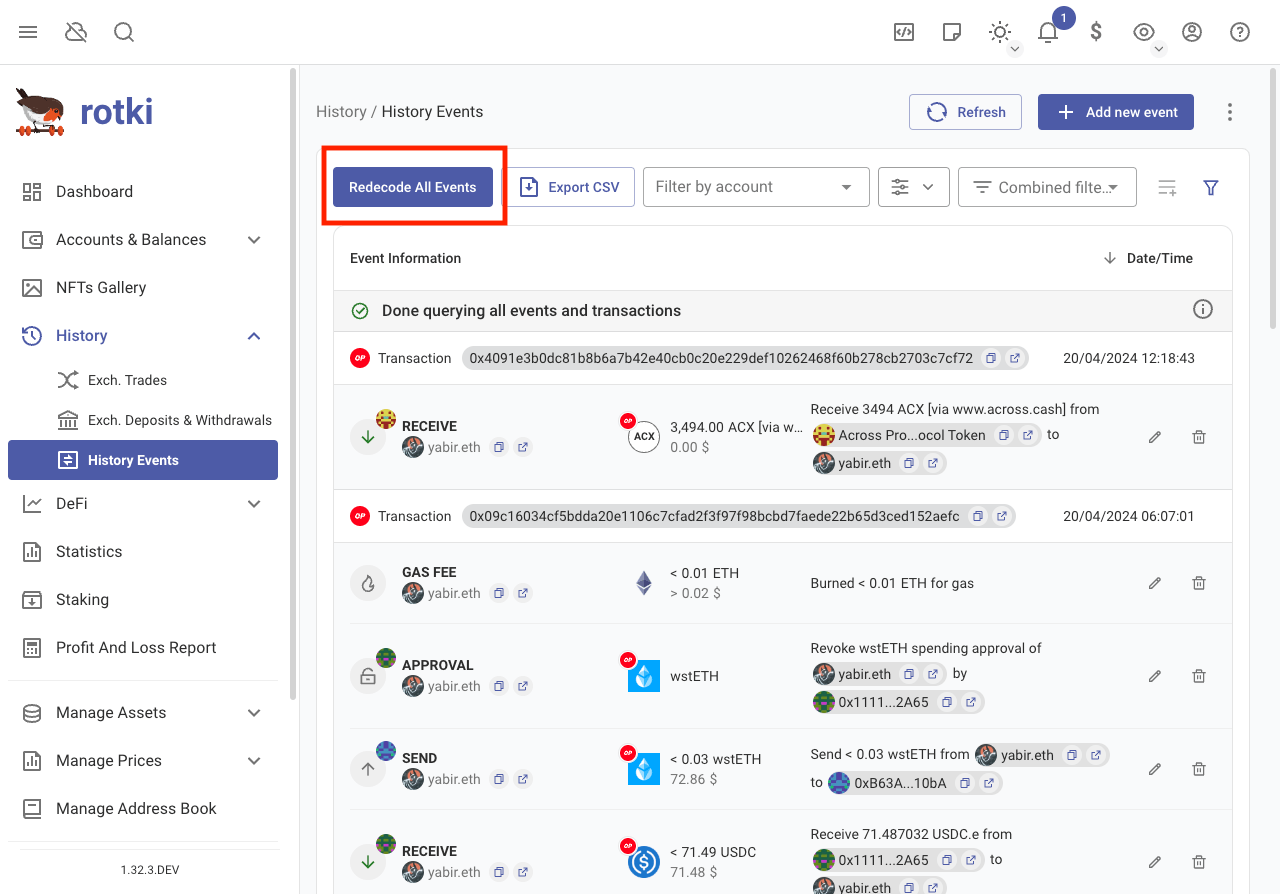
To redecode all transactions that have been queried, click Redecode All Transactions at the top of the page.
Transaction decoding status
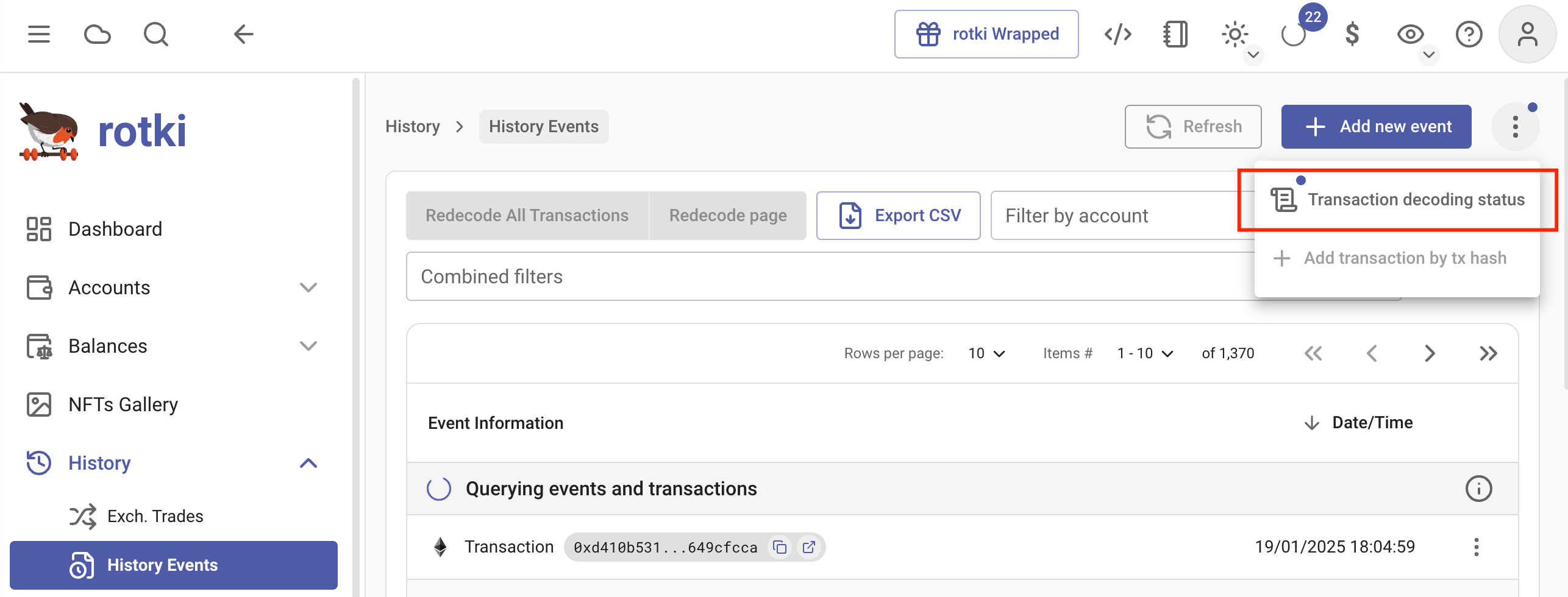
To see the status of event decoding, click the menu button and go to Transaction Decoding Status.
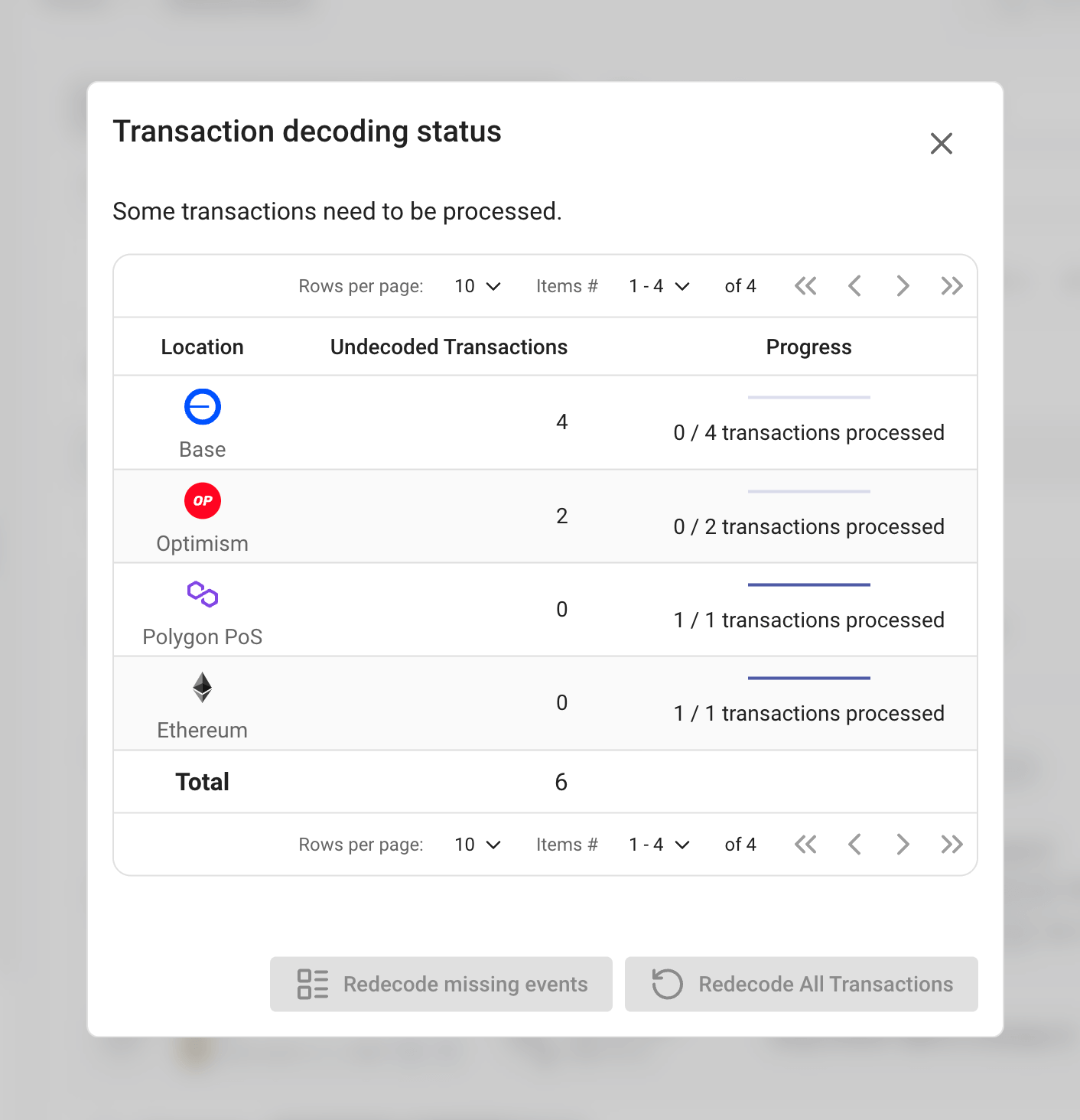
You will see the status of the EVM events redecoding.
Notes
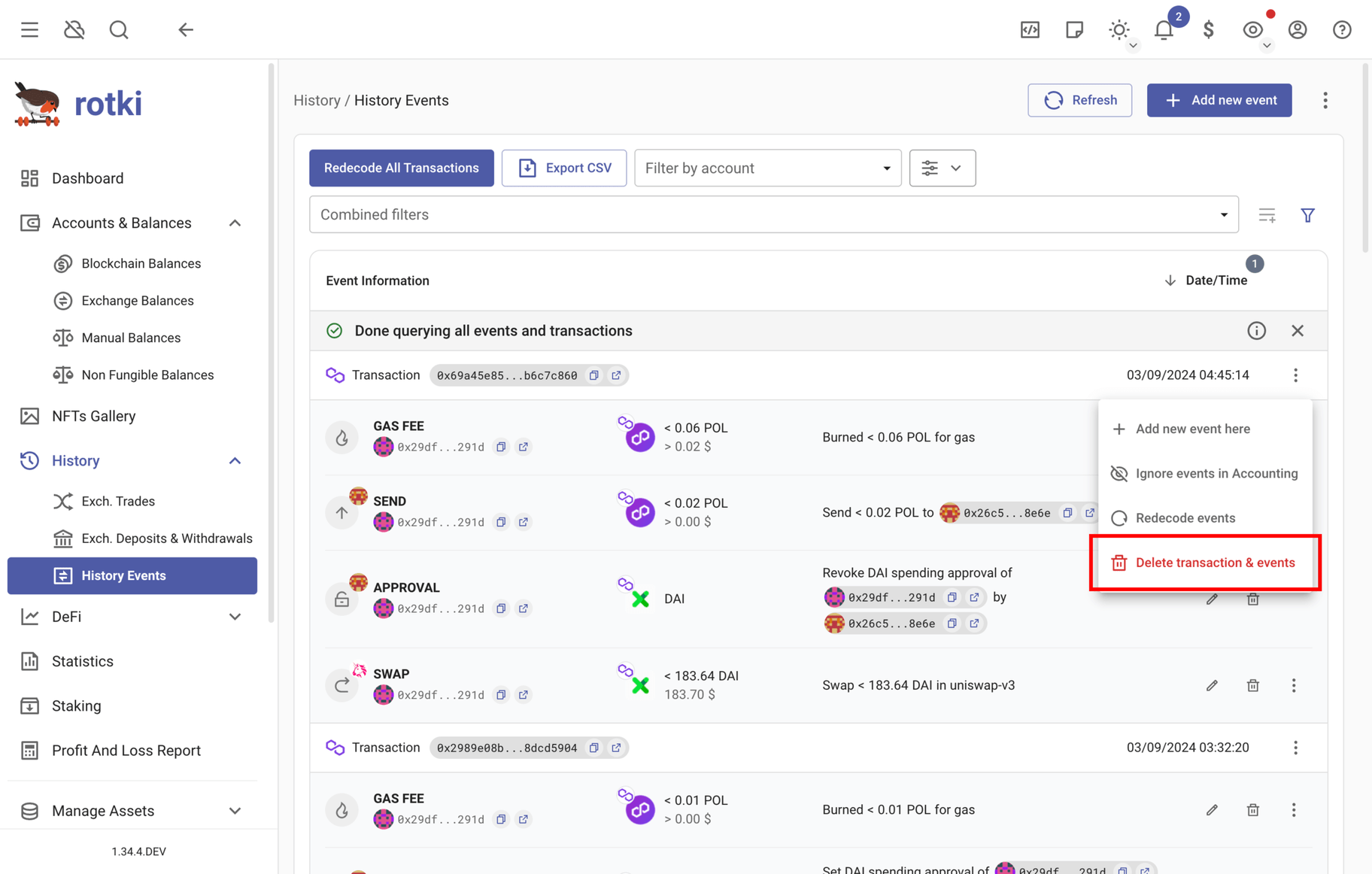
EVM transactions and events can be deleted, but to restore them you will have to either purge all transactions or add by the transaction hash.
Export history events as CSV
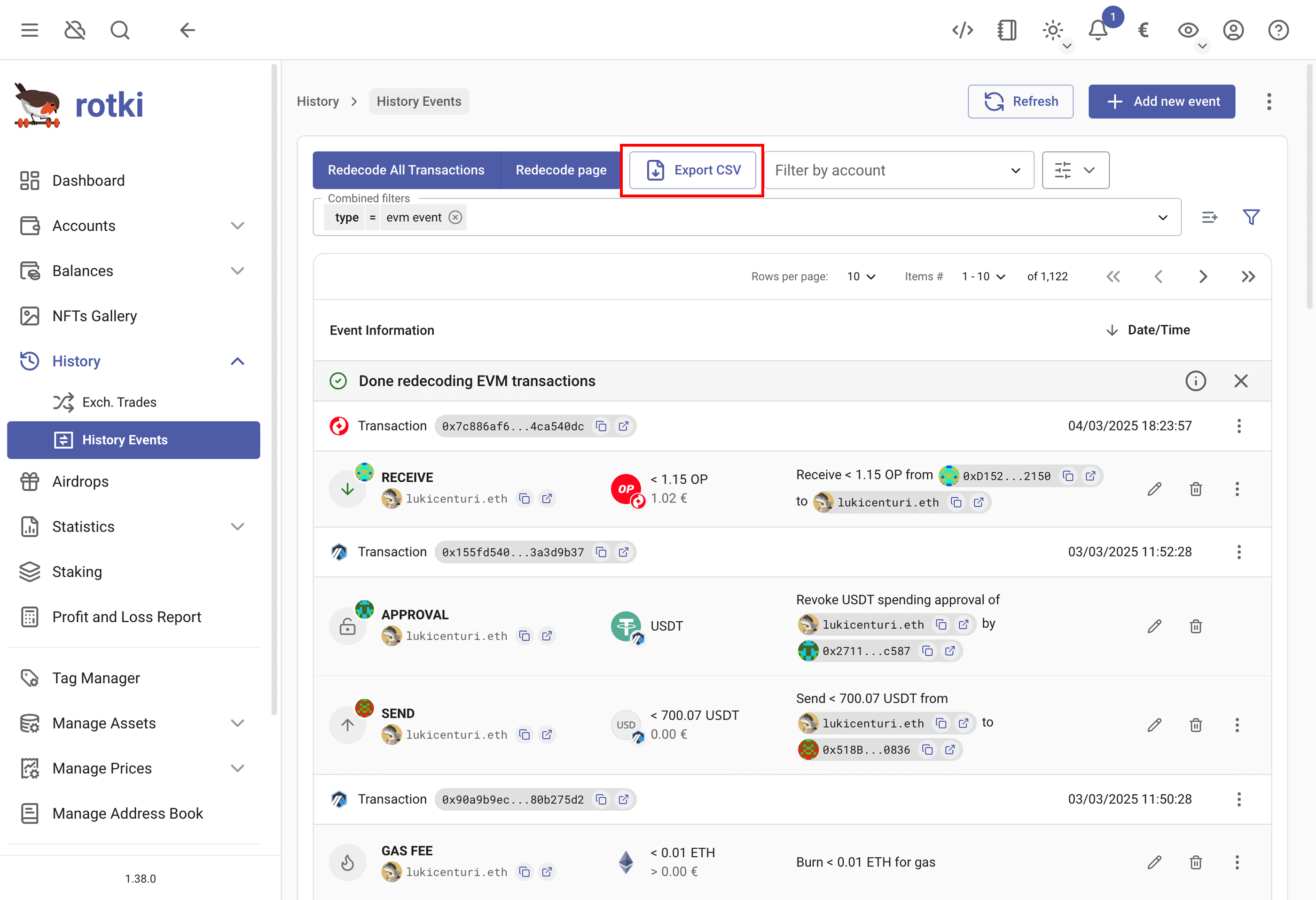
Events can be exported as CSV, click on Export CSV button and accept prompt to download exported events.
Delete transactions & events
Add transaction by hash
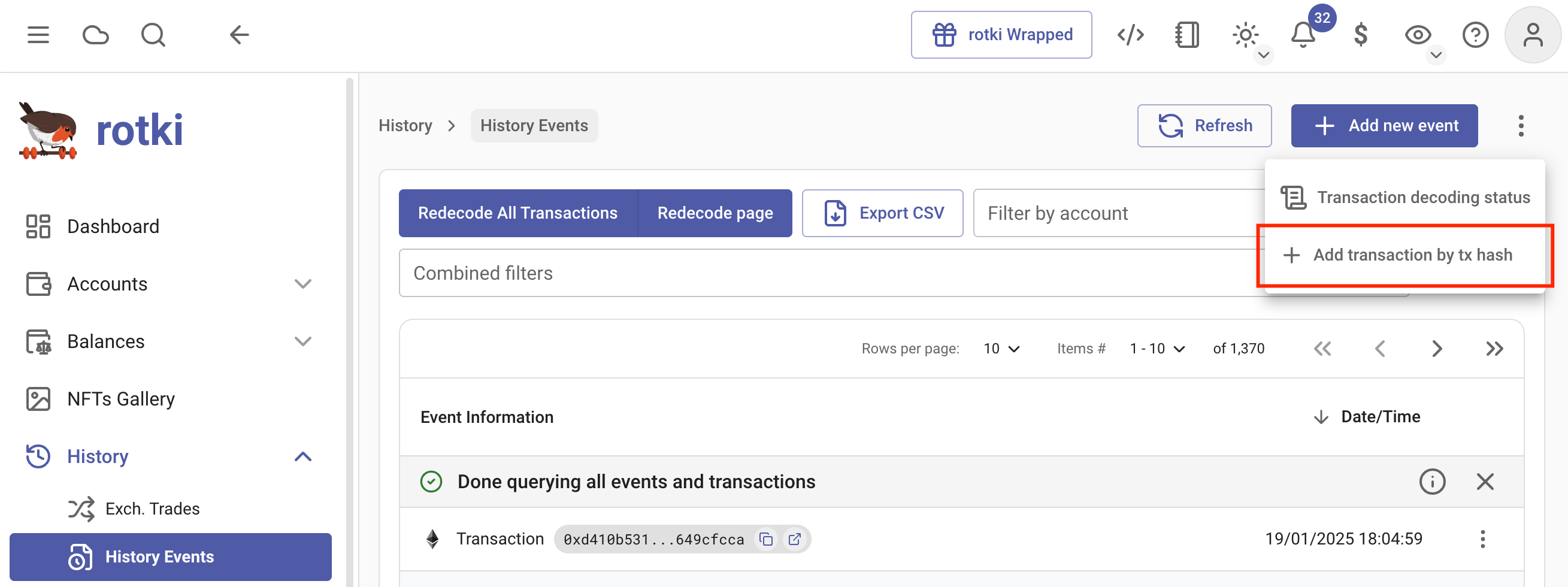
If you want to add a transaction that was either deleted or for some reason missed, or was not found by rotki, you can add it by transaction hash by clicking the menu as seen in the picture.
Re-Pulling events missed in the past
It is possible that due to network issues, RPC errors, or other problems, some events may have been missed during the initial sync. This can happen when:
- An RPC node provided broken information.
- Etherscan or other indexers had wrong data.
- Sources used were not fully synced.
- Other kind of bugs.
You can find the menu by clicking the three-dots ⋮ menu in the top right and selecting Re-pulling Events. You can pull blockchain transaction events and events that come from exchanges.
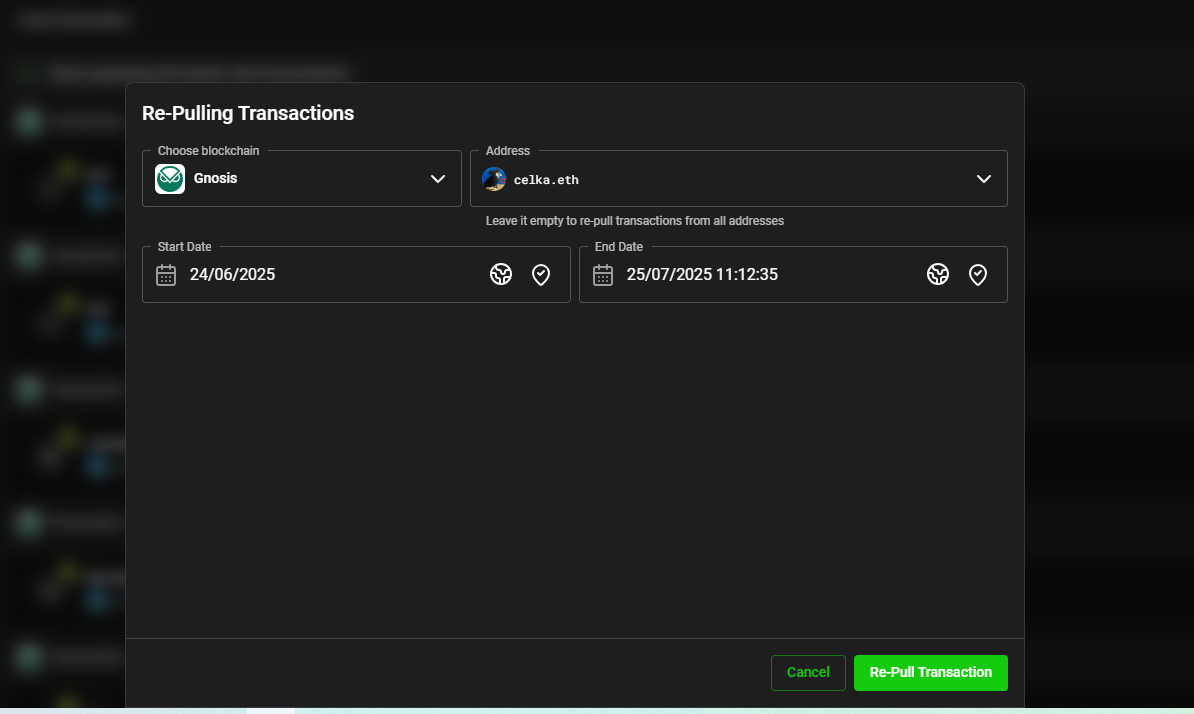
If any missed transactions are found, you'll see a notification indicating how many new transactions were discovered. You can click the action in the notification to view the pulled transactions.
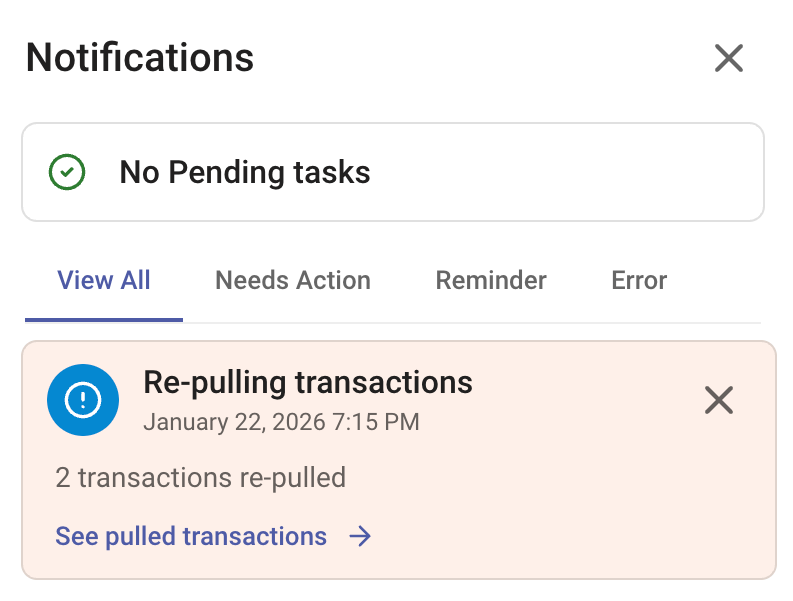
After the transactions are pulled, blockchain transactions need to be decoded, while events from exchanges will appear directly. For blockchain transactions, you can either:
- Wait a few moments for automatic decoding
- Click the refresh button to trigger decoding manually
- Check the transaction decoding status to monitor progress
Once decoded, the blockchain transactions will appear in the history view with all their associated events.
Missing accounting rule
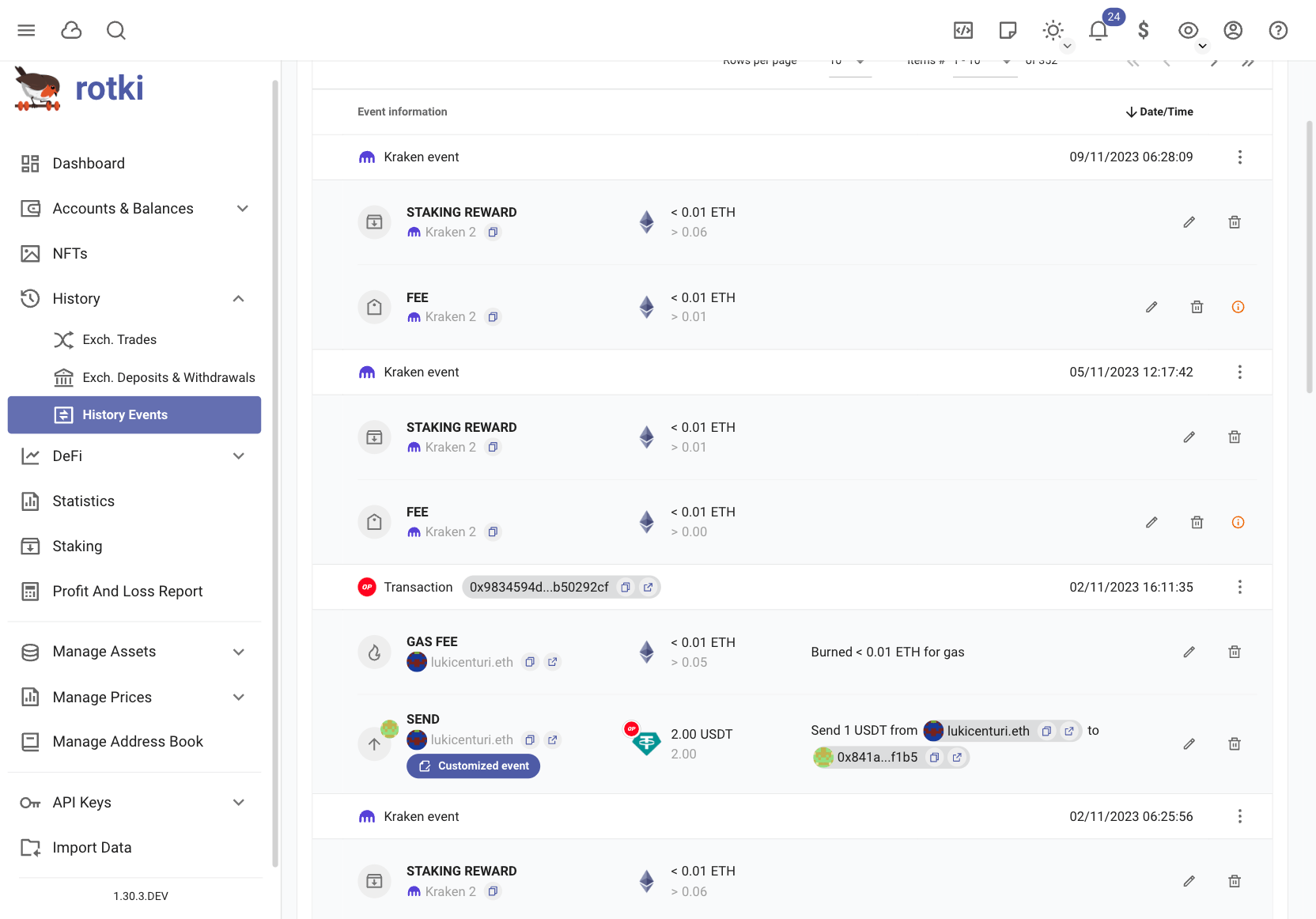
If you see this warning button, it means the event won't be processed correctly in accounting. It could be due to improper decoding or a missing accounting rule for that event. You can fix it by editing the event or adding the missing accounting rule. You can also edit the events if they have special meaning to you, such as OTC trades or transfers between accounts.
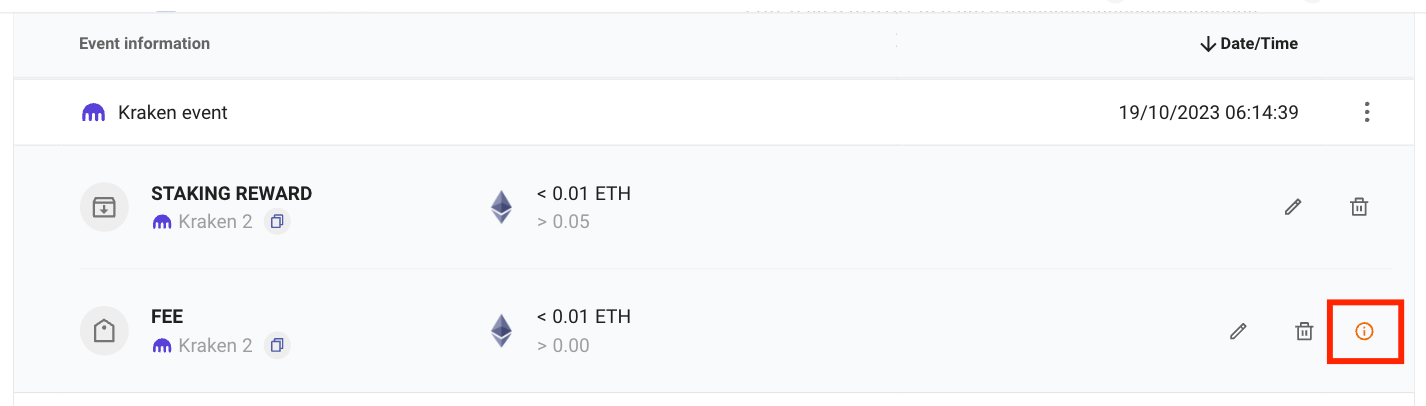
Edit accounting rule

You can customize how events are processed in accounting by editing their accounting rules. When editing an accounting rule, you have two options:
Apply to all matching events - Updates all existing events that share the same combination of event type, subtype, and counterparty. This creates a general rule that affects all similar events.
Apply to this specific event only - Creates a special accounting rule that targets only the selected event, without affecting other similar events.
Ignore events in accounting
By default, all events will be processed in accounting, but you can ignore unwanted events, so they won't be processed. You can click on the three-dots ⋮ menu to display the options for the group of events, and click Ignore events in accounting/Unignore events in accounting.
Select multiple events
You can go to selection mode and select multiple events by clicking this menu in the top left:
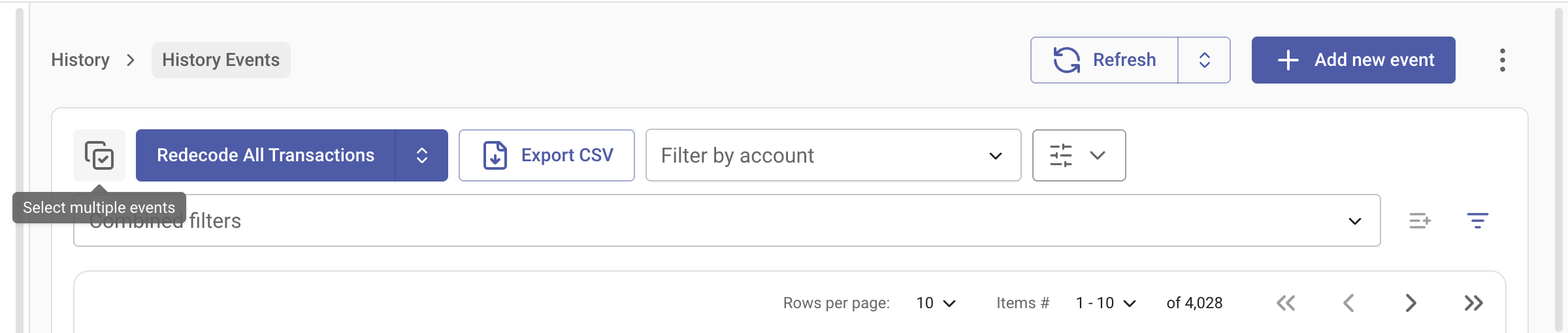
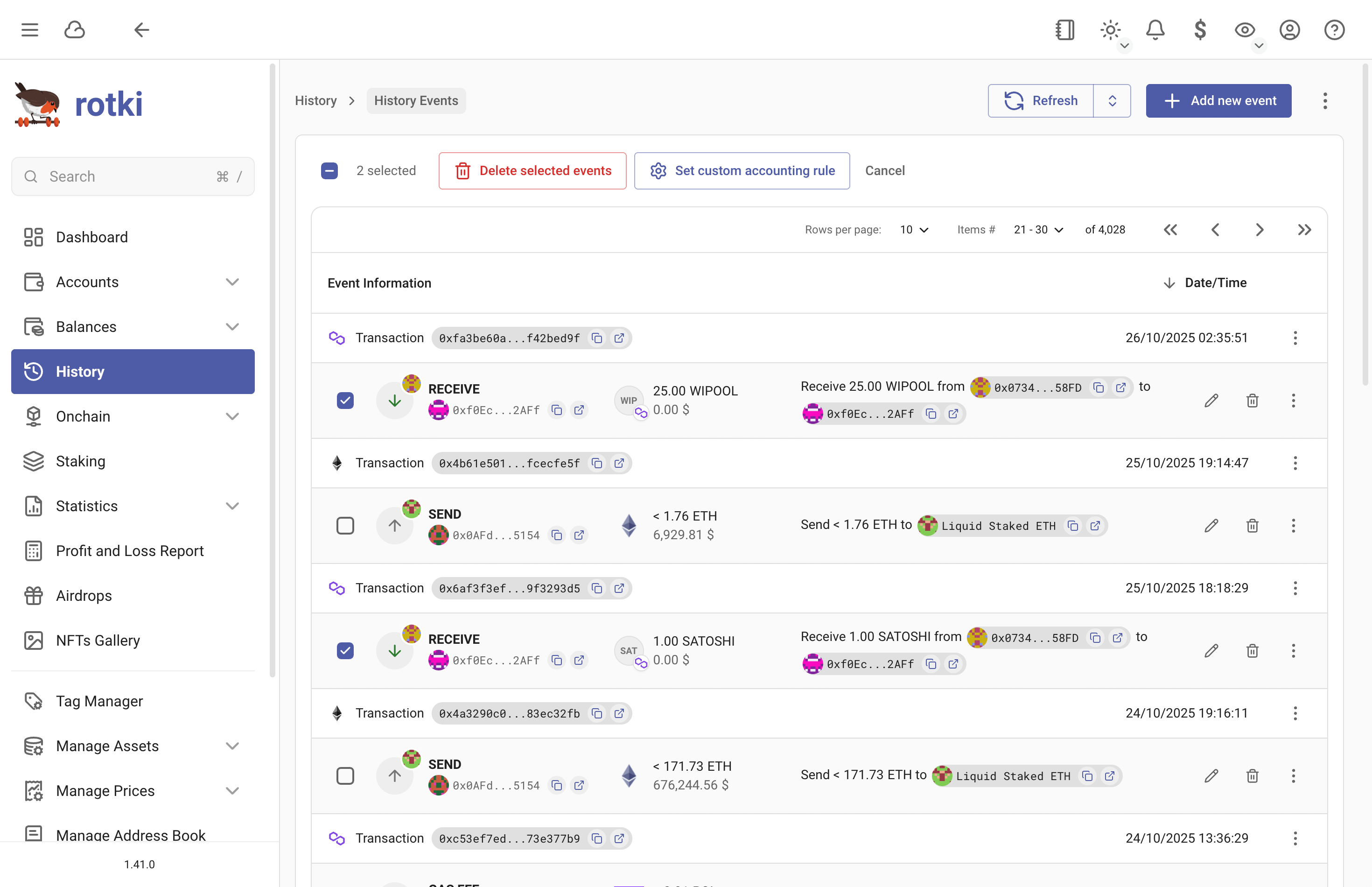
You can perform two actions:
- Delete the selected events
- Set regular accounting rules for specific events
- Note: Multiple selected events must have the same entry type/subtype combination to apply custom accounting rules.
Add / edit events
There are 8 types of events in rotki:
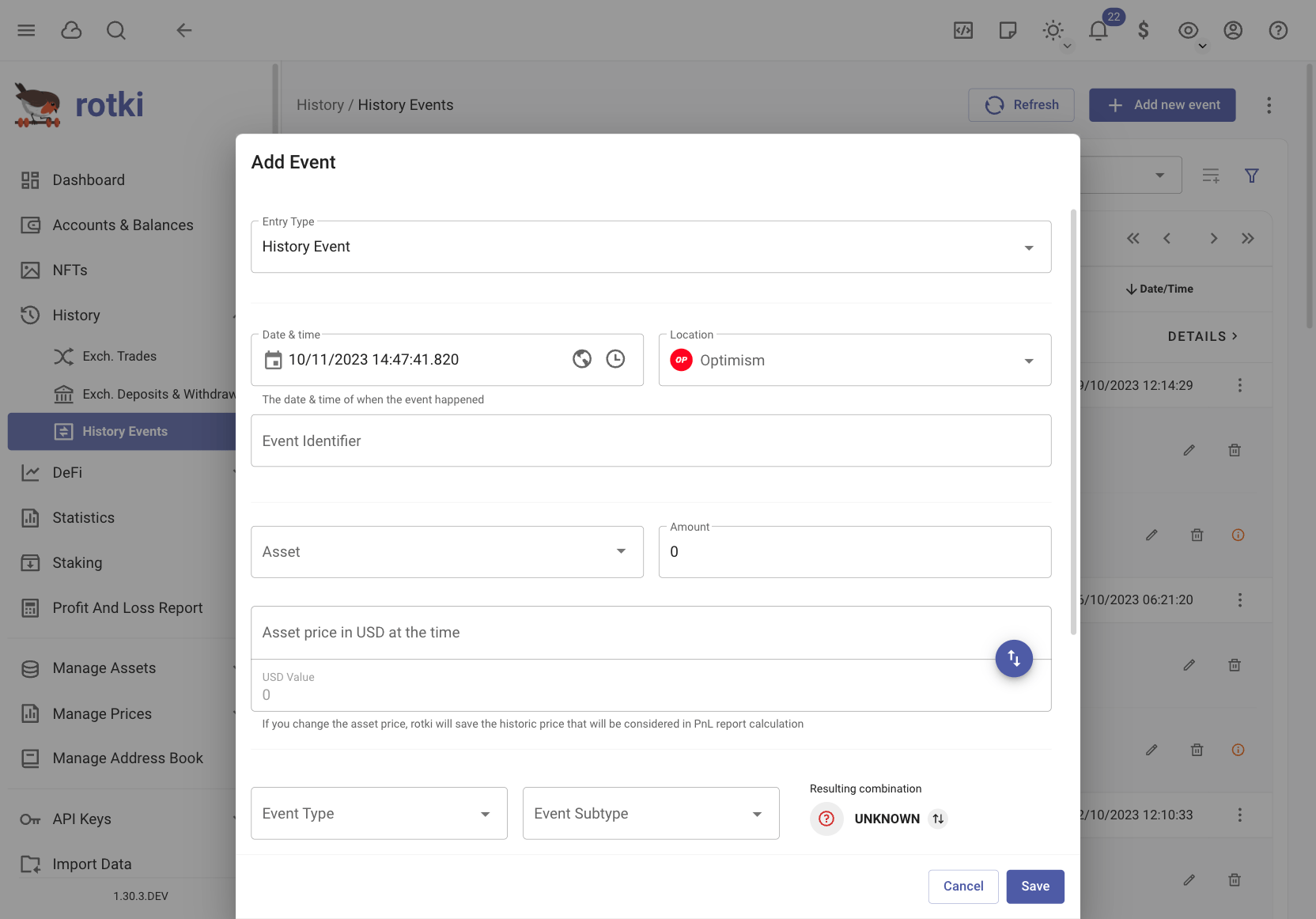
Here the non obvious fields are:
Event Type: We have created a categorization of all the actions in a set of major event types. This field will describe the action category.Event Subtype: Inside an event type you can perform different actions. This subtype will let you describe exactly what is happening in the event.Sequence Index: Is an internal index that sets the order in which events happened in the transactions. This allows knowing how events are sorted and should be taken into account. By default it corresponds to the event log index in the blockchain with a few exceptions.
For history event, and EVM history event, if any event was not decoded the way you expected it to be, you can always customize events using the settings described above or file a bug report via the in-app Report Issue dialog (Help & Support > Report Issue), on our github repository, or in our discord server. The customizations that you make also affect how events are processed in accounting.
Common customization
These are some common customizations you may want to do, based on the issue:
Event TypetoTransferif you are sending money to a friend / (another account you own) and don't want the event to be taxable. TheEvent Subtypeshould beNonein that case.Event TypetoDeposit/Withdrawalif you're moving assets between exchanges or wallets. UseEvent SubtypeofDeposit Asset/Remove Asset. These won't be taxable in P&L reports and ensure balance tracking is accurate.Event TypetoDeposit/WithdrawalwithEvent SubtypeofDeposit To Protocol/Withdraw From Protocolif assets are going to or coming from a DeFi protocol (staking, lending, etc.) without receiving wrapped tokens. These won't be taxable in P&L reports and ensure balance tracking is accurate.Event TypetoWithdrawalandEvent SubtypetoBridgeif you are receiving something from another chain via some kind of bridge. AndEvent TypetoDepositandEvent SubtypetoBridgeif you are depositing to a bridge in order to move something to another chain.- For a swap: The first event should be
Event Type:TradeandEvent Subtype:Spend, while the second event should beEvent Type:TradeandEvent Subtype:Receive. But in swaps what's also important is thesequence_index. They need to be subsequent and the send should come before the receive. Event TypetoSpend/ReceiveandEvent SubtypetoNoneif it is a plain expenditure / receipt.Event TypetoReceiveandEvent SubtypetoRewardif you got a reward for something.Event TypetoReceiveandEvent SubtypetoAirdropif you received an airdrop.Event TypetoReceive/SpendandEvent SubtypetoReceive Wrapped/Return Wrappedaccordingly if you interacted with a protocol (e.g. Curve, Yearn, Aave, etc.) and received wrapped / returned some wrapped tokens.Event TypetoSpendandEvent SubtypetoFeeif you are paying a fee for some of your actions.Event TypetoMigrationif it is a migration of assets from one protocol to another and you don't lose / gain anything from this event. For example when migrating from SAI to DAI. There is two events in a migration. Both should have typeMigrationand the OUT event should haveEvent Subtypeset toSpend, while the IN event should haveEvent Subtypeset toReceive.Event TypetoStakingandEvent SubtypetoDeposit Assetif it is a staking deposit event. For example staking in eth2 or in liquity.Event TypetoRenewandEvent SubtypetoNoneif it is a renewal of any subscription or service that you are paying for.Event TypetoInformationalandEvent SubtypetoNoneif the event contains some useful information but it shouldn't be considered in accounting at all.
Events that have been modified will appear marked in the UI.
Resolving Issues
rotki can detect certain issues with your history events that may affect accounting accuracy. When issues are found, you will see a warning button with a badge showing the total number of issues at the top of the History Events page.
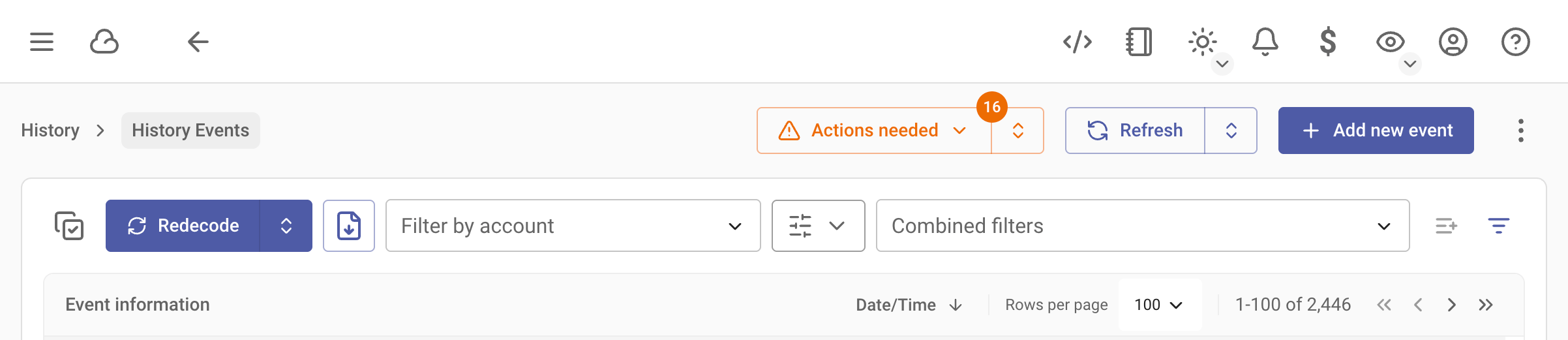
Clicking the button opens a menu where you can check for specific types of issues. Currently, rotki detects the following:
Unmatched Asset Movements
Premium Feature
Asset movement matching is only available for certain premium subscription tiers. Visit the pricing page for details on which tiers include this feature.
An unmatched asset movement is an exchange deposit or withdrawal that hasn't been linked to its corresponding on-chain blockchain transaction. For example:
- You withdraw from an exchange, but there is no matching receive event on a tracked blockchain address.
- You deposit to an exchange, but there is no matching send event from a tracked blockchain address.
This can happen when:
- The blockchain address involved is not tracked in rotki.
- The corresponding on-chain event was missed or not yet synced.
- There's a significant time or amount difference between the exchange record and the on-chain event.
- The exchange doesn't provide enough information (such as the blockchain or transaction hash) to automatically link the movement to the corresponding on-chain event, even if that event already exists in your history.
How to resolve
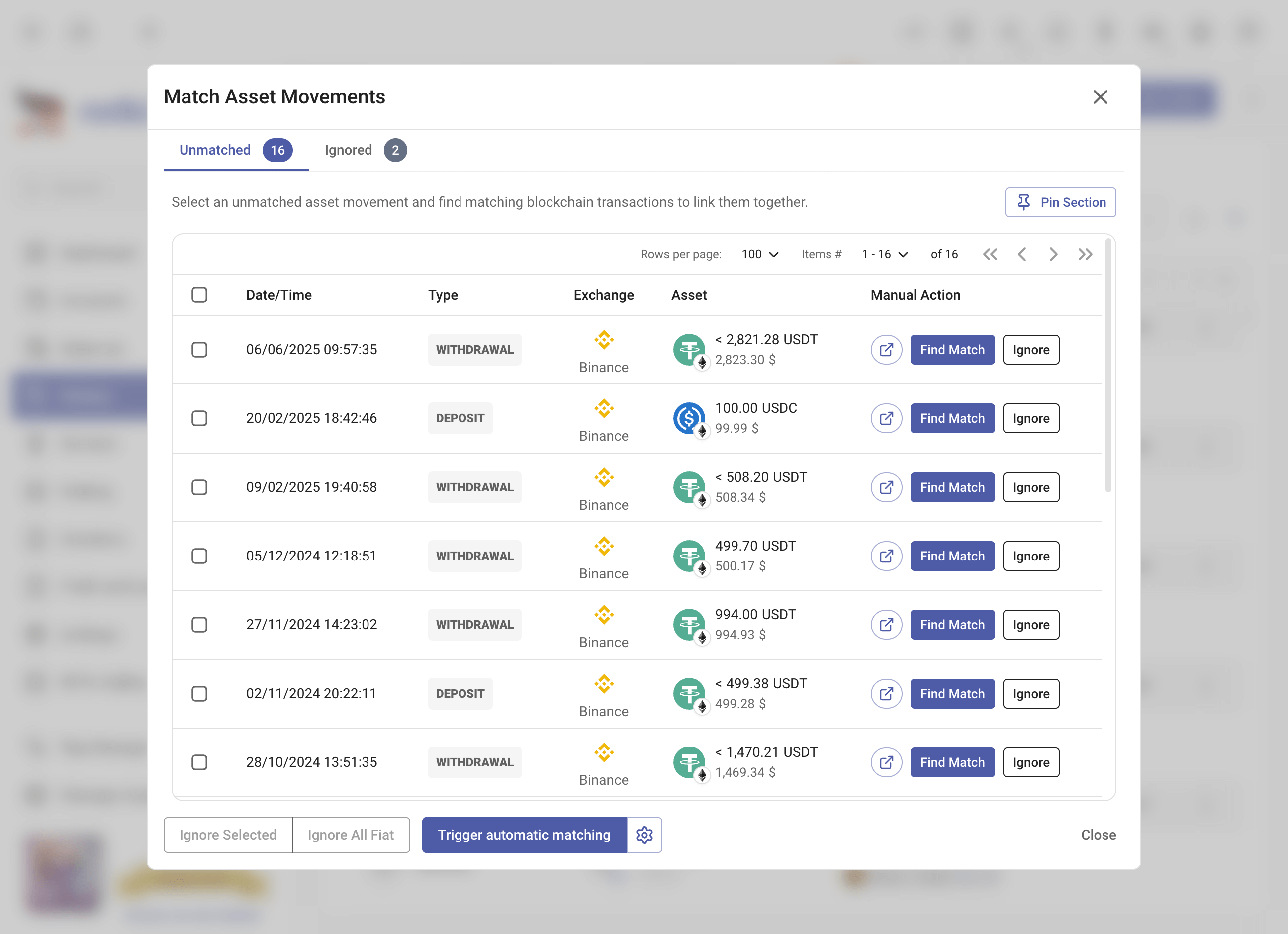
You have several options to resolve unmatched asset movements:
Auto Match - Click the
Trigger automatic matchingbutton to let rotki automatically match movements with corresponding on-chain events based on amount, asset, and timestamp. You can configure the amount tolerance and time range settings before triggering auto match.Find Match (manual) - Click
Find Matchon a specific movement to search for potential matches. You can adjust the search criteria:- Time range (in hours) - Maximum allowed time difference between the movement and the on-chain event.
- Amount tolerance (in %) - Maximum allowed percentage difference between the movement amount and the on-chain event amount.
- Only show same assets - Filter results to the same asset.
Potential matches are displayed in a list, with recommended matches highlighted. Select one or more matching events and click
Confirm Match. A single asset movement can be linked to multiple on-chain events, which is useful when the on-chain side was split across multiple transactions.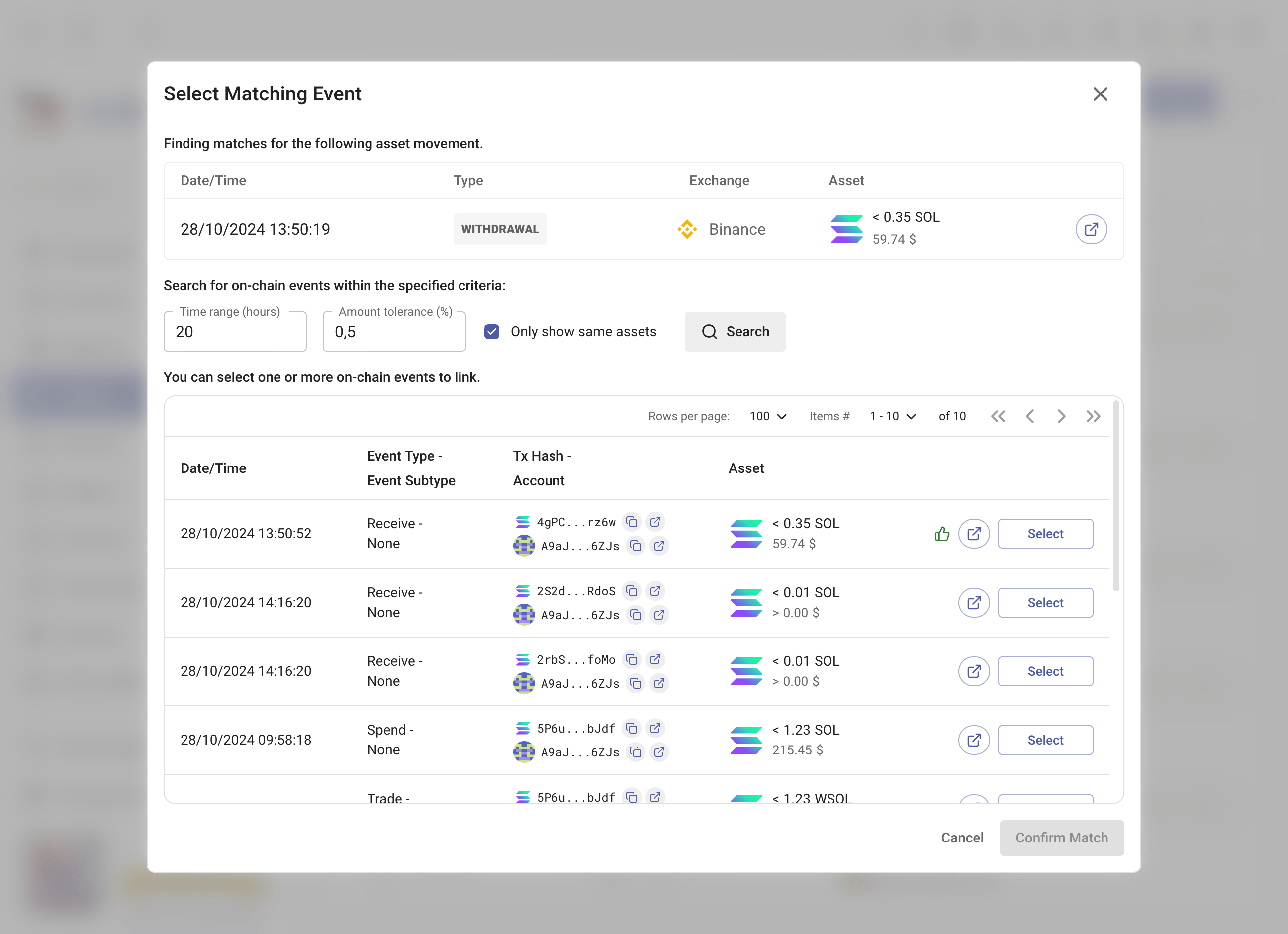
Ignore - If a movement has no corresponding on-chain event (e.g., fiat currency deposits/withdrawals), click
Ignoreto mark it as having no match. Ignored movements are moved to the Ignored tab and can be restored later.Ignore All Fiat - Quickly ignore all fiat currency movements at once, since fiat movements don't have blockchain transactions.
TIP
You can pin the matching dialog to the side of the History Events page, allowing you to browse events while working on matches side-by-side.
Duplicate Custom Events
Duplicate custom events occur when you have customized (manually edited) a blockchain event, and a non-customized version of the same event also exists. This typically happens when:
- A transaction is re-decoded after you had already customized one of its events, creating both the original decoded event and your customized version.
- Events are re-pulled, generating new events alongside your existing customized ones.
Duplicates can cause incorrect accounting since the same action may be counted more than once.
rotki categorizes duplicates into two types:
- Auto-fixable - The customized and non-customized events are exact matches (only differing by sequence index). These can be safely auto-fixed.
- Manual review - The events share the same asset and direction but have other differences. These require manual inspection before resolving.
When duplicates are detected, an alert banner will appear showing the count for each category, with a View button to navigate to the affected events.
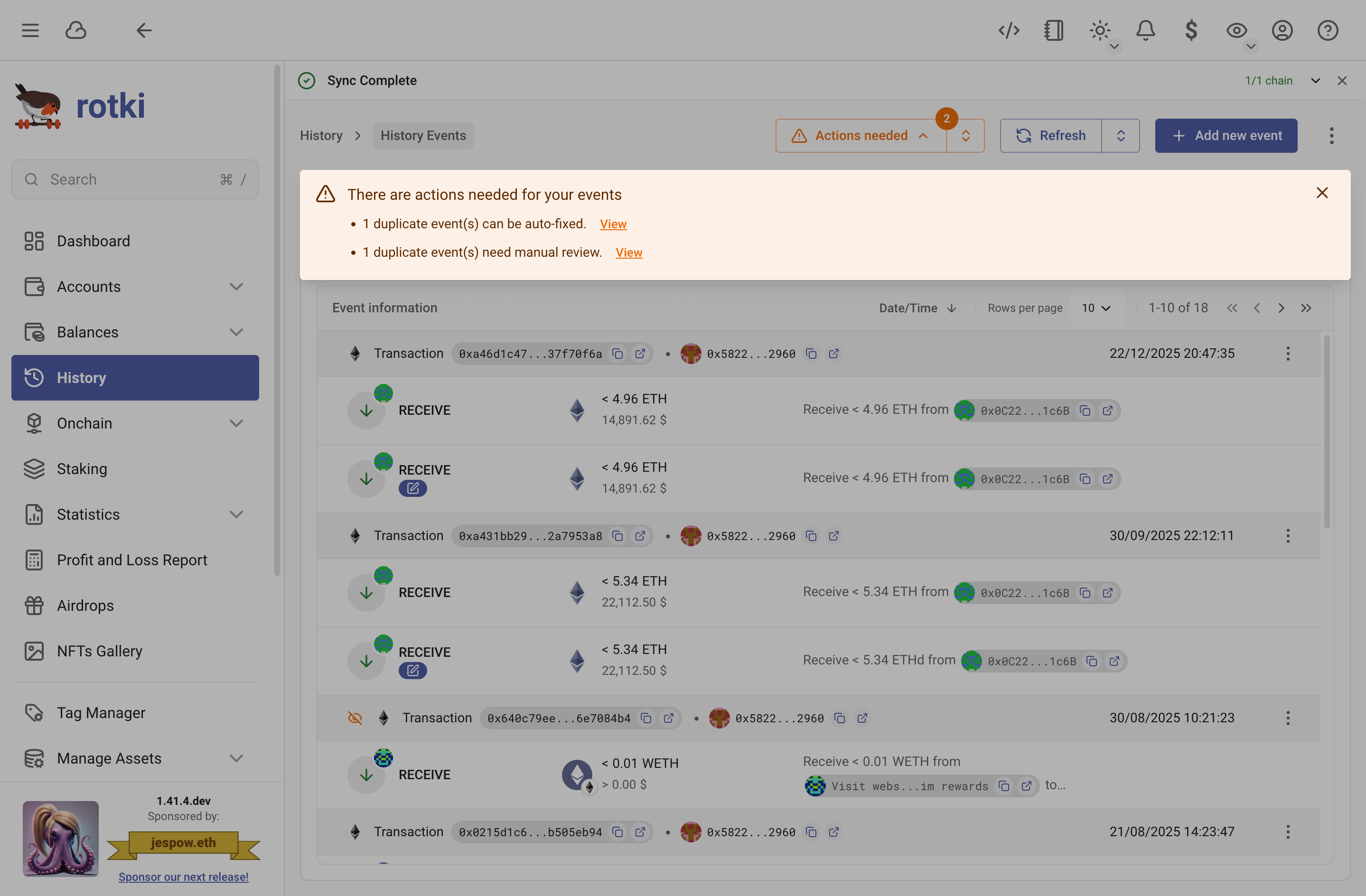
How to resolve
Auto Fix All - For auto-fixable duplicates, click
Auto Fix Allto remove all the duplicate non-customized events at once, keeping your customized versions.Individual Fix - Click the
Fixbutton on a specific duplicate event to remove just that one duplicate.Manual review - For duplicates that need manual review, click
Viewto see the affected events in the history view. Inspect the events and manually resolve them by editing or deleting the incorrect one.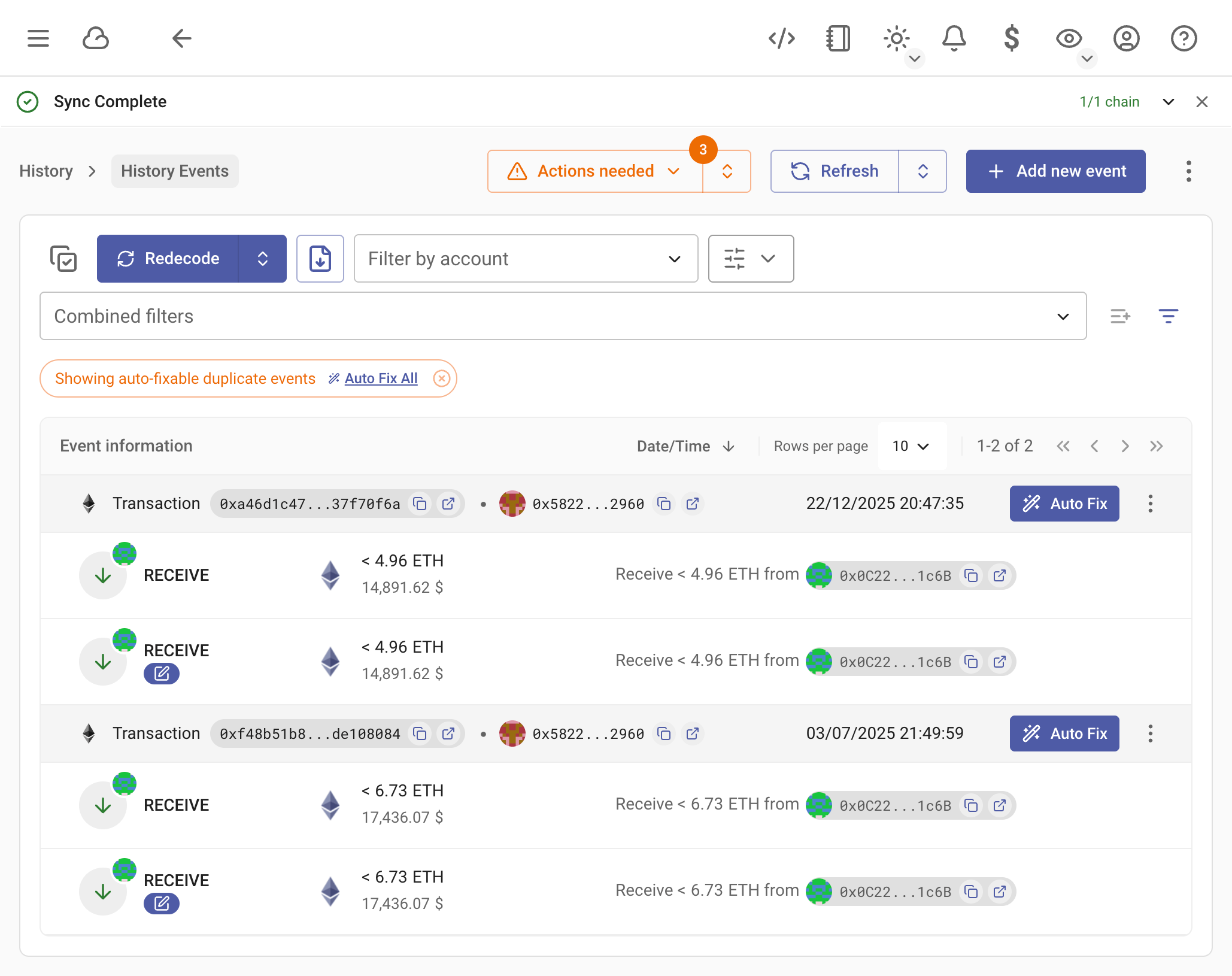
Internal Transaction Conflicts
Internal transaction conflicts occur when rotki detects inconsistencies in internal (trace-level) EVM transactions. These can arise from issues such as:
- All zero gas - All internal transactions in the trace have zero gas values, which typically indicates incomplete or corrupt data from the data source. These conflicts trigger a repull from the data source.
- Duplicate exact rows - Multiple identical internal transaction entries exist for the same transaction. These conflicts trigger a fix & redecode to remove duplicates and re-process the transaction.
- Mixed zero gas - Some internal transactions in the trace have zero gas while others don't, indicating partial data corruption. These conflicts trigger a fix & redecode.
- Mixed zero gas & duplicate - Both zero gas and duplicate conditions are present in the same transaction.
NOTE
This feature was introduced in v1.42.1 as a one-time remediation for internal transaction data issues. The conflicts table is temporary and will be removed in a future release once all conflicts have been resolved.
When conflicts are detected, a banner will appear in the History Events page alerting you to the number of conflicts that need attention.
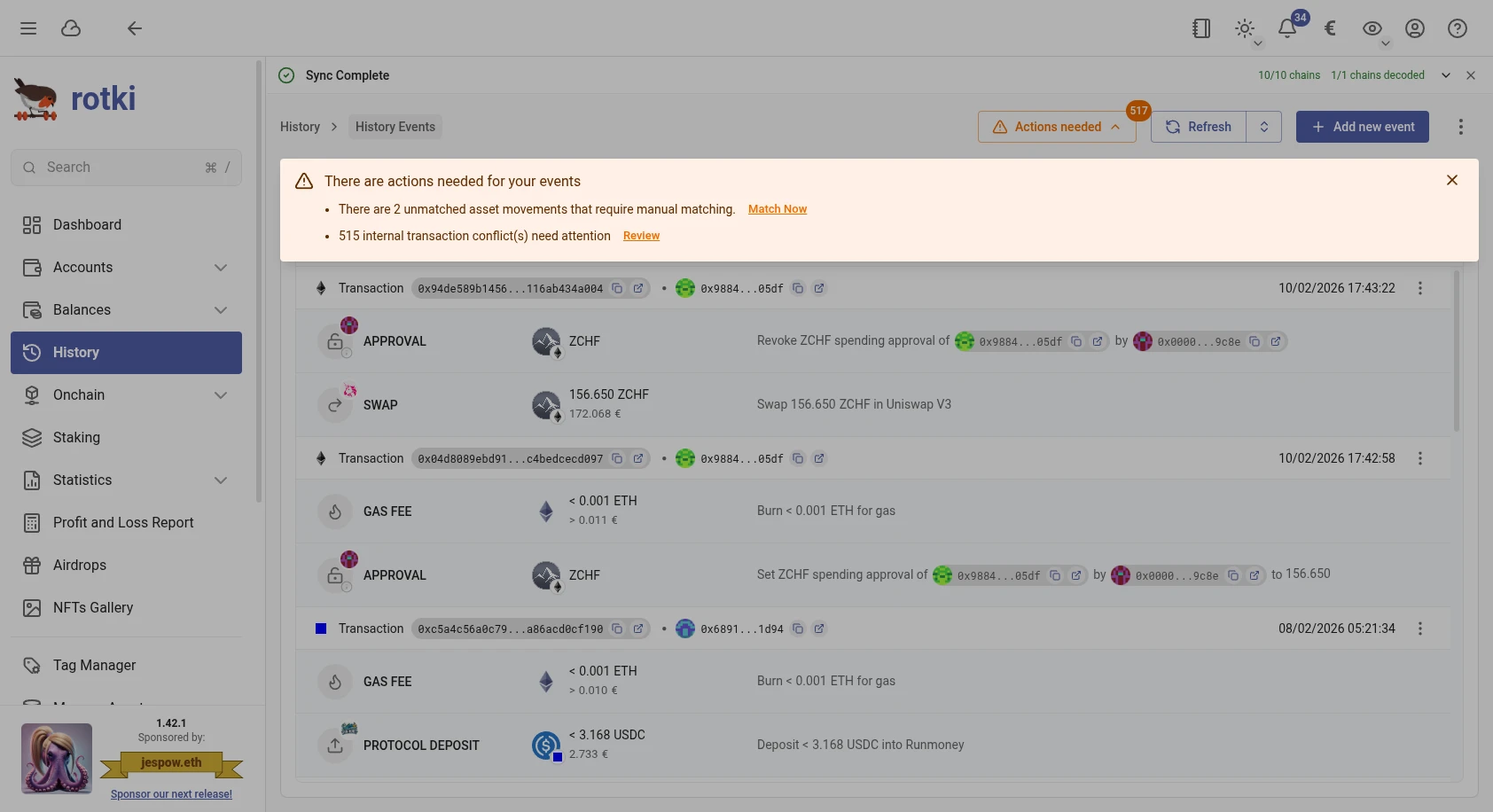
You can also access the conflicts dialog from the three-dot ⋮ menu at the top right of the History Events page by clicking Check internal tx conflicts. An orange dot indicator will appear when there are pending conflicts.
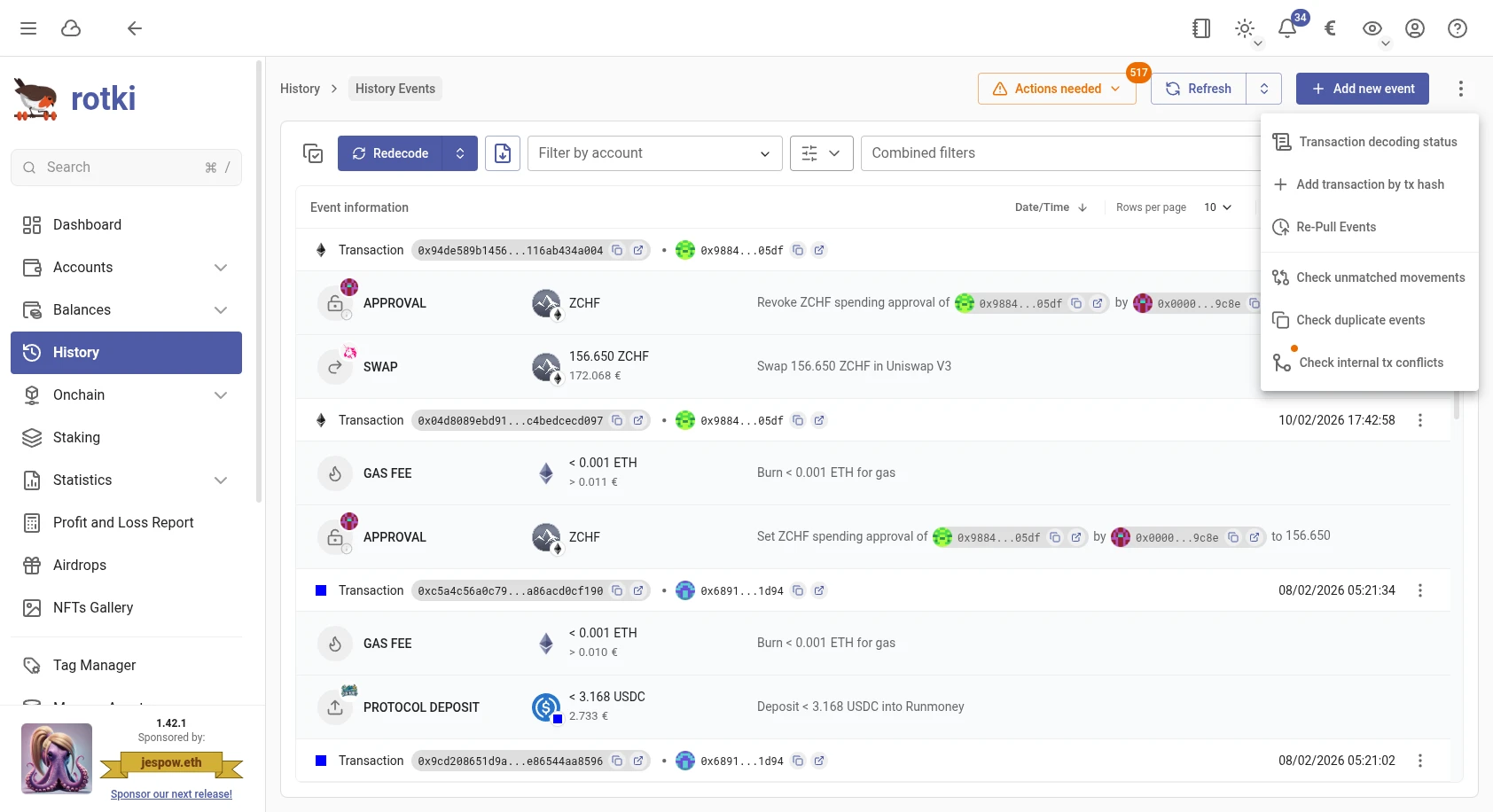
Click Review in the banner or Check internal tx conflicts in the menu to open the Internal Transaction Conflicts dialog, which shows all detected conflicts organized into three tabs:
- Pending - Conflicts that haven't been resolved yet.
- Failed - Conflicts where the automatic resolution attempt failed.
- Fixed - Conflicts that have been successfully resolved.
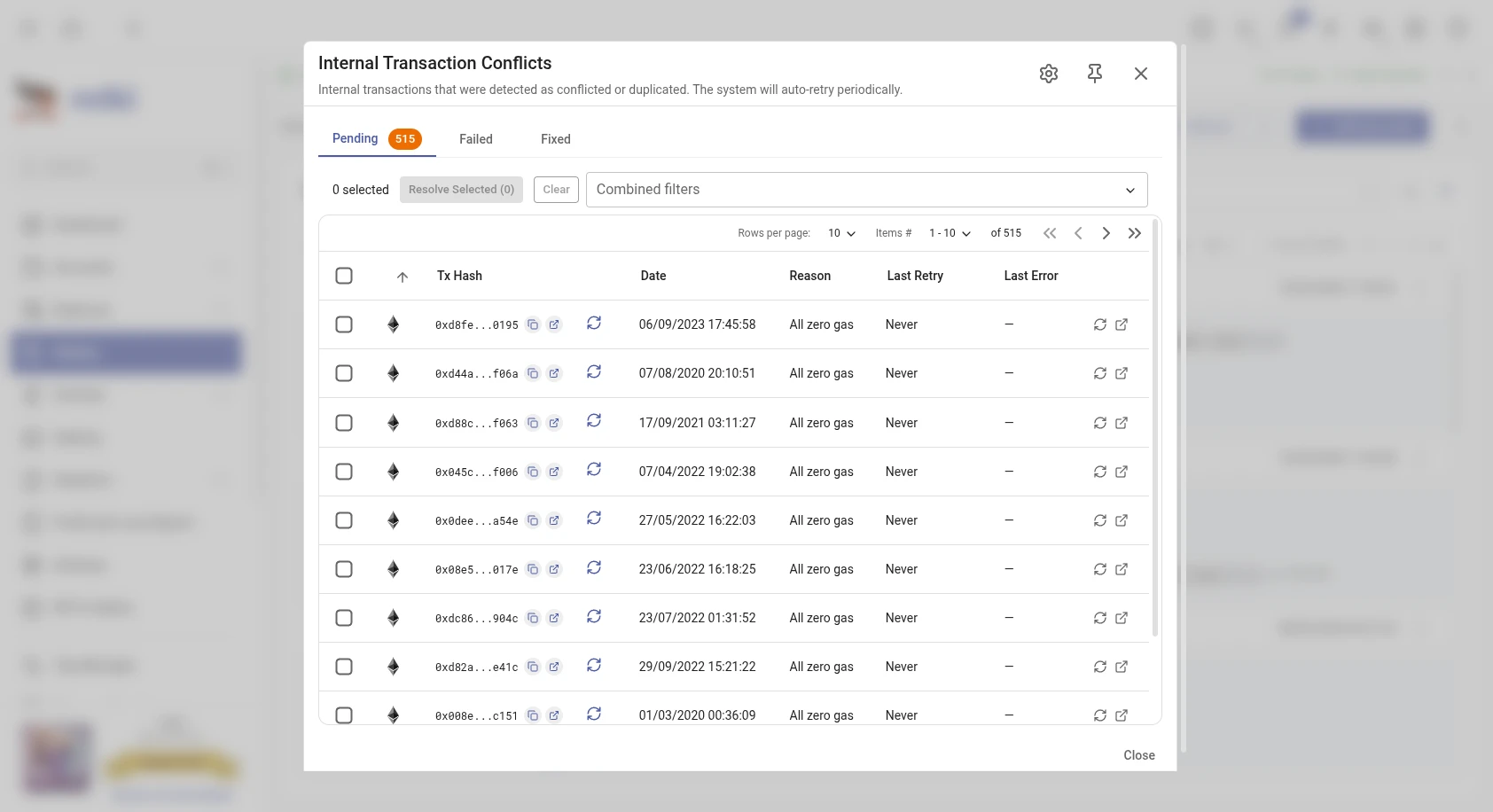
Each conflict shows the transaction hash, chain, action type (repull or fix & redecode), timestamp, reason, last retry time, and any error from the last attempt. You can filter the list by chain or date range using the combined filters.
How to resolve
Resolve individually - Click the refresh button on a specific conflict to trigger resolution for that transaction.
Resolve in bulk - Select multiple conflicts using the checkboxes and click
Resolve Selectedto process them all at once. A progress indicator will show the current status, and you can cancel the operation at any time.Automatic resolution - rotki will periodically attempt to resolve pending conflicts in the background. Conflicts that have never been retried are prioritized first, followed by those with the oldest retry timestamps. You can configure how often and how many conflicts are processed per run (see Settings below).
TIP
If you have manually customized any history events for a conflicting transaction, your edits are preserved. For fix & redecode conflicts, redecoding is skipped on customized transactions to protect your changes.
Failed conflicts
When a conflict resolution attempt fails (e.g., the data source is temporarily unavailable or returns an error), the conflict is moved to the Failed tab. This tab shows all conflicts where the last resolution attempt was unsuccessful, along with the error message from the last attempt.
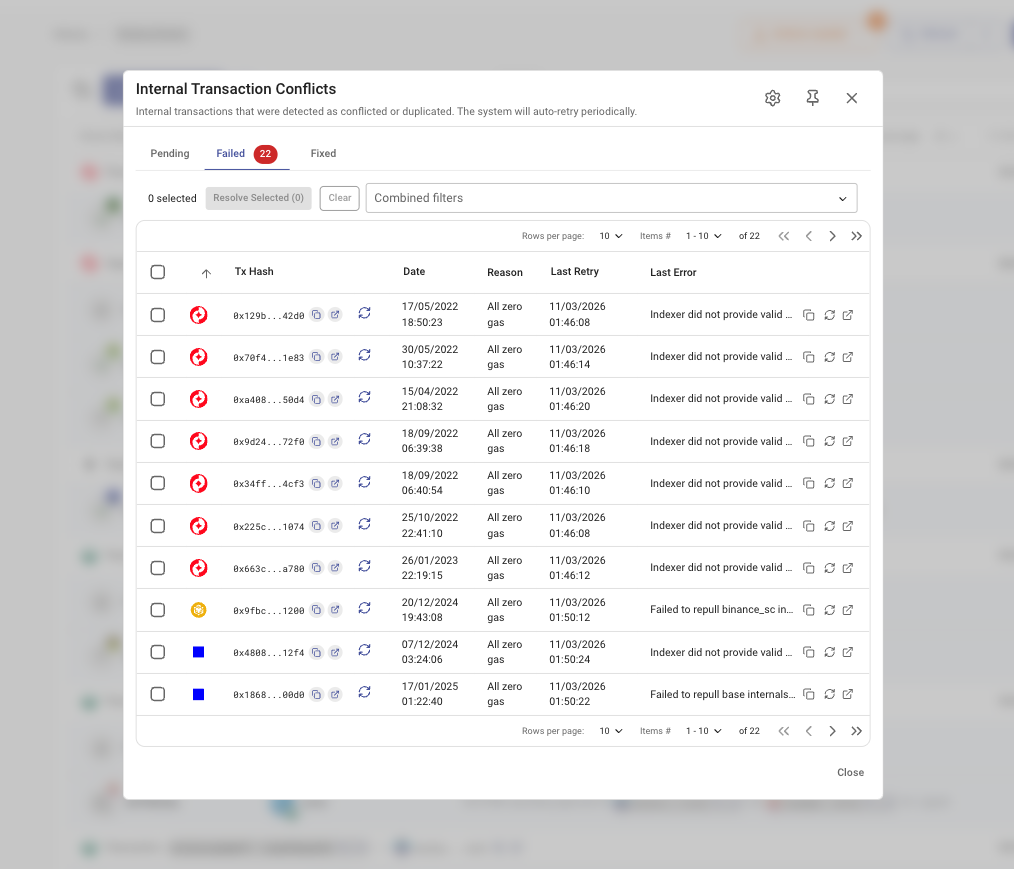
You can retry failed conflicts at any time by selecting them and clicking Resolve Selected, or by clicking the refresh button on individual entries. The automatic resolution system will also periodically retry failed conflicts.
Pinning to sidebar
You can pin the conflicts panel to the side of the History Events page by clicking the pin icon in the dialog header. This allows you to browse your history events while keeping the conflicts list visible for reference.
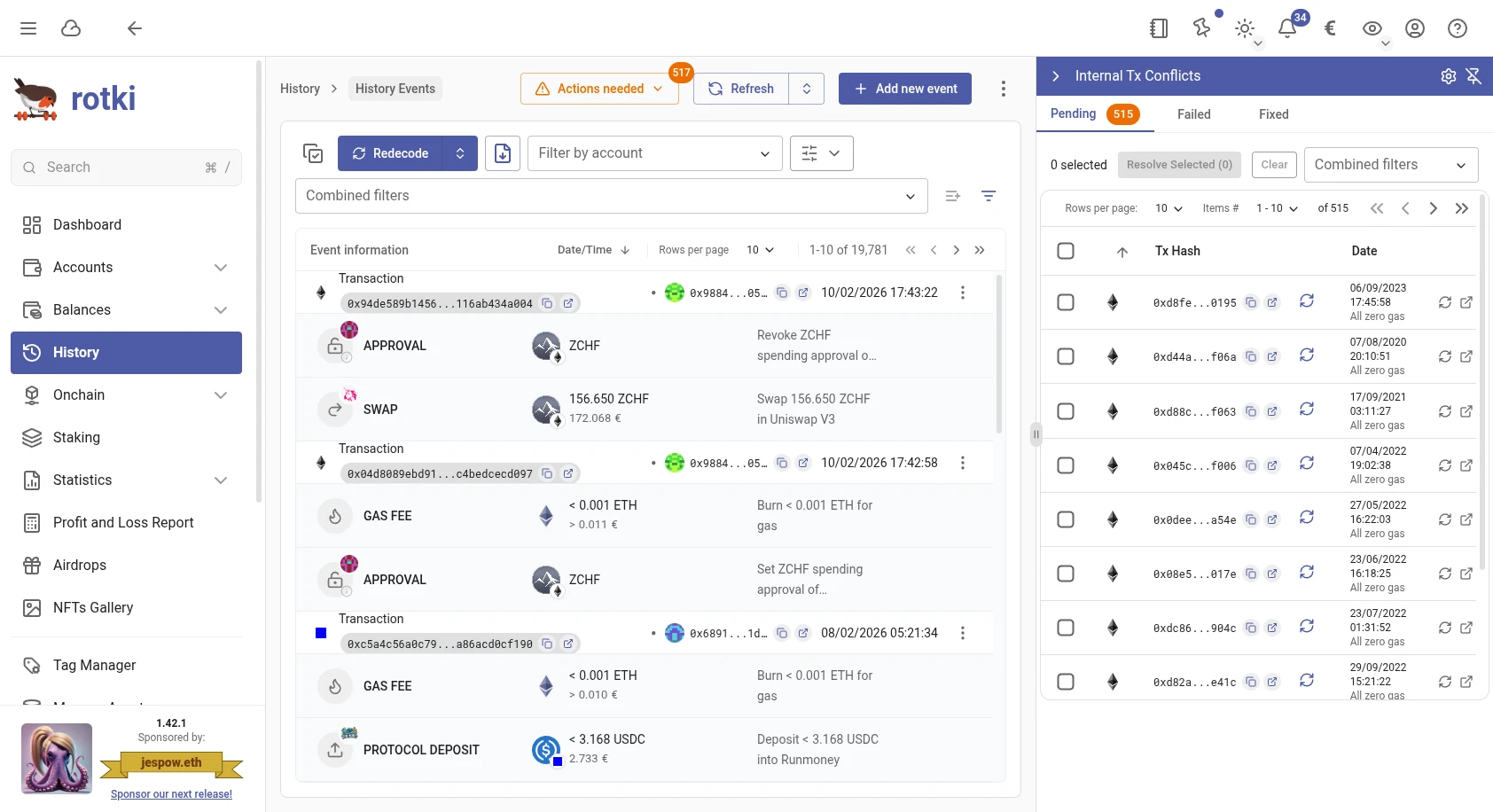
Show in history events
Click the external link icon on a conflict to highlight the corresponding transaction in the History Events view. If the panel is not already pinned, this will automatically pin it, allowing you to browse conflicts and events side-by-side.
Internal transaction conflict settings
You can configure the automatic conflict resolution behavior by clicking the gear icon in the dialog header.
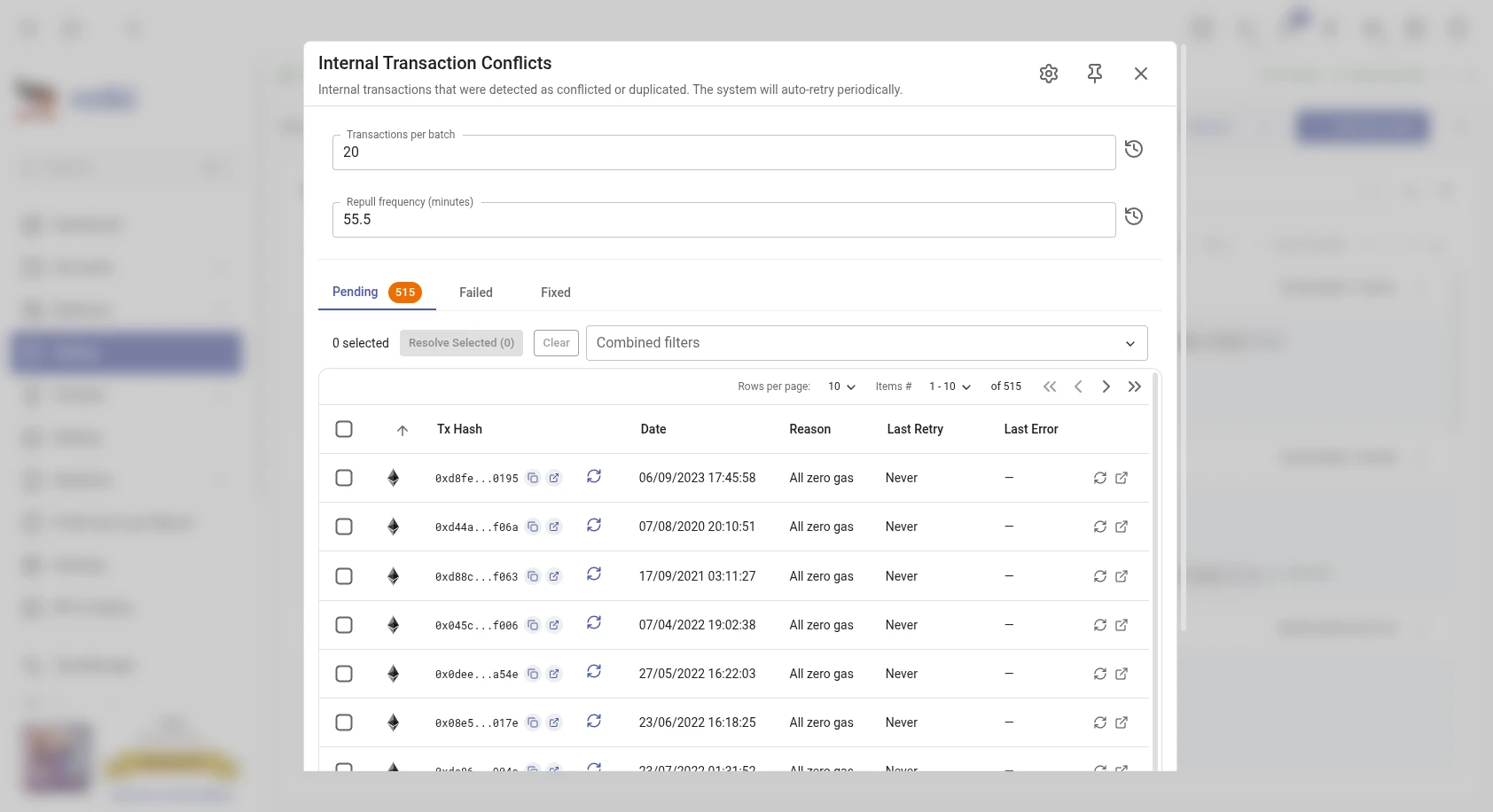
Two settings are available:
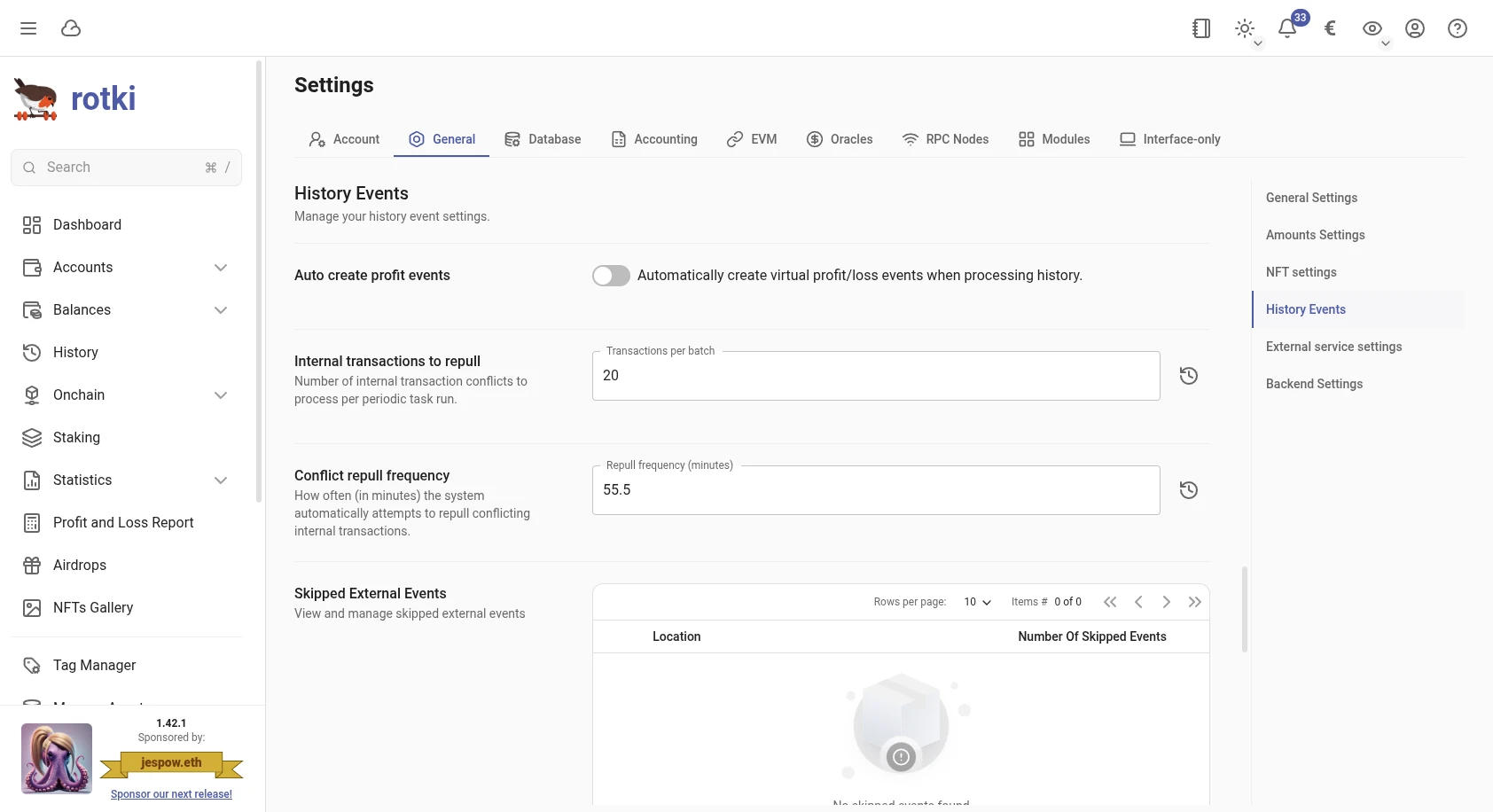
- Transactions per batch - The number of conflicts to process per periodic task run (default: 20, minimum: 1).
- Repull frequency (minutes) - How often the system automatically attempts to resolve conflicts (default: 60 minutes, minimum: 0.5 minutes).
These settings are also available in Settings > General > History Events.